

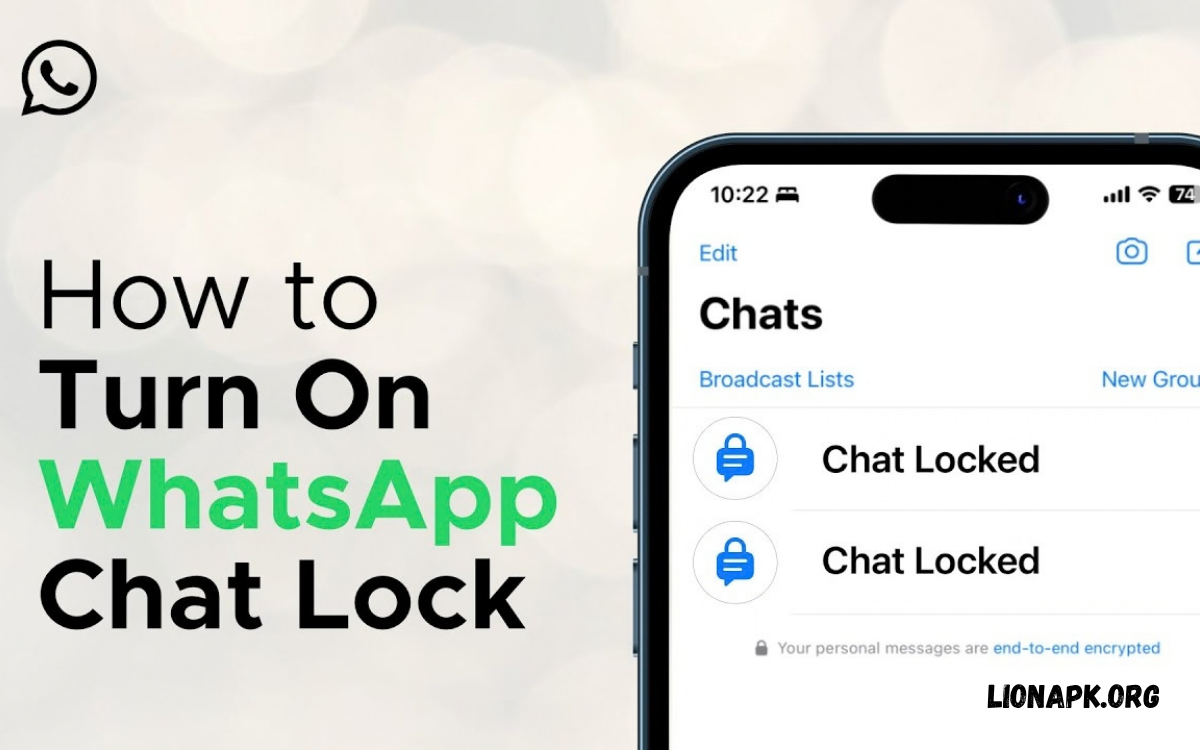
WhatsApp offers a built-in Chat Lock feature that protects private conversations from unauthorized access. Users can move selected chats into a separate locked folder, which requires device authentication to open. This feature adds privacy without deleting messages or changing normal chat functionality.
Learning How to Lock WhatsApp Chats helps users protect personal conversations, family messages, and sensitive information. WhatsApp Chat Lock works with supported authentication methods, including fingerprint recognition, Face ID, or the device’s passcode, depending on the phone and operating system.
What Is WhatsApp Chat Lock?
WhatsApp Chat Lock is a privacy feature that lets users secure individual conversations. After you lock a chat, WhatsApp moves it into a dedicated Locked Chats folder instead of showing it with your regular conversations. Access requires the authentication method configured on the device.
This feature helps people who share their phones with family members or occasionally lend devices to friends. Chat Lock adds another layer of protection for selected conversations while keeping other WhatsApp chats accessible through the normal chat list.
How to Lock WhatsApp Chats on Android
Locking WhatsApp chats on Android is straightforward when the app supports Chat Lock. First, open WhatsApp and navigate to the conversation you want to protect. Tap the contact’s name or group name to open the chat information screen and locate the Chat Lock option.
Enable Chat Lock and follow the instructions displayed on the screen. Depending on your device, WhatsApp may request fingerprint authentication, a device passcode, or another supported security method. After completing the setup, return to your chat list and check the Locked Chats folder.
How to Lock WhatsApp Chats on iPhone
iPhone users can also protect individual conversations through WhatsApp Chat Lock. Open WhatsApp, select the conversation you want to secure, and tap the contact’s name or group name at the top of the screen. Find Chat Lock in the available chat settings.
Turn on the feature and complete the authentication steps WhatsApp presents. Depending on your iPhone configuration, you may use Face ID or your device passcode. Once the chat is locked, open the Locked Chats folder and authenticate whenever you need to access the protected conversation.
How to Find Locked Chats on WhatsApp
After you lock a conversation, WhatsApp moves it to the Locked Chats folder. Open WhatsApp and look near the top of the Chats screen for the folder. Depending on your app version and settings, you may need to pull down on the chat list to reveal it.
Tap Locked Chats and complete the requested authentication to view protected conversations. The folder keeps selected chats separate from the regular inbox, making private conversations easier to manage. If you cannot find the folder, check whether you enabled a secret code that hides it.
How to Set a Secret Code for Locked Chats
WhatsApp offers a secret code option for supported versions of Chat Lock. This option can provide additional privacy by allowing users to hide the Locked Chats folder from the main chat list. A secret code may be a word, phrase, or other supported characters, depending on the interface.
To configure this feature, open your Locked Chats settings and look for the secret code option. Follow WhatsApp’s instructions to create and confirm your code. Keep it somewhere secure and memorable.
How to Lock WhatsApp Group Chats
WhatsApp Chat Lock can protect supported group conversations and individual chats. This is useful for private family groups, school discussions, project teams, and other conversations containing information you do not want casually visible to someone using your phone.
Open the group conversation, tap its name, and look for Chat Lock in the group information settings. Enable the feature and complete the required authentication. The group will then appear in Locked Chats rather than the regular chat list. Available options may differ according to your WhatsApp version.
How to Unlock WhatsApp Chats
Unlocking a conversation returns it to your regular WhatsApp chat list. Open the Locked Chats folder and authenticate to access the protected conversation. Select the relevant chat, tap the contact’s or group’s name, and locate the Chat Lock setting.
Turn off Chat Lock and confirm your choice using the requested authentication method. WhatsApp will move the conversation back to the regular chat list. Unlocking a chat does not normally delete its messages, photos, or videos, but it removes the additional protection provided by Chat Lock.
How to Lock WhatsApp Chats Without Fingerprint
Some users prefer not to use fingerprint recognition. Depending on the device and WhatsApp version, Chat Lock may support other authentication methods, such as a device passcode, phone password, or Face ID on compatible Apple devices.
Check your phone’s security settings and the authentication options WhatsApp offers. If your device supports only a particular method for Chat Lock, you may need to configure that method before enabling the feature.
Does WhatsApp Chat Lock Hide Notifications?
WhatsApp Chat Lock is designed to provide greater privacy for selected conversations. Notifications from locked chats generally do not display the message content or sender details in the usual way. This reduces the chance of private information appearing on your phone’s lock screen or in the notification panel.
However, notification behavior can depend on your device settings and WhatsApp version. Review your notification previews, lock-screen settings, and privacy options for additional protection.
Read Also: How to Transfer Files on Android
How to Lock WhatsApp Chats on WhatsApp Web
WhatsApp Web and linked devices may offer different chat privacy options depending on the current version and supported features. Chat Lock availability and the way locked conversations appear can differ between mobile apps, browsers, and desktop applications.
For the most reliable setup, enable Chat Lock on your primary phone first. Then review your linked-device settings and ensure you understand how private conversations are displayed across connected devices.
Benefits of Locking WhatsApp Chats
The main benefit of WhatsApp Chat Lock is improved privacy for selected conversations. Users can keep personal messages separate from everyday chats, reducing casual access when someone borrows their phone.
Chat Lock offers flexibility because users can protect specific conversations rather than locking the entire application. This is especially helpful when most chats don’t require extra security.
WhatsApp Chat Lock vs. App Lock
WhatsApp Chat Lock and phone-level App Lock serve different purposes. Chat Lock protects selected conversations inside WhatsApp, while an App Lock feature, when available on a device, can restrict access to the entire WhatsApp application. The best option depends on how much privacy you need.
Users who want to protect only a few conversations may prefer Chat Lock. People who want to prevent others from opening WhatsApp altogether can consider the application’s built-in screen lock or a supported device-level App Lock.
Common WhatsApp Chat Lock Problems and Solutions
Sometimes users cannot find the Chat Lock option or cannot access their locked conversations. First, update WhatsApp through the official app store, restart the application, and check the chat information screen again.
If a secret code hides the Locked Chats folder, follow the current WhatsApp instructions for finding hidden chats. Avoid repeatedly changing security settings without understanding their effects. If the feature still does not appear, consult the official WhatsApp Help Center for instructions specific to your operating system and app version.
Tips for Keeping WhatsApp Chats Private
Chat Lock is only one part of protecting private conversations. Use a strong phone passcode, keep WhatsApp updated, and avoid sharing authentication details with other people. Review linked devices regularly and remove sessions you no longer recognize or need.
Also review WhatsApp’s privacy settings, including who can see your profile information, status updates, and last-seen information. Disable notification previews when appropriate, use two-step verification to protect your account, and remain cautious about suspicious links.
Frequently Asked Questions
Can I lock a single WhatsApp chat?
Yes. WhatsApp Chat Lock is designed to protect individual supported conversations. Open the chat information screen, select Chat Lock, and follow the authentication instructions. You can choose which conversations need extra privacy without locking every chat in your inbox.
Can I lock WhatsApp chats with a password?
WhatsApp Chat Lock generally uses your device’s supported authentication method. A secret code may also be available for the Locked Chats feature. The exact options depend on your phone, WhatsApp version, and regional availability, so check the settings displayed in your application.
Will locking a WhatsApp chat delete messages?
No. Enabling Chat Lock does not normally delete the conversation or its existing messages. The chat is moved to a protected folder. Unlocking it returns the conversation to the regular chat list without intentionally removing its message history.
Can I hide the Locked Chats folder?
Yes, if your WhatsApp account has the secret code feature. You can set up a code to hide the folder from the main chat list. Follow WhatsApp’s current instructions to set up and use this option.
Is WhatsApp Chat Lock completely secure?
Chat Lock adds privacy, but no single feature guarantees complete protection in every situation. Use a strong device passcode, secure your WhatsApp account, review linked devices, and keep your application updated to reduce security risks.
Conclusion
Understanding How to Lock WhatsApp Chats makes it easier to protect personal conversations without changing how you use WhatsApp every day. The built-in Chat Lock feature separates selected chats from the regular inbox and requires supported authentication before access.
For stronger privacy, combine Chat Lock with a secure phone passcode, careful notification settings, two-step verification, and regular linked-device reviews. Keep WhatsApp updated and check your device’s latest settings to make the most of its available privacy features.
