

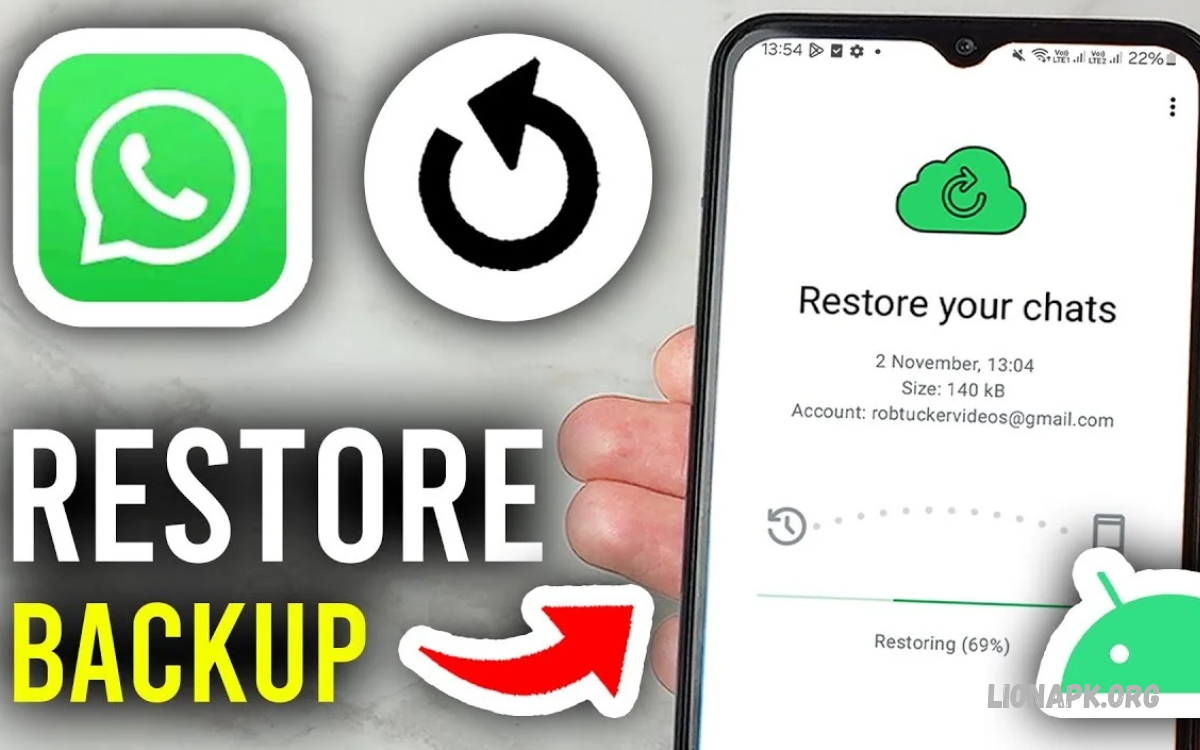
Restoring WhatsApp chats helps you recover important conversations, photos, videos, and documents after changing phones, reinstalling the app, or resetting your device. The correct method depends on your phone, backup settings, and account details.
This guide explains How to Restore WhatsApp Chats on Android and iPhone with step-by-step instructions, troubleshooting tips, and useful answers to common questions. Follow the method that matches your device to improve your chances of recovering your conversations.
Understanding WhatsApp Chat Restoration
WhatsApp chat restoration uses an existing backup to bring previously saved conversations and media back to your account. Android devices generally use Google Drive backups, while iPhones use iCloud backups.
Your ability to recover messages depends on whether a suitable backup exists and whether you can access the required Google or Apple account. Messages created after the most recent backup might not appear in the restored chat history.
How to Restore WhatsApp Chats on Android
Android users can restore WhatsApp conversations through a Google Drive backup or an available local backup. Before starting, confirm that your phone uses the Google account associated with the original backup.
You should also use the same phone number associated with the backup. Make sure your internet connection is stable and your device has enough storage space for the messages and media you want to recover.
Restore WhatsApp Chats Using Google Drive
First, add the Google account containing your WhatsApp backup to your Android phone. Install or reinstall the official WhatsApp application, verify your original phone number, and allow the application to search for an available backup.
When WhatsApp finds your backup, select Restore and wait for the messages to load. Media files may continue downloading afterward, so keep your phone connected to Wi-Fi until the restoration process is complete.
Check Your Google Drive Backup
Before reinstalling WhatsApp, check the backup information in WhatsApp settings if you can still access the application. Open Settings, select Chats, and then choose Chat backup to review the last backup date and available backup settings.
Confirm that the Google account shown is the one you intend to use for restoration. If the backup is missing, check your account, phone number, internet connection, and available Google storage before proceeding.
Restore WhatsApp Chats After Reinstalling the App
If you have already removed WhatsApp, reinstall it from the Google Play Store and verify your phone number. When prompted, allow WhatsApp to find the available Google Drive backup and follow the on-screen restoration instructions.
Avoid skipping the restoration prompt if recovering your old conversations is important. If you skip it, you may need to reinstall the application and repeat the setup process to try again, provided the backup remains available.
How to Restore WhatsApp Chats on iPhone
iPhone users can restore WhatsApp conversations from an existing iCloud backup. Before starting, sign in to the Apple Account used for the original backup and make sure iCloud Drive is enabled for WhatsApp.
Open WhatsApp and navigate to Settings → Chats → Chat Backup if the app is still accessible. Check the latest backup date and size, then reinstall WhatsApp, verify your phone number, and select Restore Chat History when prompted.
Restore WhatsApp Chats from iCloud
Make sure your iPhone has a stable internet connection and sufficient free storage before restoring your messages. You must use the same phone number and Apple Account associated with the original backup for the standard iCloud restoration process.
After verification, tap Restore Chat History and allow the download to finish. Keep your iPhone connected to Wi-Fi and, if possible, a charger while WhatsApp restores conversations and media files in the background.
Check iCloud Settings Before Restoration
If WhatsApp cannot find your backup, open your iPhone settings and check whether iCloud Drive is enabled. Also confirm that WhatsApp has permission to use iCloud and that you are signed in to the correct Apple Account.
Check available storage on both your iPhone and iCloud because insufficient space can interrupt restoration. If everything appears correct but the backup remains unavailable, update WhatsApp and iOS, restart your device, and try again.
How to Restore WhatsApp Chats on a New Phone
Changing phones does not necessarily mean losing your WhatsApp conversations. You can restore chats from a compatible cloud backup or transfer them directly from your previous device, depending on your operating systems and the available transfer options.
Before beginning, make sure your old phone is accessible whenever a direct transfer is required. Check the backup date, update WhatsApp on both devices, and avoid erasing the old phone until you have confirmed that your important conversations are available on the new device.
Transfer Chats Between Android Phones
If both devices use Android, WhatsApp supports transferring chat history directly from your old phone or restoring a Google Account backup. On the old device, open WhatsApp, go to Settings → Chats → Chat backup, and create a fresh backup if you intend to use the cloud method.
Install WhatsApp on your new Android phone, verify the same number, and follow the prompts to transfer chats from the old phone or restore from backup. Keep both devices nearby and follow the on-screen instructions until the process finishes.
Transfer Chats Between iPhones
If you still have your previous iPhone, you may be able to restore from iCloud or use WhatsApp’s supported chat-transfer process. A current backup provides an additional recovery option if the direct transfer does not work as expected.
For an iCloud restoration, install WhatsApp on the new iPhone, verify the same phone number, and select Restore Chat History when the option appears. Keep the old device until you have checked that the conversations and important media have transferred successfully.
How to Transfer WhatsApp Chats Between Android and iPhone
Moving from Android to iPhone or iPhone to Android requires a different process from restoring a backup on the same operating system. Google Drive backups cannot be restored directly as iPhone WhatsApp backups, and iCloud backups cannot be restored directly as Android WhatsApp backups.
Use WhatsApp’s supported cross-platform transfer method rather than assuming that signing in to the same account will move every conversation automatically. Review the instructions for your particular devices before starting, because some transfer methods require the new phone to be in its initial setup stage.
Move WhatsApp Chats from Android to iPhone
To move WhatsApp chats from Android to iPhone, Apple’s Move to iOS process supports transferring WhatsApp data during iPhone setup. You generally need access to the Android phone, a compatible iPhone, a stable connection, and the same phone number for WhatsApp registration.
Follow Apple’s on-screen transfer instructions and select WhatsApp data when the option is offered. Once the transfer is complete, open WhatsApp on the iPhone, verify your number, and follow the import prompts; then create an iCloud backup to protect your transferred history.
Move WhatsApp Chats from iPhone to Android
For an iPhone-to-Android transfer, use the supported data-transfer procedure offered during setup on your new Android device. Depending on the phone model, the process may require a cable or other on-screen connection steps, so follow the manufacturer’s instructions carefully.
Do not expect your iCloud backup to appear as a normal Android Google Drive backup. Complete the official transfer first, check that your chats are present, and then create a new Google Account backup from WhatsApp on Android.
How to Restore WhatsApp Chats Without a Backup
Restoring WhatsApp chats without a cloud backup can be difficult because WhatsApp doesn’t store your full chat history on its servers for you to download later. However, Android users may have an available local backup, and users with their previous phone may still be able to transfer conversations directly.
Before trying recovery methods, check whether your old phone still contains WhatsApp data or an accessible backup file. Avoid clearing app data, factory-resetting your phone, or deleting potentially useful backup files until you have checked the available recovery options.
Read Also: How to Hide WhatsApp Chats on Android and iPhone
Restore Chats Using a Local Android Backup
Some Android phones contain local WhatsApp backup files stored in the device’s internal storage. If a suitable file exists, it may help recover older conversations, depending on its date, integrity, and compatibility with your WhatsApp installation.
Look for the available local-backup options using your phone’s file manager, and avoid changing or deleting unfamiliar files. If you are unsure how to use a local backup, consult WhatsApp’s official guidance before reinstalling the app or modifying its data.
Recover Chats When No Backup Exists
If you have no cloud backup, no usable local backup, and no old device containing the conversations, recovery may not be possible. Messages created after the last successful backup also cannot normally be restored from that older backup.
Be cautious of applications or websites promising guaranteed WhatsApp message recovery. Avoid sharing verification codes, account passwords, or backup encryption keys with unknown services, and use official WhatsApp support when you need help with your account.
How to Fix WhatsApp Chat Restoration Problems
WhatsApp restoration may fail because of an incorrect account, a different phone number, insufficient storage, a weak internet connection, or a damaged backup. Identify the likely cause before repeating the restoration process, especially if you have already installed WhatsApp and started receiving new messages.
Start with simple checks: confirm your account details, connect to reliable Wi-Fi, update WhatsApp, restart your phone, and check available storage. These steps can help resolve common restoration problems without risking unnecessary changes to your existing data.
WhatsApp Backup Is Not Showing
If no backup appears during setup, verify that you are using the same Google Account on Android or the same Apple Account on iPhone. Confirm that the original backup was completed successfully and that the phone number matches the account associated with the backup.
If the correct account is already selected, check cloud storage, internet access, and backup settings. You can also restart the phone and repeat the setup process, but first consider any new messages that could be lost when reinstalling or resetting the app.
WhatsApp Restoration Gets Stuck
A restoration process can take longer when the backup contains many messages, photos, videos, and documents. Keep your phone connected to a stable network, ensure adequate storage, and avoid interrupting the process unnecessarily.
If progress stops completely, restart your device and check for WhatsApp updates. On iPhone, confirm that iCloud Drive is enabled; on Android, check Google Play services and your Google Account settings.
Tips to Prevent WhatsApp Chat Loss
Regular backups make future restoration easier when your phone is lost, damaged, reset, or replaced. Open WhatsApp’s Settings → Chats → Chat backup menu and choose a suitable automatic backup frequency for your usage.
Check the latest backup date periodically, especially before changing phones or reinstalling the application. Include videos if you want them backed up, keep enough cloud and device storage available, and protect encrypted backups with credentials you can safely retrieve when needed.
Another useful precaution is to verify your conversations on the new device before erasing your old phone. Save particularly important documents separately when appropriate, and remember that restoring an older backup may not include messages received after that backup was created.
Frequently Asked Questions
Can I Restore WhatsApp Chats Without Google Drive or iCloud?
Sometimes. An Android local backup or a direct transfer from your old phone may help, but recovery depends on the data that remains available. If no backup or usable copy of your chat history exists, recovery may not be possible.
Can I Restore Chats Using a Different Phone Number?
Standard restoration requires the phone number associated with the backup. If you plan to change numbers, use WhatsApp’s number-change feature on your old phone before transferring chats whenever possible, and follow the official instructions for your device.
Can I Restore WhatsApp Chats from Android to iPhone?
Yes, through a supported cross-platform transfer process. A Google Drive backup cannot be restored directly as an iCloud backup, so use the official transfer method compatible with your devices.
Will Restoring Chats Recover Every Deleted Message?
No. Restoration recovers information available in the backup or transferred chat history. Messages that were never backed up or included in a transfer generally cannot be recovered through that backup.
Why Are Some Photos or Videos Missing?
Media files may still be downloading, or the original backup may not include them. Check your backup settings, internet connection, available storage, and whether the media was present on your previous device.
Conclusion
Learning how to restore WhatsApp Chats on Android and iPhone can help you recover important conversations when switching devices, reinstalling WhatsApp, or recovering from a phone problem.
For the best results, verify the correct account and phone number, check your latest backup, and make sure you have enough storage before you start. Regular backups and careful device transfers can reduce the risk of losing important conversations in the future.
