

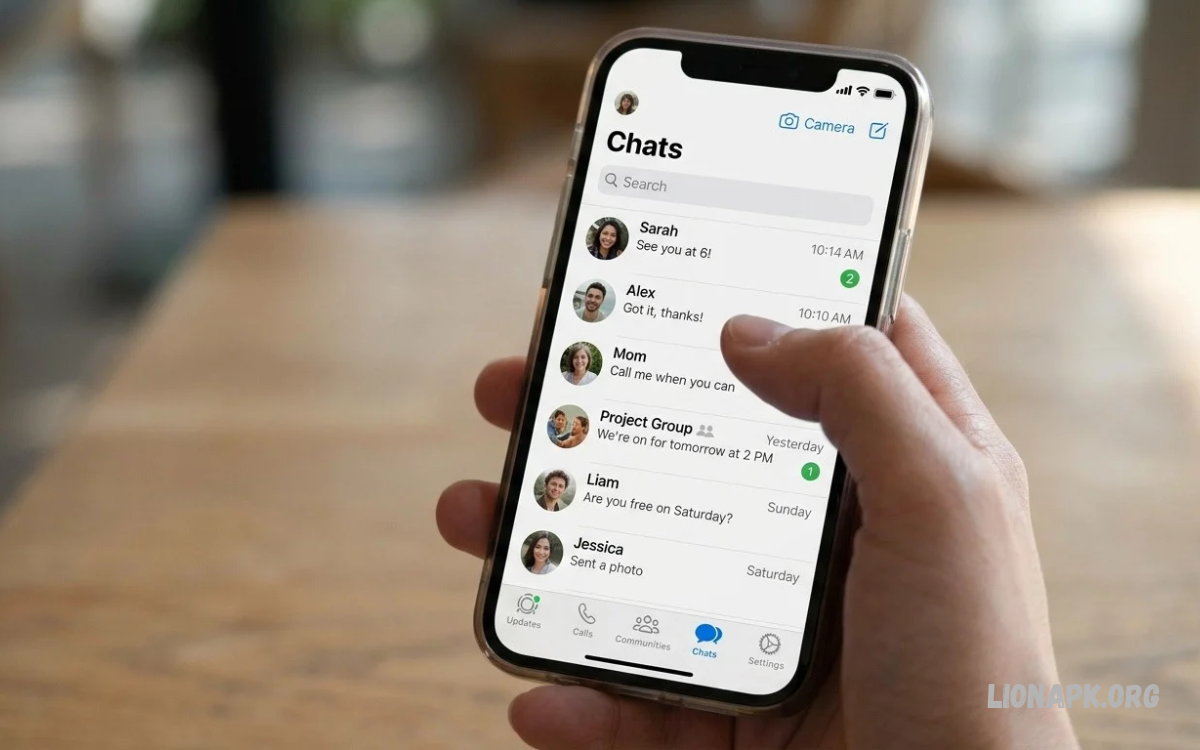
WhatsApp is a popular messaging application that helps iPhone users communicate through text messages, voice calls, video calls, photos, videos, and documents. Its simple interface makes it easy to stay connected with friends, family, classmates, and colleagues.
Learning how to use WhatsApp on iPhone helps you explore essential features, manage conversations, protect your privacy, and share media conveniently. This guide explains everything from installation and account setup to advanced messaging tools.
How to Download WhatsApp on iPhone
WhatsApp is available through Apple’s App Store. Before downloading the application, make sure your iPhone has a compatible iOS version, an internet connection, and enough available storage for installation and future updates.
Open the App Store, search for WhatsApp Messenger, and select the official application published by WhatsApp LLC. Tap Get, authenticate if requested, and wait for the installation to finish before opening the application.
How to Set Up WhatsApp on iPhone
After installing WhatsApp, open the application and review the welcome screen. Accept the required terms, enter your mobile phone number, and select the correct country code to start verifying your account.
WhatsApp will send a verification code through an available supported method. Enter the code to confirm your number, then add your name and, if desired, a profile photo. Only share verification codes with the official app when you’re logging in.
How to Understand the WhatsApp Interface
WhatsApp provides a straightforward interface for accessing chats, calls, status updates, and settings. Depending on your app version, these sections may appear in a bottom navigation bar or another updated layout.
The Chats section contains your conversations, while Calls helps you review or start voice and video calls. Updates provides access to status updates and related features, and Settings lets you manage your profile, privacy, notifications, storage, and backups.
How to Send Messages on WhatsApp
Sending a message is one of the easiest ways to communicate through WhatsApp. Open the Chats section, select an existing conversation, or tap the new-chat icon to choose a contact from your address book.
Type your message in the text field and tap the send icon. You can send individual messages, reply to specific messages, and use emojis to express yourself. Your contact must have an accessible WhatsApp account to communicate through the service.
How to Send Photos, Videos, and Documents
WhatsApp lets iPhone users share photos, videos, documents, and other supported files directly within conversations. Open a chat, tap the plus icon beside the message field, and select the type of content you want to share.
Choose the required photo, video, or document, review it, and send it to your contact. You can also adjust available media options before sending. Check file size limits and privacy settings when sharing sensitive documents or personal photographs.
How to Make Voice and Video Calls
WhatsApp supports internet-based voice and video calls, allowing users to communicate without relying on traditional mobile calling minutes. Call quality depends on your internet connection, device performance, and the recipient’s connection.
Open a conversation and tap the phone icon for a voice call or the video camera icon for a video call. Alternatively, open the Calls section to start a call with a contact. Allow microphone and camera access when prompted if you want to use these features.
How to Create a WhatsApp Group on iPhone
WhatsApp groups help several people communicate in one shared conversation. They are useful for family discussions, school projects, event planning, and teamwork because members can exchange messages and supported media in one place.
Open WhatsApp, select the new-chat option, and choose New Group if available. Select the contacts you want to include, tap Next, enter a group name, and create the group. Group administrators can manage members and adjust available group permissions.
How to Use WhatsApp Status on iPhone
WhatsApp Status allows you to share photos, videos, text, and other supported updates that disappear after 24 hours. It offers a convenient way to share everyday moments without sending separate messages to every contact.
Open the Updates section and choose Create status. Select a photo or video, add text or stickers if available, and publish it. Review your status privacy settings to control which contacts can view your updates.
How to Send Voice Messages on WhatsApp
Voice messages are useful when typing is inconvenient or when you want to sound more natural. WhatsApp lets you record and send audio directly within an individual or group conversation.
Open a chat and press or slide the microphone control according to the interface displayed on your iPhone. Record your message, release or confirm it as required, and send it. Listen carefully before sharing private information through a voice recording.
How to Share Your Location on WhatsApp
WhatsApp allows you to share your current location or, where supported, your live location with selected contacts. This feature can help coordinate a meeting or let trusted people know where to find you.
Open the relevant conversation, tap the plus icon, and select Location if available. Follow the prompts to share the desired location type. Share location information only with people you trust, and stop live-location sharing when it is no longer necessary.
How to Use WhatsApp Privacy Settings
Privacy settings help you control who can see details such as your profile photo, About information, last seen, online status, and status updates. The available options may vary depending on your WhatsApp version and account configuration.
Open WhatsApp Settings and select Privacy. Review each option and choose the audience that suits your needs. You can also manage blocked contacts, group invitations, read receipts, and other privacy features to improve control over your conversations.
How to Enable Two-Step Verification
Two-step verification adds an extra layer of protection to your WhatsApp account. It uses a PIN that may be requested when your phone number is registered with WhatsApp again, helping protect your account against unauthorized registration.
Open Settings, select Account, and choose Two-step verification if that option appears in your version. Follow the instructions to create a PIN and add a recovery email address if offered. Keep your PIN private and use an email address you can access.
How to Back Up WhatsApp Chats on iPhone
Backing up WhatsApp conversations helps protect messages when you replace an iPhone, reinstall the app, or run into device problems. On iPhone, WhatsApp generally uses iCloud for chat backups, so make sure you’re signed in to the correct Apple Account and that iCloud settings are correct.
Open WhatsApp Settings, select Chats, and tap Chat Backup. Review the latest backup date and choose Back Up Now to create a backup when available. You can set up automatic backups and choose whether to include videos, depending on your storage needs.
How to Restore WhatsApp Chats on iPhone
Restoring chats helps recover conversations from an existing WhatsApp iCloud backup. Before you start, confirm you can access the Apple Account associated with the backup and know the phone number used for the original WhatsApp account.
Install or reinstall WhatsApp, verify your phone number, and follow the prompt to restore chat history from iCloud. Keep your iPhone connected to a reliable Wi-Fi network. Restoration depends on backup availability, account details, and sufficient device and cloud storage.
Read Also: How to Hide Online Status on WhatsApp
How to Use WhatsApp Web with an iPhone
WhatsApp Web lets you access supported WhatsApp conversations through a computer browser. It is convenient for typing longer messages, managing work discussions, or sharing files from a computer instead of your phone.
Open WhatsApp on your computer through the official WhatsApp Web website. On your iPhone, open WhatsApp Settings and look for Linked Devices, then choose the option to link a device. Scan the displayed QR code and follow the on-screen instructions.
How to Manage WhatsApp Notifications
Notifications help you recognize new messages and calls without opening WhatsApp repeatedly. iPhone users can customize notification preferences to reduce distractions while keeping important conversations easy to find.
Open iPhone Settings, select Notifications, and choose WhatsApp. Adjust available options for alerts, sounds, banners, and previews. You can also mute individual chats or groups within WhatsApp when you need fewer interruptions during study, work, or rest.
How to Manage WhatsApp Storage
Photos, videos, voice messages, and documents can occupy considerable space on your iPhone. WhatsApp includes storage-management tools that help identify large files and conversations using significant amounts of space.
Open WhatsApp Settings, select Storage and Data, and choose Manage Storage if available. Review large files and forwarded media before deleting anything. Check important conversations carefully, because deleting a file may remove your local copy and could affect your ability to access it later.
How to Use WhatsApp on a New iPhone
When moving to a new iPhone, you can restore a compatible iCloud backup or use an official transfer method supported by WhatsApp. Preparing the old device before switching helps reduce the chance of losing recent conversations.
On your old iPhone, check the latest chat backup or review WhatsApp’s chat-transfer options. Set up WhatsApp on the new device using the required phone number and follow the supported restoration or transfer instructions. Confirm that your important chats and media are available before erasing the old phone.
Common WhatsApp Problems on iPhone
WhatsApp may occasionally experience message-delivery delays, call interruptions, notification issues, or backup errors. These problems can result from weak internet access, outdated software, insufficient storage, or incorrect device settings.
Check your Wi-Fi or mobile data connection, update WhatsApp through the App Store, and review the relevant iPhone permissions. If backups fail, verify iCloud access and available storage. Restarting the device may help, but confirm that important conversations are backed up before reinstalling the application.
Tips for Using WhatsApp Safely
Safe WhatsApp habits help protect your conversations, personal information, and account access. Avoid opening suspicious links, downloading unknown files, or sharing private information with unfamiliar contacts.
Keep WhatsApp and iOS updated, enable two-step verification, and review linked devices regularly. Never share your verification code or PIN with another person. Adjust privacy settings to your comfort level and report or block accounts that send unwanted or suspicious messages.
Frequently Asked Questions
Is WhatsApp free to use on iPhone?
WhatsApp is free to download and use for messaging and internet-based calls. However, it uses Wi-Fi or mobile data, so your internet provider may charge for data usage depending on your plan.
Can I use WhatsApp on an iPhone without a SIM card?
WhatsApp requires a phone number for account registration and verification. After successful setup, the app may work over Wi-Fi without the SIM remaining in the device, provided your account stays active and you can complete any required verification.
How can I transfer WhatsApp chats to a new iPhone?
You can generally restore chats from a compatible iCloud backup or use an official WhatsApp transfer option. Check the latest backup date and follow the instructions for your devices before erasing or trading in your old iPhone.
Why are WhatsApp notifications not working?
Notifications may be disabled in iPhone settings, muted within WhatsApp, or affected by Focus settings. Check notification permissions, internet access, and background settings, then restart the app if necessary.
Can I use WhatsApp on multiple devices?
Yes. WhatsApp supports linked devices, allowing you to access your account on supported computers and additional devices. Open Linked Devices in WhatsApp settings and follow the official linking process for each device.
Conclusion
Learning How to Use WhatsApp on iPhone helps you communicate, share media, make calls, manage groups, and protect your personal information. With a few simple steps, you can set up your account and confidently use the app’s main features.
For a better experience, keep WhatsApp updated, enable regular backups, and review privacy settings frequently. These habits help protect important conversations and make WhatsApp a practical tool for everyday communication on your iPhone.
