

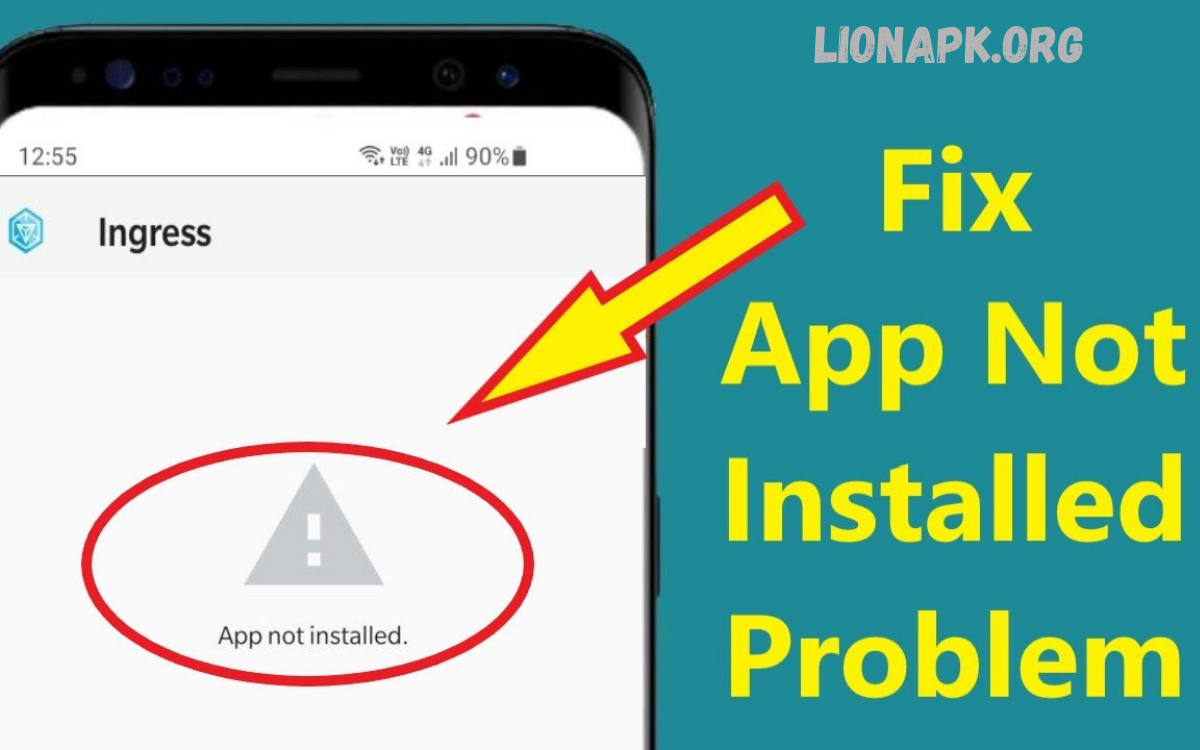
Experiencing a “fix app not installing” error can be frustrating, especially when you need an app urgently. This issue occurs when an application fails to complete the installation process on your device, often leaving you with a stalled download or an error message. Several factors can trigger this problem, ranging from insufficient storage space, corrupted installation files, or outdated system software to restrictive device settings and compatibility issues.
Fortunately, most installation errors can be resolved with straightforward troubleshooting. Common fixes include clearing the app store cache, ensuring adequate storage, checking internet connectivity, enabling required permissions, and updating your device’s operating system. In some cases, uninstalling conflicting apps or downloading the APK from a trusted source may be necessary.
Common Causes of App Not Installing Error
Understanding why an app fails to install is the first step toward fixing it. Multiple factors can cause this problem:
1. Insufficient Storage
Apps require a certain amount of free space for downloading and installation. Devices with low internal memory may fail to complete installations. Storage issues may also affect the device’s ability to unpack installation files properly.
2. Corrupted Installation Files
If app files are incomplete, corrupted, or improperly downloaded, installation will fail. This is common when network interruptions occur during download or when downloading from unofficial sources.
3. Software Incompatibility
Many apps require the latest operating system versions. Running outdated Android or iOS versions may trigger a “fix app not installing ” error because the app is incompatible with the device firmware.
4. Network Instability
Slow or unstable Wi-Fi and mobile data connections can prevent full app downloads, resulting in incomplete or corrupted installation files.
5. Device Settings Restrictions
Security settings may prevent installation from unknown sources. Permissions issues, parental controls, or enterprise management profiles can also block installations.
6. Conflicting App Versions
Pre-existing versions of the app may conflict with the new installation, causing errors. Version mismatches often occur after updates or manual APK installations.
7. Cache or Data Glitches
Accumulated cache or temporary data in app stores may interfere with the download or installation process.
Step-by-Step Solutions to Fix the App Not Installing Error
Resolving this issue requires a systematic approach. The following methods effectively address common causes.
1. Check Storage Availability
Free space is essential for both download and installation. On Android:
- Go to Settings → Storage.
- Check available memory.
- Delete unnecessary files or move media to cloud storage.
On iOS:
- Navigate to Settings → General → iPhone Storage.
- Review apps and remove unused ones.
Maintaining at least 10–15% free storage helps avoid installation errors.
2. Clear Cache and Data
Clearing temporary files often resolves errors caused by corrupted cache.
Android:
- Go to Settings → Apps → Google Play Store → Storage.
- Tap Clear Cache and Clear Data.
iOS:
- Restart App Store.
- If issues persist, reinstall the App Store app through a system update or device restart.
Clearing the cache ensures a fresh installation without interference from previous downloads.
3. Verify Network Connection
Stable internet ensures complete downloads.
- Switch between Wi-Fi and mobile data to test network speed.
- Restart the router if the Wi-Fi signal is weak.
- Avoid large downloads on unstable networks.
Network interruptions often result in corrupted files that cannot be installed.
Read Also: Android Tips and Tricks 2026 – Expert Guide to Optimize Devices
4. Update Operating System
Outdated OS versions often block app installation.
Android:
- Go to Settings → System → Software Update → Check for Updates.
iOS:
- Navigate to Settings → General → Software Update.
- Install the latest iOS version.
Updated systems support the latest app requirements, resolving compatibility issues.
5. Enable Installation from Unknown Sources (Android)
For APKs from third-party sources:
- Go to Settings → Security → Install Unknown Apps.
- Enable permission for trusted sources.
Important: Only download APKs from verified sources to avoid malware.
6. Remove Conflicting Applications
Conflicting versions may prevent proper installation.
- Uninstall previous versions of the app.
- Restart the device.
- Retry installation from official sources.
7. Restart Device
Restarting refreshes system processes and clears minor software glitches. It is a simple but often effective step in troubleshooting installation issues.
8. Use Official App Stores
Always download apps from the Google Play Store or the Apple App Store. Third-party stores may host corrupted files or apps incompatible with your device, triggering the “fix app not installing error.”
Advanced Troubleshooting
If standard solutions fail, advanced methods may help.
Reset App Preferences (Android)
Resetting app preferences restores disabled apps, default apps, and permissions without deleting personal data.
- Go to Settings → Apps → Reset App Preferences.
This may fix errors caused by misconfigured settings.
Factory Reset
If all else fails, a factory reset restores the device to its original settings. Backup data before proceeding.
- Android: Settings → System → Reset → Factory Data Reset
- iOS: Settings → General → Reset → Erase All Content and Settings
A factory reset resolves deep software conflicts that prevent installations.
Check for Security Restrictions
Enterprise or parental control profiles can block installations. On managed devices, check with the administrator to lift restrictions.
Prevention Tips
Preventing installation errors reduces future frustrations:
- Keep storage above recommended limits.
- Update OS and apps regularly.
- Avoid unverified app sources.
- Clear cache periodically.
- Maintain a stable network for downloads.
- Monitor device permissions for apps.
These preventive measures improve overall device performance and app reliability.
Differences Between Android and iOS Installation Errors
While causes may overlap, the platforms have differences:
| Minimal; the system handles cache automatically | Android | iOS |
|---|---|---|
| App Source | Google Play Store, APKs | Apple App Store only |
| Installation Permissions | Must allow unknown sources for APKs | Limited; system manages permissions |
| Cache Management | Manual clearing in Settings | Minimal; system handles cache automatically |
| Advanced Fixes | Reset app preferences, factory reset | Device restart, system update, factory reset |
Understanding platform-specific differences helps users apply the right solution efficiently.
Frequently Asked Questions
Can network issues cause app installation failures?
Yes. Slow or unstable Wi-Fi or mobile data can corrupt downloads, leading to installation errors. Switching networks or restarting the router often helps.
Does storage affect app installation?
Absolutely. Devices require sufficient free storage to download and install apps. Low storage often interrupts installation or causes errors.
Are third-party app downloads safe?
Only if sourced from trusted providers. Unverified APKs can be corrupted or contain malware, causing installation errors and security risks.
Will restarting my device help?
Yes. Restarting refreshes system processes, clears temporary glitches, and often resolves minor installation errors.
What if clearing the cache doesn’t work?
Try updating your OS, uninstalling conflicting apps, using official app stores, or, as a last resort, performing a factory reset after backing up data.
How do I prevent app installation errors in the future?
Maintain sufficient storage, update OS regularly, clear cache periodically, use official app sources, and ensure stable network connections.
Can outdated software cause installation failures?
Yes. Apps often require the latest OS version. Running outdated Android or iOS versions may block installation and trigger errors.
Conclusion
The “fix app not installing error” occurs due to storage shortages, software incompatibility, network issues, corrupted files, or restrictive device settings. Systematic troubleshooting, from checking storage, clearing cache, updating the OS, to advanced methods like a factory reset, ensures a successful installation. Preventive strategies, such as regular updates, proper storage management, and official app downloads, maintain device performance and minimize installation errors.
