

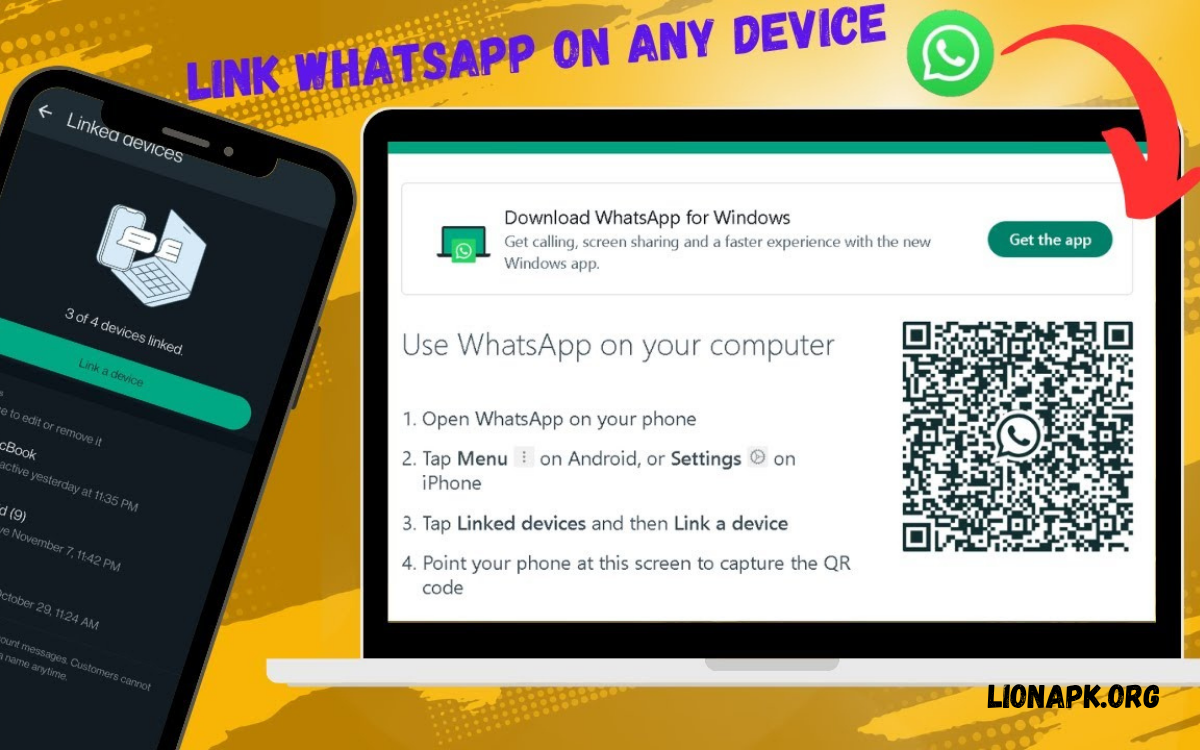
WhatsApp Linked Devices lets users access one WhatsApp account across multiple compatible devices without keeping a primary phone constantly connected to the internet.
Learning how to use WhatsApp Linked Devices can make messaging easier across different screens. Users can connect WhatsApp Web, WhatsApp Desktop, and supported companion devices through an official linking process.
What Are WhatsApp Linked Devices?
WhatsApp Linked Devices lets an account work on multiple supported devices. Instead of using WhatsApp on only one phone, users can connect additional devices and access their conversations through supported apps or browsers.
This feature is useful for people who switch between mobile phones, computers, and laptops throughout the day. Users can read messages on a computer, respond to conversations while studying, or send documents directly from a laptop.
Why Use WhatsApp Linked Devices?
Using linked devices can improve convenience by reducing the need to pick up a phone whenever a message arrives. A computer keyboard makes longer replies easier to type, while a larger display helps users read conversations and review shared documents. These benefits can support personal communication, group discussions, and everyday organization.
WhatsApp Linked Devices can also help users maintain communication while working across different devices. For example, someone preparing a document on a laptop can respond to messages without repeatedly switching screens. However, users should link only trusted devices and remember that anyone with access to an unlocked linked device may be able to view available conversations.
Requirements for Using WhatsApp Linked Devices
Before linking a device, install the official WhatsApp application on the primary phone and make sure the account is working correctly. The additional device should have access to WhatsApp Web, the official desktop application, or a supported companion-device setup. A stable internet connection and an updated application can help prevent connection problems.
Users should also protect their phones with a screen lock and keep WhatsApp updated. The exact menu names may differ between Android and iPhone, while desktop and browser interfaces can change with software updates. Always use official WhatsApp services rather than unofficial websites that request account credentials or verification codes.
How to Use WhatsApp Linked Devices on Android
Open WhatsApp on the Android phone associated with the account. Tap the three-dot menu in the upper-right corner, then select Linked devices. The screen displays existing linked sessions and provides an option to connect another device. If an unfamiliar session appears, review it carefully before continuing.
Tap Link a device and authenticate using the phone’s screen lock, fingerprint, or another supported security method when prompted. WhatsApp may then open a QR-code scanner. Keep this screen ready while opening WhatsApp Web or the desktop application on the device you want to connect.
How to Use WhatsApp Linked Devices on iPhone
Open WhatsApp on the iPhone and navigate to Settings. Select Linked Devices to review connected sessions and begin adding another device. Tap Link a Device and confirm your identity through Face ID, Touch ID, or the authentication method configured on your phone, if requested.
After authentication, the camera-based QR scanner should appear. Open the official WhatsApp Web page or WhatsApp Desktop application on the computer you want to link, then scan its QR code. Once the linking process finishes, wait for conversations to synchronize before sending messages or opening shared media.
How to Link WhatsApp to a Computer
Connecting WhatsApp to a computer is useful for people who spend much of their day using a desktop or laptop. Open the official WhatsApp Web website in a supported browser, or launch the official WhatsApp Desktop application. A QR code generally appears on the screen when the service is ready for account linking.
On the primary phone, open Linked Devices and choose the option to link another device. Scan the QR code displayed on the computer and wait for WhatsApp to finish connecting. Once the process is complete, you can access supported conversations and send messages from the computer without repeatedly scanning the code for every session.
How to Use WhatsApp Web
WhatsApp Web provides browser-based access to a linked account without requiring a separate desktop installation. Open the official WhatsApp Web website and follow the displayed linking instructions. In the usual process, a QR code appears, which you scan using the Linked Devices feature on your phone.
After linking, the browser displays your available chats and supported messaging features. You can open conversations, reply to messages, send documents, and share media when these options are supported. For better security, avoid linking your account through a shared or public computer unless necessary, and log out when your session is no longer needed.
How to Use WhatsApp Desktop
WhatsApp Desktop offers a dedicated application experience on supported computers. Download the application through an official source, install it, and open it to display the account-linking instructions. Depending on the version and platform, the application may offer QR-based linking or another supported authentication method.
Complete the linking process using your phone, then allow the application to synchronize available chats. Desktop access can make typing, searching conversations, and handling documents more convenient. Keep the application updated and protect your computer with a strong login password, particularly when messages contain private information.
How to Link Multiple Devices to One WhatsApp Account
WhatsApp supports connecting multiple additional devices to a single account, subject to its current device limits and compatibility requirements. This allows users to access conversations from different computers or other supported devices. The primary phone is used to authorize linking, while supported linked devices can continue operating independently after setup.
To add another device, repeat the linking process from the phone’s Linked Devices menu. Open WhatsApp Web or the official application on the new device and complete the requested authentication. Review the linked-device list afterward to confirm that the new session appears and that no unfamiliar devices remain connected.
How WhatsApp Message Synchronization Works
After a device is linked, WhatsApp synchronizes supported account information so users can access conversations across connected devices. Synchronization may take some time, especially when the account contains many conversations or media files. Keeping the linked device online and using a reliable internet connection can help the initial setup finish smoothly.
Message availability and certain features can differ across devices. Some older messages or functions may not appear exactly as they do on the primary phone, depending on the platform and current WhatsApp implementation. If chats seem incomplete, update WhatsApp, check the connection, and allow additional time for synchronization before attempting to link the account again.
Can WhatsApp Linked Devices Work Without the Primary Phone?
One major advantage of WhatsApp’s multi-device system is that linked devices can generally send and receive messages without the primary phone remaining continuously connected to the internet. This allows users to keep working on a computer even when their phone temporarily loses connectivity or is not nearby.
However, the primary phone remains important for account management and certain security-related actions. WhatsApp may log out linked devices if the primary phone is not used for an extended period, according to its current inactivity rules. Users should consult the latest official guidance if they plan to leave their primary phone unused for a long time.
How to Check Linked Devices on WhatsApp
Regularly reviewing linked sessions is an important part of account security. Open WhatsApp on the primary phone, navigate to Linked Devices, and inspect the displayed list. Depending on the platform, each entry may show information such as the device type, browser, or last activity time.
If every listed session belongs to a device you recognize, you can continue using the feature normally. If you see an unfamiliar computer, browser, or activity entry, disconnect that session immediately. Reviewing linked devices is especially important after using a shared computer or lending your phone to someone else.
How to Log Out of a Linked Device
Logging out disconnects a particular device from your WhatsApp account. On your primary phone, open Linked Devices and select the session you want to remove. Follow the on-screen instructions to log out. The exact controls may differ according to your phone’s operating system and WhatsApp version.
You can also log out directly from WhatsApp Web or Desktop when you still have access to the linked device. This is useful when finishing a session on a personal computer or shared workstation. If you no longer have access to a linked device, removing its session from your phone is usually the more convenient option.
How to Protect Privacy When Using Linked Devices
Privacy should remain a priority whenever WhatsApp is connected to more than one device. Link only computers and devices you trust, enable a secure screen lock, and avoid leaving WhatsApp open on an unattended computer. If several people share the same computer, make sure your account is protected by the computer’s user profile and access controls.
Users should also avoid scanning QR codes from unfamiliar websites or following unexpected requests to link their accounts. A malicious person may attempt to persuade someone to authorize a session that the account owner does not recognize. Never approve a linking request unless you understand which device is being connected and why.
How to Keep WhatsApp Linked Devices Secure
Keep your phone, computer, browser, and WhatsApp application updated. Software updates often include security improvements, compatibility fixes, and corrections to known problems.
If you suspect unauthorized account access, inspect Linked Devices and log out sessions you do not recognize. Secure your primary phone, review your account settings, and follow WhatsApp’s official account-security guidance.
Read Also: How to Lock WhatsApp Chats: Complete Step-by-Step Guide
Common WhatsApp Linked Devices Problems
Users sometimes experience QR codes that fail to scan, chats that take too long to load, connection errors, or unexpected logouts. These issues can occur because of an unstable internet connection, an outdated application, browser problems, or temporary service interruptions. Start by checking the network and confirming that WhatsApp is running an up-to-date version.
If the problem continues, close and reopen the browser or desktop application, refresh WhatsApp Web, and try the linking process again. Make sure the QR code is clearly visible and that the phone camera can scan it. Avoid repeatedly authorizing unknown sessions while troubleshooting, and consult official support if the problem persists.
How to Fix WhatsApp Linked Devices Not Working
Begin by confirming that both the phone and the additional device have a working internet connection. Update WhatsApp on the primary phone and update the desktop application or browser where appropriate. Restarting the affected application can resolve temporary glitches without changing your account or deleting conversations.
If the QR code remains unavailable, reload the official WhatsApp Web page or reopen the desktop application. Check whether the phone’s camera permissions and authentication settings are working correctly. If a linked device keeps disconnecting, review account inactivity, application compatibility, and current WhatsApp support guidance before removing and reconnecting sessions.
WhatsApp Linked Devices for Work and Study
Linked devices can make everyday communication easier for students and professionals. Students can respond to group messages while preparing assignments on a computer, while professionals can share supported files and manage conversations alongside other tasks. The larger display and physical keyboard can improve convenience during longer messaging sessions.
For workplace use, users should follow their organization’s privacy and device policies. Avoid linking personal accounts to computers that other people can access freely, especially when conversations include confidential information. Logging out after temporary use and maintaining separate computer profiles can help keep private conversations away from other users.
WhatsApp Linked Devices for Everyday Communication
Families and individuals can use linked devices to stay connected across their preferred screens. Someone working on a laptop can answer a message, while another person may prefer using WhatsApp on a phone. The multi-device feature supports a more flexible messaging routine without requiring users to keep switching between screens.
Convenience should not replace careful account management. Before connecting a device, confirm that it belongs to you or that you have permission to use it. If you share a computer with family members, friends, or colleagues, remember that an active WhatsApp session may expose conversations to anyone who can access that computer profile.
Important WhatsApp Linked Devices Limitations
Although linked devices provide greater flexibility, they do not necessarily offer identical functionality on every platform. Certain calling options, account settings, message-management features, or media behaviors may differ between mobile and desktop experiences. Device compatibility and available features can also change as WhatsApp releases updates.
Users should not assume that every conversation or setting will appear in exactly the same way on all connected devices. Some operations may require the primary phone, while others may work independently. For the most accurate information, check WhatsApp’s current official help documentation before relying on a particular feature for an important task.
Best Practices for Using WhatsApp Linked Devices
A simple routine can help users benefit from linked devices while protecting account privacy. Connect only the devices you need, use strong passwords on computers, keep software updated, and regularly check the linked-session list. These habits can reduce unnecessary access and make account management easier over time.
When using a borrowed computer, avoid saving private information outside WhatsApp and remember to log out before leaving. Do not share account verification codes or approve unexpected linking requests. If a device is lost, sold, or no longer used, remove its session from your account as soon as practical.
Frequently Asked Questions
What Is WhatsApp Linked Devices Used For?
WhatsApp Linked Devices lets users access one account from multiple supported devices, such as computers and compatible companion devices. It makes messaging more convenient by allowing users to read and send messages across different screens without relying on a continuously connected primary phone.
How Many Devices Can I Link to WhatsApp?
WhatsApp has a limit on the number of additional devices that can be connected to an account. The supported limit can change, so check the current Linked Devices screen or official WhatsApp help documentation for the latest information before attempting to connect more devices.
Can I Use WhatsApp on My Computer Without My Phone?
Yes. After the computer has been linked successfully, WhatsApp generally allows supported messaging functions to work without the primary phone staying continuously connected to the internet. The primary phone is still useful for account management, linking, and certain security-related actions.
Is WhatsApp Linked Devices Safe?
WhatsApp Linked Devices can be used safely when you connect only trusted devices and protect your account. Review linked sessions regularly, use screen locks, and log out from shared computers. If you notice an unfamiliar session, disconnect it and secure your account.
Can I Remove a Linked Device Remotely?
Yes. Open Linked Devices on your primary phone, select the session you want to remove, and follow the displayed logout instructions. This is useful when you no longer have access to a computer or want to disconnect a device that should not remain connected.
Why Is My WhatsApp Linked Device Not Connecting?
Connection problems may result from unstable internet access, outdated software, a QR-code scanning issue, or a temporary service problem. Check your network, update WhatsApp, reopen the official website or app, and repeat the linking process if needed.
Conclusion
Learning to use WhatsApp Linked Devices helps users communicate across computers and other supported devices more conveniently. The linking process is straightforward: open Linked Devices on the primary phone, authorize the additional device, and complete the displayed instructions.
The best experience combines convenience with responsible security habits. Keep applications updated, review connected sessions, use trusted devices, and log out when access is no longer needed.
