

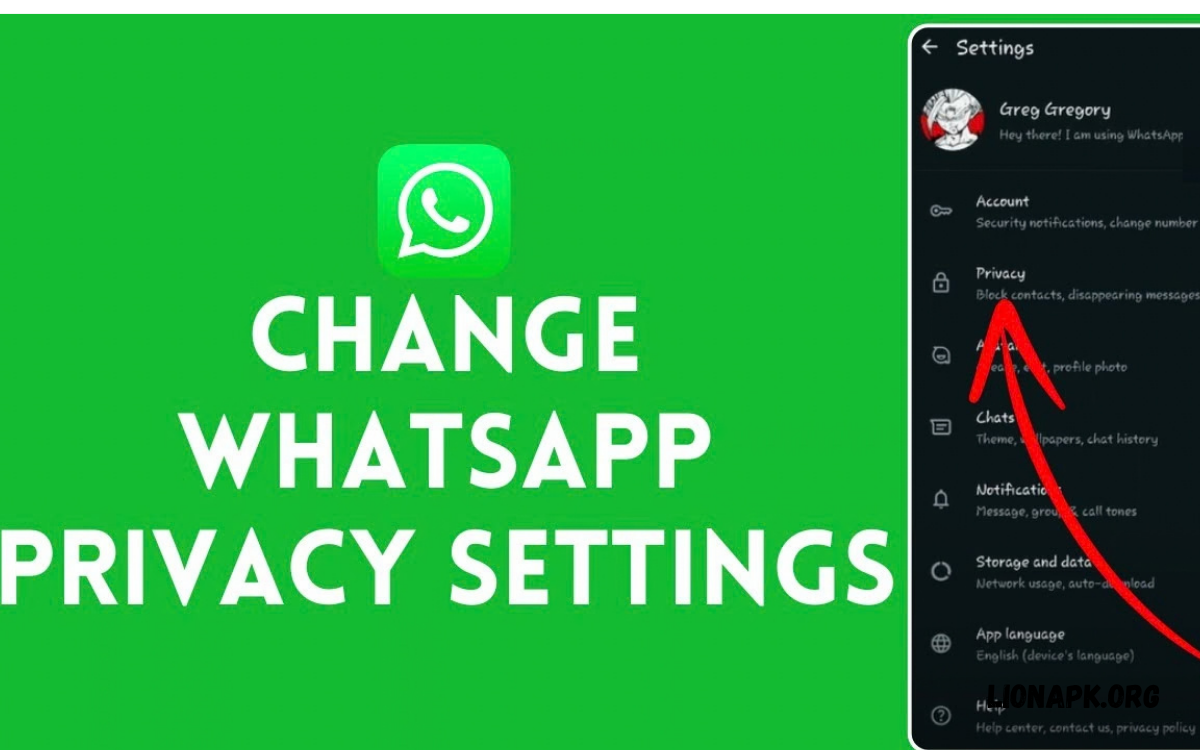
WhatsApp privacy settings help users control who can see personal information, contact them, view their status updates, and add them to groups. By adjusting these options, users can enjoy a more private messaging experience while staying connected with friends, family, and colleagues.
Learning how to change WhatsApp privacy settings is important for anyone who wants greater control over their account. WhatsApp offers several privacy features that let users manage profile visibility, online status, read receipts, disappearing messages, and other personal preferences directly in the app.
Why WhatsApp Privacy Settings Matter
WhatsApp is widely used for personal conversations, family groups, business communication, and sharing photos or videos. However, not everyone wants their personal information visible to anyone who has their phone number or starts a conversation with them.
Privacy settings offer useful controls to limit unwanted attention and protect personal details. With the right configuration, users can reduce unnecessary exposure, manage communication preferences, and create a messaging environment that better matches their needs.
How to Open WhatsApp Privacy Settings
Opening the privacy menu is the first step toward managing your account. On Android, open WhatsApp, tap the three-dot menu, select Settings, and then choose Privacy. Depending on your app version, the menu layout may look slightly different.
On an iPhone, open WhatsApp and tap Settings in the bottom navigation bar. Select Privacy to view the available controls. From this screen, you can adjust profile visibility, online status, groups, calls, read receipts, and additional privacy features.
How to Change Last Seen and Online Status
The Last Seen setting controls who can see when you last used WhatsApp. If you prefer to keep your activity private, open Privacy, select Last Seen and Online, and choose the audience that suits you best.
Available options generally include Everyone, My Contacts, My Contacts Except, and Nobody for Last Seen visibility. Online status can also be configured separately, usually with Everyone or Same as Last Seen. Selecting a more restrictive option helps limit the visibility of your activity.
How to Hide Your WhatsApp Profile Photo
Your WhatsApp profile photo can reveal personal information, especially when it includes your face, family members, workplace, or everyday surroundings. Changing its visibility lets you decide who can view the image on your account.
Open Settings, select Privacy, and tap Profile Photo. Choose Everyone, My Contacts, My Contacts Except, or Nobody, depending on the options available in your version. For stronger privacy, restrict the photo to saved contacts or hide it from everyone.
How to Change WhatsApp About Privacy
The About section contains a short description that appears on your WhatsApp profile. Some users display a personal message, professional description, or brief status, while others prefer to keep this information private.
To adjust its visibility, open Privacy and select About. Choose the audience you want to allow. Limiting access to your contacts or selecting Nobody, when available, helps prevent unfamiliar users from seeing your profile description.
How to Control WhatsApp Status Privacy
WhatsApp Status allows users to share photos, videos, text, and other updates that disappear after a limited period. However, you may not want every saved contact to see everything you post, particularly when sharing personal updates or information intended for a smaller audience.
To manage Status privacy, open WhatsApp and navigate to the Status section. Open the Status privacy option, then select My Contacts, My Contacts Except, or Only Share With. These choices help you determine which contacts can view future status updates.
How to Manage WhatsApp Read Receipts
Read receipts indicate when messages have been read, commonly through blue check marks in individual chats. Some users appreciate this feature because it helps them understand whether a message has been opened, while others prefer not to share their reading activity.
To change this setting, open Settings, select Privacy, and switch Read Receipts on or off. Disabling read receipts generally affects individual chats, but group chat read receipts still work differently. The setting also affects your ability to see read receipts from other users in supported situations.
How to Control Who Can Add You to WhatsApp Groups
WhatsApp groups are useful for school activities, family discussions, community announcements, and workplace communication. However, unwanted group invitations can become frustrating when unfamiliar people or less relevant contacts add you without asking.
Open Privacy, select Groups, and review the available audience options. Depending on your app version, you can choose My Contacts or My Contacts Except to restrict who can add you directly. People who cannot add you may still be able to send a private invitation.
How to Block Unwanted WhatsApp Contacts
Blocking a contact is a practical way to stop unwanted communication from a particular account. When you block someone, their messages and calls will not reach you normally through WhatsApp, and they will have limited access to certain profile information.
To block a contact, open the conversation, tap the person’s name or profile information, and select Block. Follow the confirmation prompt if one appears. You can also manage blocked contacts through Settings and Privacy, where supported, to review or unblock accounts when necessary.
How to Report Spam on WhatsApp
Spam messages may include suspicious links, fake prizes, misleading offers, or repeated unwanted promotions. Some messages may attempt to trick users into revealing verification codes, personal details, or financial information.
If you receive a suspicious message, open the conversation and access the contact or chat information menu. Choose Report if the option is available, and follow the instructions. Reporting helps WhatsApp review potentially abusive accounts, while blocking can help prevent further unwanted contact.
How to Silence Unknown Callers on WhatsApp
WhatsApp’s Silence Unknown Callers feature helps reduce interruptions from people who are not saved in your contacts. Calls from unknown numbers can be silenced while still appearing in your call history and notifications, allowing you to review them later.
To enable the feature, open Settings, select Privacy, and look for Calls. Turn on Silence Unknown Callers if available. This option can help reduce spam and unexpected interruptions, although it should not be treated as a complete solution for identifying every suspicious caller.
How to Manage WhatsApp Live Location Sharing
Live location sharing lets you share your changing location with selected contacts for a limited period. It can be useful when meeting friends, coordinating travel, or helping family members find you, but it should only be used when necessary.
To review active location sharing, open WhatsApp and check your conversations for location-sharing messages. Open the relevant message and select Stop Sharing if the option is available. Remember that location sharing is separate from general profile privacy settings, so review active shares whenever your plans change.
How to Use Disappearing Messages
Disappearing Messages allow supported conversations to automatically remove new messages after a selected period. This feature can help reduce the amount of conversation history stored in a chat, particularly when discussions contain temporary information.
To enable it, open an individual or group conversation, tap the contact or group name, and select Disappearing Messages. Choose a supported duration. Keep in mind that this feature does not guarantee complete privacy, because recipients may save, copy, photograph, or otherwise preserve messages before they disappear.
How to Use WhatsApp Chat Lock
Chat Lock provides an additional layer of privacy for selected conversations. When available, it moves locked chats into a separate area that requires device authentication or another supported verification method to access.
To lock a conversation, open the chat, tap the contact or group name, and look for Chat Lock. Follow the on-screen instructions to enable it. Availability and additional features can vary by app version, so update WhatsApp if you cannot find the option.
How to Protect Your WhatsApp Account With Two-Step Verification
Privacy settings help control what others can see, but account security is equally important. Two-step verification adds an extra PIN requirement when registering your phone number with WhatsApp again, helping protect your account against certain unauthorized registration attempts.
Open Settings, select Account, and choose Two-Step Verification if available. Follow the prompts to create a PIN and, where supported, add a recovery email address. Never share verification codes or your PIN with strangers, even if they claim to represent WhatsApp support.
How to Manage WhatsApp Linked Devices
Linked Devices allows you to use your WhatsApp account on supported computers, browsers, and other devices. This is convenient for messaging across different screens, but unfamiliar linked sessions may raise privacy concerns if someone else has access to your account.
Open WhatsApp Settings and select Linked Devices. Review the listed sessions and check whether you recognize each device. If you see a device you no longer use or do not recognize, select it and log out. Review this section periodically, particularly after using a shared or public computer.
How to Adjust WhatsApp Group and Community Privacy
WhatsApp communities and large groups can make communication easier, but they may expose your messages and profile details to people you do not know personally. Before joining a group, consider who manages it, why you need access, and what information you intend to share.
Use the Groups privacy setting to limit who can add you directly. Avoid sharing private documents, personal addresses, or sensitive details in large conversations. Remember that group membership and profile visibility are separate controls, so restricting your profile does not make every message in a group private.
Read Also: How to change WhatsApp profile picture
How to Review WhatsApp Privacy Checkup
When available in your version of WhatsApp, Privacy Checkup guides users through important privacy controls in one place. It can make it easier to review settings for personal information, calls, groups, and other account features without searching through every menu individually.
Open Settings, select Privacy, and look for Privacy Checkup. Follow the available steps to review your choices and adjust any settings that do not match your preferences. If the feature is not visible, you can still manage the individual options manually from the Privacy menu.
Best WhatsApp Privacy Settings for Everyday Use
The best configuration depends on how you use WhatsApp and how much information you want to share. A practical starting point is to limit Last Seen, Online, Profile Photo, About, and Status visibility to your contacts or a selected audience.
You can also restrict group invitations, silence unknown callers, enable two-step verification, and review linked devices regularly. These measures provide a balanced approach to privacy without preventing normal communication with trusted people.
Common WhatsApp Privacy Problems and Solutions
Sometimes a privacy setting appears not to work as expected. This may happen because of contact changes, app-version differences, internet connectivity, or the way WhatsApp applies specific controls to individual chats and group conversations.
First, confirm that you changed the correct setting and selected the intended audience. Update WhatsApp through your device’s official app store if necessary, then reopen the app and check again. If a feature is unavailable, consult WhatsApp’s official Help Center for current instructions.
WhatsApp Privacy Settings for Android Users
Android users can access most privacy controls through the Settings menu inside WhatsApp. The exact appearance may differ across manufacturers and app versions, but the main options generally cover profile visibility, Status, groups, calls, and read receipts.
For a better experience, keep WhatsApp updated and use your phone’s screen lock. Avoid installing unofficial WhatsApp versions because they may introduce security and privacy risks. Download the app from a trusted source, and review device permissions to ensure they match your needs.
WhatsApp Privacy Settings for iPhone Users
iPhone users can manage WhatsApp privacy through the app’s Settings tab. Options such as profile visibility, Status audience, blocked contacts, linked devices, and read receipts are generally available, although exact labels and feature availability can change between releases.
For stronger protection, use a secure device passcode and Face ID or Touch ID where supported. Review notifications on your lock screen if you do not want message previews visible to other people. These iPhone settings complement WhatsApp privacy controls but do not replace them.
Mistakes to Avoid When Changing WhatsApp Privacy Settings
One common mistake is assuming that hiding your Last Seen status automatically hides every other activity. Profile photos, Status updates, group participation, read receipts, and location sharing have separate controls, so each option should be reviewed independently.
Another mistake is believing disappearing messages or Chat Lock guarantee that nobody can preserve private content. Recipients may still capture information using other methods. For better protection, share sensitive information only with trusted people and avoid sending details that could cause problems if copied or forwarded.
How Often Should You Review WhatsApp Privacy Settings?
Reviewing your settings occasionally helps ensure that they still match your communication habits. You may want to make changes after saving new contacts, joining unfamiliar groups, changing phones, or using WhatsApp on a shared computer.
A simple review can include checking your profile audience, Status settings, blocked contacts, linked devices, and two-step verification. You should also look at active location shares and app permissions. Regular reviews help you notice unexpected changes and maintain greater control over your account.
Frequently Asked Questions
How do I change WhatsApp privacy settings?
Open WhatsApp, go to Settings, and select Privacy. Choose the feature you want to adjust, such as Last Seen, Profile Photo, Status, Groups, or Read Receipts, then select your preferred option.
Can I hide my WhatsApp online status?
Yes. Open Last Seen and Online in the Privacy menu. Select the appropriate audience for Last Seen, then choose an Online setting, such as Same as Last Seen, if available.
Can I hide my WhatsApp profile photo from strangers?
Yes. Open Privacy, select Profile Photo, and choose My Contacts or another available restriction. This limits who can view your profile image.
How do I stop people from adding me to WhatsApp groups?
Open Privacy, select Groups, and choose an appropriate audience. My Contacts Except lets you exclude specific people for more precise control.
Does turning off read receipts hide blue ticks in group chats?
No. Disabling read receipts generally affects individual chats, while group chats have separate read-receipt behavior. Some message information may remain available in group conversations.
How can I stop unwanted WhatsApp calls?
Enable Silence Unknown Callers under Privacy and Calls if available. You can also block specific contacts and report suspicious accounts when appropriate.
Are WhatsApp privacy settings enough to secure my account?
Privacy settings help control visibility and communication, but protecting your account takes extra steps. Enable two-step verification, secure your device, review linked devices, and never share verification codes.
Can I make WhatsApp completely private?
No single setting makes WhatsApp completely private. You can reduce exposure by restricting profile visibility, managing group access, protecting your account, and sharing information carefully.
Conclusion
Learning how to change WhatsApp privacy settings gives you greater control over personal information, profile visibility, messaging preferences, and unwanted communication. By reviewing Last Seen, Online, Profile Photo, Status, Groups, Read Receipts, and Calls, you can tailor WhatsApp to your privacy needs.
For stronger protection, combine these controls with two-step verification, Chat Lock, regular linked-device reviews, and careful sharing habits. Keep the app updated and revisit your settings whenever your needs change.
