

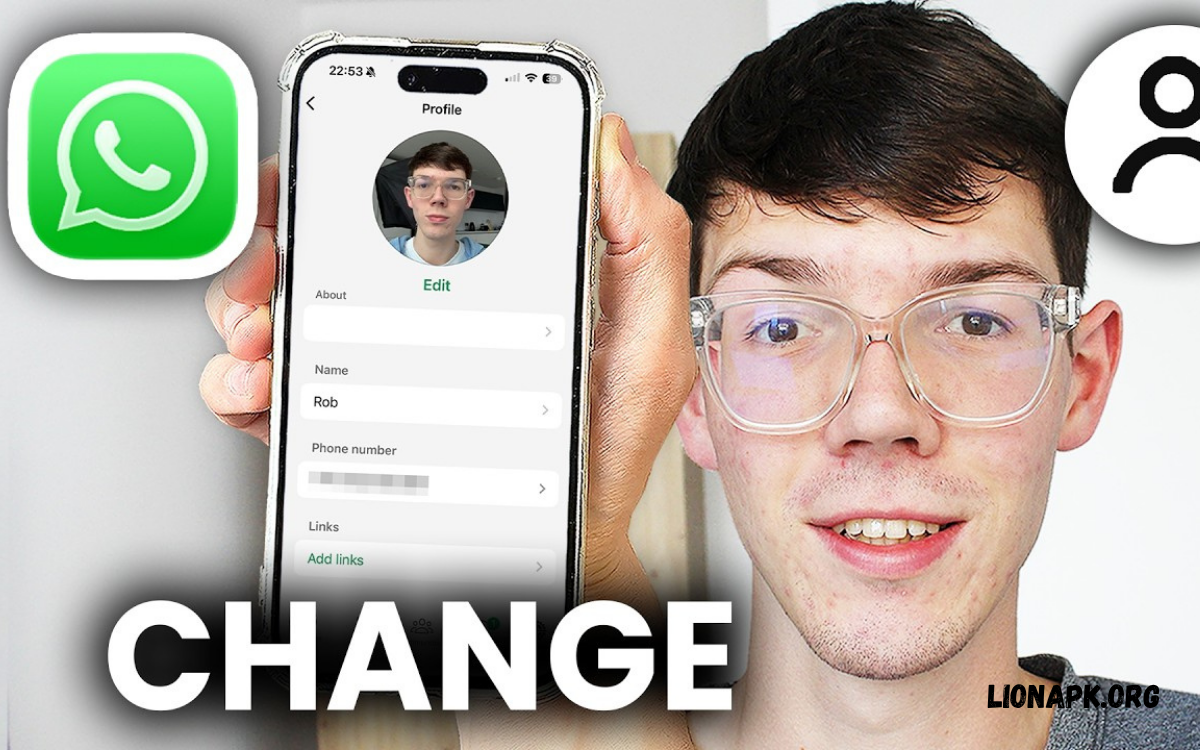
Learning how to change your WhatsApp profile picture helps keep your account fresh, recognizable, and personal. A profile picture helps friends, family, and contacts quickly identify your account. You can use a personal photo, a favorite image, a logo, or another suitable picture that represents you.
WhatsApp offers simple profile editing tools for Android, iPhone, and supported desktop versions. You can select an image from your gallery, take a new photo, adjust its position, and choose who can view it.
Why Change Your WhatsApp Profile Picture?
Your WhatsApp profile picture creates a visual identity for your account. Updating it can help contacts recognize you, reflect new interests, or give your profile a more current look. A clear image also makes conversations feel more personal, especially when you communicate with people who have many contacts.
Some users prefer personal photographs, while others choose illustrations, nature pictures, pets, or professional logos. The right choice depends on how you use WhatsApp.
How to Change WhatsApp Profile Picture on Android
Changing your WhatsApp profile picture on Android takes only a few moments. Open WhatsApp on your phone and tap the three-dot menu in the upper-right corner, if available. Select Settings, then tap your profile name or current profile picture to open your account information.
Tap your profile picture or the camera icon near it. Choose the gallery option to select an existing image, or choose the camera option to take a new photograph. Adjust the image within the circular frame, confirm your selection, and wait for WhatsApp to save the update.
How to Change WhatsApp Profile Picture on iPhone
The process on an iPhone is similar, although the interface differs slightly from Android. Open WhatsApp and tap Settings in the bottom navigation area. Select your name or profile section to access your account details, then tap your current profile photo or the edit option.
Choose Edit, Add Photo, or the camera icon, depending on your app version. Select a picture from your photo library or take a new one with your camera. Adjust the image to fit the circular frame, confirm the change, and return to your profile to check that the new picture appears correctly.
How to Change WhatsApp Profile Picture Using Your Gallery
Your phone gallery is a convenient place to find a profile picture. Open WhatsApp settings, access your profile, and select the option for changing your photo. Choose the gallery or photos option, browse your albums, and select the image you want to use for your account.
Before confirming the selection, check the image’s clarity, lighting, and composition. WhatsApp displays profile pictures inside a circular frame, so important details near the edges may disappear. Move or zoom the image until the main subject fits comfortably within the visible area, then save the updated picture.
How to Take a New WhatsApp Profile Picture
You can take a fresh photograph instead of selecting an existing image. Open your WhatsApp profile settings and tap the camera option beside your profile picture. If prompted, allow the app to access your camera, position yourself or your subject, and capture a clear photograph.
Review the photo before confirming it. Choose a well-lit location, keep the camera steady, and make sure the main subject is easy to recognize. After taking the picture, adjust its position within the frame and confirm the selection. Your new profile picture should appear after WhatsApp finishes updating your profile.
How to Change WhatsApp Profile Picture on WhatsApp Web
WhatsApp Web allows users to access chats through a supported web browser. To update your profile picture, open WhatsApp Web and connect your account using the available linking process. Click your profile icon or open the profile settings area to locate your current photograph and editing options.
Select the picture or edit icon, then choose an image if the web interface provides an upload option. Follow the on-screen instructions to select and confirm your photo. Interface options may vary by browser and WhatsApp version, so use the available profile controls if the exact labels differ from those described here.
How to Change WhatsApp Profile Picture on Desktop
WhatsApp Desktop offers a convenient way to manage conversations from a computer. Open the desktop application and access your profile through the profile icon or settings menu. Select your current profile picture or its edit control to check whether your version supports changing the image directly.
If an editing or upload option is available, select a suitable image from your computer and follow the prompts to confirm the update. If you cannot find the required option, change your picture through WhatsApp on your phone. Check the desktop application again after the account profile synchronizes.
How to Remove Your WhatsApp Profile Picture
You may want to remove your current picture rather than replace it. Open WhatsApp settings and access your profile information. Tap your profile photo or its editing icon, then look for the remove, delete, or trash option. Confirm the action if WhatsApp asks you to do so.
After removal, your account may display a default profile icon instead of a personal photograph. The exact appearance can depend on the app version and interface. If you prefer not to show a personal image, you can also select a neutral picture or adjust your profile privacy settings.
How to Change WhatsApp Profile Picture Privacy
WhatsApp includes privacy controls that help you decide who can see your profile picture. Open Settings, select Privacy, and locate the Profile Photo option. Depending on your version, you may see choices such as Everyone, My Contacts, My Contacts Except, and Nobody.
Choose the setting that best matches your preferences. Everyone allows a broader audience to view your picture, while My Contacts limits visibility to people saved in your contacts. My Contacts Except lets you exclude selected contacts, and Nobody restricts profile-picture visibility. Available options can vary by account or app version.
How to Change WhatsApp Profile Picture Without Losing Image Quality
A sharp profile picture begins with a clear original image. Choose a photo with good lighting, sufficient resolution, and a subject that remains recognizable when displayed as a small circle. Avoid heavily compressed images because they may appear blurry after uploading or resizing.
WhatsApp may crop or process the selected image to fit its display format. Keep the main subject near the center and leave some space around the edges. If an image looks unclear, try selecting a higher-quality original from your gallery rather than using a screenshot or a repeatedly edited copy.
How to Choose the Best WhatsApp Profile Picture
A good profile picture should be easy to recognize at a glance. For a personal account, a clear photograph, favorite pet, landscape, or simple illustration can work well. Choose an image that reflects your personality without revealing details you would rather keep private.
For work or business communication, consider a clean headshot or a recognizable company logo. Avoid cluttered backgrounds, tiny text, and images with several competing subjects. Preview the picture at a small size before saving it, because WhatsApp displays profile photos much smaller than many images appear in your phone gallery.
Read Also: How to Use WhatsApp Linked Devices: A Complete Step-by-Step Guide
How to Change WhatsApp Profile Picture for Business
WhatsApp Business provides profile features designed for communication with customers. Depending on your account setup, you can use a company logo, store image, or professional photograph to help customers recognize your business. Open the business app, enter your profile settings, and locate the business profile picture editing option.
Select a high-quality image that matches your brand identity. Use consistent colors and recognizable visual elements across your website, social pages, and messaging channels. Make sure you have permission to use the image or logo. A clear business profile picture can support brand recognition, but it should complement accurate contact details and reliable customer service.
How to Change WhatsApp Profile Picture When the Gallery Does Not Open
Sometimes WhatsApp cannot access your phone’s photos. This may happen because photo permissions are disabled, the app has encountered a temporary issue, or the selected image is stored somewhere the app cannot access. Check your phone settings and allow WhatsApp the necessary photo or media access.
On Android, open your phone settings and find WhatsApp under Apps, then review its permissions. On iPhone, open Settings and find WhatsApp or the relevant Photos permission controls. The available labels depend on your operating system version. Return to WhatsApp after updating permissions and try selecting the image again.
How to Fix WhatsApp Profile Picture Not Updating
If your new picture does not appear immediately, first check your internet connection. Switch between Wi-Fi and mobile data if necessary, then reopen WhatsApp and inspect your profile. A temporary connection problem may prevent the image from uploading or displaying correctly.
If the issue continues, update WhatsApp through the official app store and restart your phone. Check that the selected image opens normally in your gallery and that your device has enough available storage. Avoid unofficial modified versions of WhatsApp. If the problem persists, consult the official WhatsApp Help Center for guidance specific to your device.
How to Change WhatsApp Profile Picture Without Cropping Important Details
WhatsApp’s circular profile display can hide parts of a rectangular photograph. To reduce unwanted cropping, select an image with the subject positioned near the center. Leave enough background around faces, logos, or objects so the important details remain visible after the image is adjusted.
If the original image is too tightly framed, use a photo editor to add extra background space before uploading it. You can create a square image with a plain or blurred background, then select it in WhatsApp. Preview the circular crop carefully before saving to ensure that the important parts remain inside the visible area.
How to Change WhatsApp Profile Picture Without Installing Another App
You do not need a separate photo editor to update your WhatsApp profile picture. The app includes basic selection and positioning controls that allow you to choose an image and adjust it before saving. Your phone’s built-in camera and gallery are usually sufficient for taking, selecting, and preparing a suitable photo.
Open your profile settings, choose the photo-editing option, and select a picture from your gallery or camera. Move or zoom the image until the subject fits the frame. If the photo already has suitable lighting and composition, you can save it directly without using any additional editing software.
Common Mistakes to Avoid When Changing Your WhatsApp Profile Picture
One common mistake is choosing a photo that looks good in a full-size gallery but becomes difficult to recognize as a small circle. Busy backgrounds, low lighting, and tiny subjects can reduce clarity. Select an image with a clear focal point and check the preview before confirming your changes.
Another mistake is overlooking privacy settings. A profile picture may reveal your face, workplace, surroundings, or other personal details. Review who can view your photo before uploading it, especially if you use WhatsApp for both personal and professional communication. Always choose images you have permission to use and feel comfortable sharing with your intended audience.
How Often Should You Change Your WhatsApp Profile Picture?
There is no required schedule for changing your WhatsApp profile picture. Some people keep the same image for years because it is familiar to their contacts, while others update it for special occasions, personal milestones, seasonal themes, or business changes. The best approach depends on your preferences and how you use the platform.
If you use WhatsApp for professional communication, maintaining a consistent image can help contacts identify you. Personal accounts offer more flexibility, so you can update your photo whenever you like. Whatever your choice, ensure that the image represents you appropriately and does not disclose information you prefer to keep private.
Frequently Asked Questions
Can I Change My WhatsApp Profile Picture Anytime?
Yes, you can usually change your WhatsApp profile picture whenever you want. Open your profile settings, select the current image, choose a replacement, and confirm the update. You can repeat the process whenever you want a different picture, provided the app and your account are working normally.
Why Can I Not See Someone’s WhatsApp Profile Picture?
There are several possible explanations. The person may have removed their picture, changed their privacy settings, excluded certain contacts, or chosen to hide the image from everyone. Connection issues and temporary app problems may also affect what appears, so a missing picture alone does not establish the reason.
Does Changing My WhatsApp Profile Picture Notify Contacts?
WhatsApp does not generally send a dedicated chat notification every time you change your profile picture. However, people who can view your profile may notice the new image when they open your account or conversation. Visibility depends on your privacy settings and the features available in your version of WhatsApp.
Can I Use Any Picture for My WhatsApp Profile?
You can generally choose a suitable image from your gallery or take a new photograph. However, make sure you have permission to use copyrighted images, logos, or photographs of other people where required. Also avoid pictures that expose private information or violate WhatsApp’s applicable rules.
Why Does My WhatsApp Profile Picture Look Blurry?
A blurry picture may result from a low-resolution original, compression, poor lighting, or excessive cropping. Choose a clearer source image and keep the subject centered. If the problem continues, confirm that the picture saved correctly and check your internet connection before trying again.
Can I Hide My WhatsApp Profile Picture From Certain People?
Yes, WhatsApp may offer a My Contacts Except option under Profile Photo privacy settings. This allows you to exclude selected contacts from viewing your image. You can also choose Nobody if you want to restrict visibility more broadly. Check your current app settings to confirm the options available to you.
Can I Change My WhatsApp Profile Picture on a Computer?
Depending on your WhatsApp Web or Desktop version, profile editing options may be available on your computer. Open your profile settings and check for an image-editing control. If you cannot upload a picture from the desktop interface, change it through the mobile app instead.
Will Changing My Profile Picture Delete My Chats?
No, changing your WhatsApp profile picture does not normally delete your conversations, groups, or messages. It updates your profile image rather than your chat history. You should still follow normal account security practices and keep backups if you want to protect important conversations.
Conclusion
Learning how to change WhatsApp profile picture settings makes it easy to personalize your account, refresh your online identity, and control how others see your profile.
For the best results, choose a clear image, check how it looks inside the circular frame, and review your profile privacy settings. If the picture fails to update, check your internet connection, app permissions, and WhatsApp version.
