

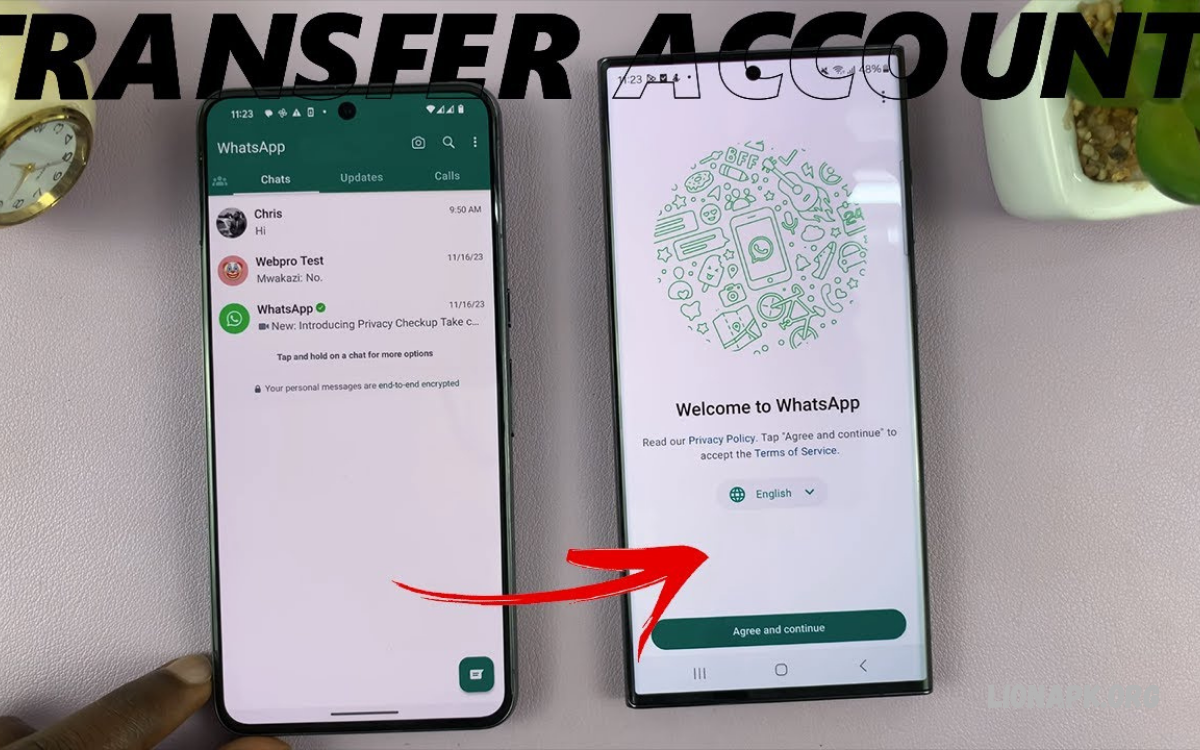
Transferring WhatsApp to a new phone helps you keep important conversations, photos, videos, documents, voice messages, and group chats. With the right method, you can move your WhatsApp account without losing valuable information.
Whether you are switching from Android to Android, iPhone to iPhone, Android to iPhone, or iPhone to Android, this guide explains how to transfer WhatsApp to a new phone step by step. Choose the method that matches your devices for a smoother transfer.
Why Transfer WhatsApp to a New Phone?
WhatsApp stores personal conversations, family messages, business discussions, shared files, and memorable photos. Moving your account correctly helps preserve these conversations and makes it easier to continue chatting on your new device without starting from scratch.
The transfer process depends on your old phone, new phone, operating systems, backup settings, and available storage. Some methods use cloud backups, while others transfer chats directly between devices. Understanding these options helps you select a suitable solution.
Things to Do Before Transferring WhatsApp
Before starting, make sure both phones have enough battery power and storage space. Connect them to a stable Wi-Fi network, update WhatsApp to a compatible version, and keep your old phone available until you confirm that your conversations appear correctly on the new device.
You should also verify your phone number, check your backup settings, and remember your cloud account credentials. If WhatsApp uses end-to-end encrypted backups, make sure you know the password or encryption key required to restore that backup.
Check Your WhatsApp Phone Number
WhatsApp accounts are associated with phone numbers, so confirm that you can receive the verification code for the number linked to your account. If you plan to keep the same number, the process is usually simpler because you can verify the existing account on your new phone.
If you are changing both your phone and number, consider using WhatsApp’s Change Number feature on your old phone before transferring chats. This helps move account information to the new number while retaining access to your existing conversations, subject to the supported transfer process.
Back Up WhatsApp Before Switching Phones
Creating a fresh backup is an important precaution before moving WhatsApp to a new device. On Android, WhatsApp commonly supports Google Account backups, while iPhone users can back up chats to iCloud. Open WhatsApp settings, locate Chats and Chat Backup, and review the available options.
Check the backup date, account, and available cloud storage before proceeding. Include videos if you want them saved and your storage allows it. A completed backup reduces the risk of losing recent conversations if the transfer is interrupted or your old phone becomes unavailable.
How to Transfer WhatsApp from Android to Android
Moving WhatsApp between two Android phones is relatively straightforward when both devices support the same transfer options. You can generally restore a Google Account backup or use WhatsApp’s direct chat transfer feature, depending on the app version and device compatibility.
For the backup method, create a new backup on the old phone, install WhatsApp on the new phone, and verify the same phone number. When prompted, select the available restore option and use the Google Account associated with the backup. Keep the phone connected until restoration finishes.
Transfer WhatsApp Using Google Drive Backup
Google Drive backup is a convenient option for Android users who want to move chats without keeping both devices connected throughout the entire process. First, open WhatsApp on the old phone, navigate to Settings, Chats, and Chat Backup, then start a fresh backup to the appropriate Google Account.
On the new Android phone, add that same Google Account and install WhatsApp from an official app store. Verify the same phone number, then follow the prompt to restore the detected backup. If the backup does not appear, check the account, phone number, network connection, and backup completion status.
Transfer WhatsApp Directly Between Android Phones
Direct chat transfer allows compatible Android devices to move WhatsApp conversations without relying on a cloud backup. The exact menu names can vary by app version, so open WhatsApp’s chat settings on your old phone and look for the chat transfer option if available.
Follow the on-screen instructions to prepare the old and new phones, then scan the displayed QR code or complete the requested connection steps. Keep both devices nearby, unlocked, and connected as instructed. Avoid closing WhatsApp or switching off either device until the transfer completes.
How to Transfer WhatsApp from iPhone to iPhone
Moving WhatsApp between iPhones can usually be done through an iCloud chat backup or a supported direct transfer process. Before beginning, update WhatsApp and iOS where practical, check your iCloud settings, and make sure the old phone contains your latest conversations.
For an iCloud restore, open WhatsApp on the old iPhone and select Settings, Chats, and Chat Backup. Tap Back Up Now and wait for completion. Install WhatsApp on the new iPhone, verify the same phone number, and follow the restore prompt using the Apple Account linked to the backup.
Restore WhatsApp Chats from iCloud
iCloud restoration works when the backup is available and the new iPhone meets WhatsApp’s requirements. Check that iCloud Drive is enabled, the correct Apple Account is signed in, and sufficient iCloud and device storage is available before trying to restore your chat history.
After verifying your number on the new iPhone, choose the option to restore chat history when prompted. Keep your device connected to Wi-Fi and power if the backup is large. Some media files may continue downloading after the main chat history appears, so allow time for everything to finish.
Transfer WhatsApp Directly Between iPhones
A supported direct transfer can move WhatsApp chats from an old iPhone to a new iPhone without requiring you to restore the chat history from iCloud. This can be useful if you prefer a device-to-device method and both iPhones meet the current requirements.
Open WhatsApp on your old iPhone, find the chat transfer option under Settings and Chats if available, and follow the instructions. Prepare WhatsApp on the new iPhone using the same number, then complete the transfer steps shown on both devices. Do not erase the old iPhone until you verify the results.
How to Transfer WhatsApp from Android to iPhone
Switching from Android to iPhone requires a supported cross-platform migration method. WhatsApp supports transferring chat history from Android to iPhone through Apple’s Move to iOS setup process when the devices, software versions, and setup conditions meet the requirements.
In many cases, the iPhone must be new or reset to its initial setup screen to use Move to iOS for this migration. Keep the Android phone available, use the same phone number where required, and follow Apple’s transfer instructions. A Google Drive backup cannot simply be restored directly through WhatsApp on an iPhone.
Use Move to iOS for WhatsApp Transfer
Start by checking that the Android phone and iPhone meet the current Move to iOS requirements. Install the Move to iOS app on Android if needed, connect both devices to power, and keep them on a reliable network. Begin setting up the iPhone until you reach the option to transfer data from Android.
Select the WhatsApp data option when it appears, then follow the prompts on both phones. Wait for the migration to finish before completing the iPhone setup. Afterward, install or open WhatsApp on the iPhone, verify the same number, and follow the import instructions displayed by the app.
How to Transfer WhatsApp from iPhone to Android
Moving WhatsApp from an iPhone to an Android phone also requires a supported migration method. Depending on the Android device, the process may be available during initial phone setup through a cable connection or a manufacturer-supported migration tool.
Prepare both phones, check the instructions for your specific Android model, and connect the devices using the supported cable or transfer method. Follow the prompts to import WhatsApp chats, then open WhatsApp on Android and verify the same phone number when instructed. Keep the iPhone available until you confirm that the transfer is complete.
Transfer WhatsApp Using a Cable
Some Android phones support transferring WhatsApp data from an iPhone through a cable during initial setup. The exact connection type and instructions vary by manufacturer, so consult the new phone’s official setup guide before starting the migration.
Connect the devices using a compatible cable and approve the required permissions on each phone. Select WhatsApp data when the transfer screen offers it, then follow the prompts to prepare and import the conversations. Avoid disconnecting the cable before completion, and confirm that your important chats and media are available afterward.
Can You Transfer WhatsApp Without Losing Chats?
You can often transfer WhatsApp without losing chat history when you use a supported migration method and complete each step correctly. However, no method can guarantee that every message or media file will transfer under all circumstances, especially if the old phone is damaged or the backup is incomplete.
To reduce the risk, create a recent backup when possible, verify the correct phone number, and avoid deleting WhatsApp data from the old phone prematurely. Once the new phone is working, check individual conversations, group chats, documents, photos, and videos before wiping or trading in your previous device.
How to Transfer WhatsApp Without Google Drive
Android users who do not want to use Google Drive may be able to transfer WhatsApp directly between compatible phones. This option can be useful when cloud storage is limited or when you prefer to move conversations locally instead of uploading a backup.
Open WhatsApp settings on the old Android phone and check whether the direct chat transfer option is available. Follow the displayed instructions to connect the devices and move the data. If direct transfer is unavailable, review WhatsApp’s current supported backup and migration options rather than relying on unofficial apps.
How to Transfer WhatsApp Without iCloud
iPhone users may be able to move chats through a supported direct transfer feature instead of restoring an iCloud backup. Availability depends on the WhatsApp version, iOS version, and device compatibility, so confirm that the option appears in the app before beginning.
If direct transfer is unavailable, an iCloud backup may be the most practical supported option for restoring chats to another iPhone. For transfers between iPhone and Android, use WhatsApp’s official cross-platform migration process instead of expecting an iCloud backup to restore directly on Android.
How to Transfer WhatsApp to a New Phone With a New Number
If you are changing your phone number as well as your device, update your WhatsApp number carefully to keep your account information associated with the correct number. On your old phone, open Settings, Account, and Change Number, then follow the instructions to enter your old and new numbers.
After completing the number change, create a fresh backup if appropriate and proceed with the migration method supported by your new phone. Make sure you can receive verification messages on the new number. Inform important contacts about the change, and review WhatsApp’s notification options for groups and contacts.
How to Transfer WhatsApp Business to a New Phone
WhatsApp Business users should prepare their business account before switching devices. Back up or transfer available chat history, verify the business phone number, and make sure the new phone supports the current WhatsApp Business app and migration method.
Install WhatsApp Business from an official app store and follow the supported restore or transfer process. After migration, check customer conversations, labels, profile details, business hours, catalog information, and automated greeting or away messages. Some settings or linked services may require separate verification after the move.
How to Transfer WhatsApp Photos and Videos
WhatsApp chat transfers can include supported media files, but the results depend on the backup settings, migration method, available storage, and media already downloaded to the old device. If videos were excluded from a cloud backup, those videos might not be included in the restored chat history.
Before transferring, review the backup settings and enable video inclusion if you want videos saved and have enough storage. After migration, open important chats and verify photos, videos, voice notes, and documents. Allow additional time for media restoration or downloading if WhatsApp indicates that the process is still running.
How to Transfer WhatsApp Group Chats
Group conversations generally move with supported WhatsApp chat history transfers, so you can keep participating in groups after switching phones. Your membership is tied to your WhatsApp account, while visible message history depends on whether the relevant chat history transferred successfully.
After completing the transfer, open your most important groups and check the latest messages, shared files, and group details. If a group appears but older messages are missing, review whether the backup or migration included that history. Ask a group member to resend important files if they were not preserved.
Read Also: How to Change WhatsApp Privacy Settings: Complete Guide
How to Transfer WhatsApp to a New Phone Without the Old Phone
Transferring WhatsApp without access to the old phone can be more difficult because a direct transfer usually requires the original device. If you previously created a compatible cloud backup, you may still be able to restore chat history on the new phone by verifying your number and using the associated account.
If no backup exists and the old phone is unavailable, WhatsApp may not be able to recover the missing local chat history. Install the official app, verify your number, and check the available restore options carefully. Avoid services that promise guaranteed recovery or request your verification codes, account password, or private backup key.
How to Transfer WhatsApp to a New Phone Without a SIM Card
A physical SIM card is not always required to move the data itself, but WhatsApp account verification generally requires access to the phone number associated with the account. If your number is active on another device or you can receive the verification code through an available supported method, you may be able to complete the process.
Before removing your SIM card or switching numbers, confirm that you can verify your WhatsApp account on the new phone. A Wi-Fi connection can provide internet access, but it does not replace the required account verification. If you are changing numbers, use the official Change Number feature when possible.
Common WhatsApp Transfer Problems and Solutions
Transfer problems can occur when the backup is missing, cloud accounts do not match, storage is insufficient, software is outdated, or the network connection is unstable. Start by checking your internet connection, updating WhatsApp, confirming the phone number, and verifying that the correct Google or Apple account is being used.
If restoration fails, avoid repeatedly deleting app data or resetting devices before checking your backup status. Restart both phones if appropriate, free up storage, and follow the official troubleshooting guidance for your device. If the issue continues, consult WhatsApp Support or the phone manufacturer’s support service for help.
WhatsApp Backup Not Showing on the New Phone
If WhatsApp cannot find your backup, first confirm that the old phone completed the backup successfully. On Android, check the Google Account used for the backup; on iPhone, verify the Apple Account and iCloud settings. The phone number must also match the account associated with the backup unless you have completed a supported number-change process.
Check the backup date, available storage, internet connection, and compatibility of the WhatsApp installation. A backup that was never completed cannot be restored, and an unsupported backup location may not be detected. If the backup remains unavailable, consult the official WhatsApp help instructions before taking steps that could remove existing data.
How Long Does WhatsApp Transfer Take?
WhatsApp transfer time depends on your chat history, the number and size of media files, device performance, connection quality, and transfer method. A small conversation history may move relatively quickly, while a large library of photos and videos can take considerably longer.
Keep both devices connected to power and follow the on-screen instructions. Don’t assume a transfer has failed just because media restoration takes extra time. Wait for the app to indicate completion, then check your conversations and let any remaining media finish downloading.
Is It Safe to Transfer WhatsApp to a New Phone?
Using WhatsApp’s official backup, restore, and chat transfer features is generally the safest approach. WhatsApp protects personal messages with end-to-end encryption during supported communication, while backup protection depends on the backup method and settings you choose.
Download WhatsApp only from official app stores, keep your operating system updated, and never share verification codes with other people. If you use an end-to-end encrypted backup, protect its password or key carefully. Avoid unknown transfer applications that request unnecessary access to messages, files, or account credentials.
What to Do After Transferring WhatsApp
Once the transfer finishes, open WhatsApp and verify that your conversations, group memberships, and important media are present. Check your profile, privacy settings, notification preferences, linked devices, and any business features you rely on. Send a test message to a trusted contact to confirm that messaging works normally.
Keep the old phone unchanged until you are satisfied with the results. When you are ready to retire it, sign out of relevant services where appropriate and securely erase the device before selling, recycling, or giving it away. Make sure you have a usable backup or completed migration before deleting the old data.
Best Method to Transfer WhatsApp to a New Phone
The best method depends on the devices involved. Android-to-Android transfers can use a Google Account backup or direct chat transfer, while iPhone-to-iPhone transfers can use iCloud or a supported direct transfer feature. Both approaches can work well when the backup or migration requirements are met.
For Android-to-iPhone and iPhone-to-Android transfers, use the official cross-platform migration method supported by your devices. Before choosing, check whether the new phone must be at its initial setup stage, whether a cable is required, and which data types are supported. Following the correct process is more reliable than using unofficial migration tools.
Frequently Asked Questions
Can I transfer WhatsApp to a new phone without losing messages?
Yes, supported backup and chat transfer methods can preserve your messages. Create a recent backup where possible, follow the correct device-specific instructions, and verify your conversations before deleting data from your old phone.
Can I transfer WhatsApp from Android to iPhone?
Yes. WhatsApp supports Android-to-iPhone chat migration through Apple’s Move to iOS process when the devices meet the requirements. Follow the setup instructions and verify the same phone number when prompted.
Can I transfer WhatsApp from iPhone to Android?
Yes. Compatible Android devices support WhatsApp migration from iPhone using a supported setup process, often involving a cable. Check the instructions for your specific Android model before starting.
Do I need Google Drive to transfer WhatsApp?
No. Compatible Android devices may support direct chat transfer. Google Account backups are another option, but the available methods depend on your device and WhatsApp version.
Do I need iCloud to transfer WhatsApp to another iPhone?
Not necessarily. A supported direct transfer may work without restoring from iCloud. If direct transfer isn’t available, an iCloud backup is a common way to restore.
Will my WhatsApp photos and videos transfer?
Supported migration methods can transfer media, but results depend on backup settings, storage, and the transfer process. After migration, check important photos and videos to confirm they are available.
Can I transfer WhatsApp without my old phone?
You may be able to restore a previously created compatible backup. Without the old phone or a usable backup, you may not be able to recover the previous local chat history.
Can I use the same WhatsApp account on my new phone?
Yes. You can move your primary WhatsApp account to a new phone by verifying the associated phone number and following the supported migration or restore process. Linked-device features differ from moving your primary account.
How do I transfer WhatsApp to a new phone with a different number?
When possible, use WhatsApp’s Change Number feature on the old phone, then follow the supported backup or transfer process. Ensure you can verify the new number before completing the move.
Is WhatsApp transfer safe?
Use official WhatsApp and phone migration features. Protect verification codes, use trusted app stores, and keep backup passwords or encryption keys private.
Why is my WhatsApp backup not showing?
The backup may be associated with a different phone number or cloud account, may not have completed, or may be incompatible with the selected restore method. Check your account, backup date, internet connection, and storage.
Should I delete WhatsApp from my old phone after transferring?
Wait until you have confirmed that the new phone contains your important chats and media. Once you are satisfied with the transfer and have considered your backup needs, you can prepare the old phone for safe removal or resale.
Conclusion
Learning how to transfer WhatsApp to a new phone makes switching devices easier and helps protect important messages, photos, videos, documents, and group conversations.
When possible, create a recent backup, verify your phone number, use official transfer options, and keep the old device available until you confirm the migration worked.
