

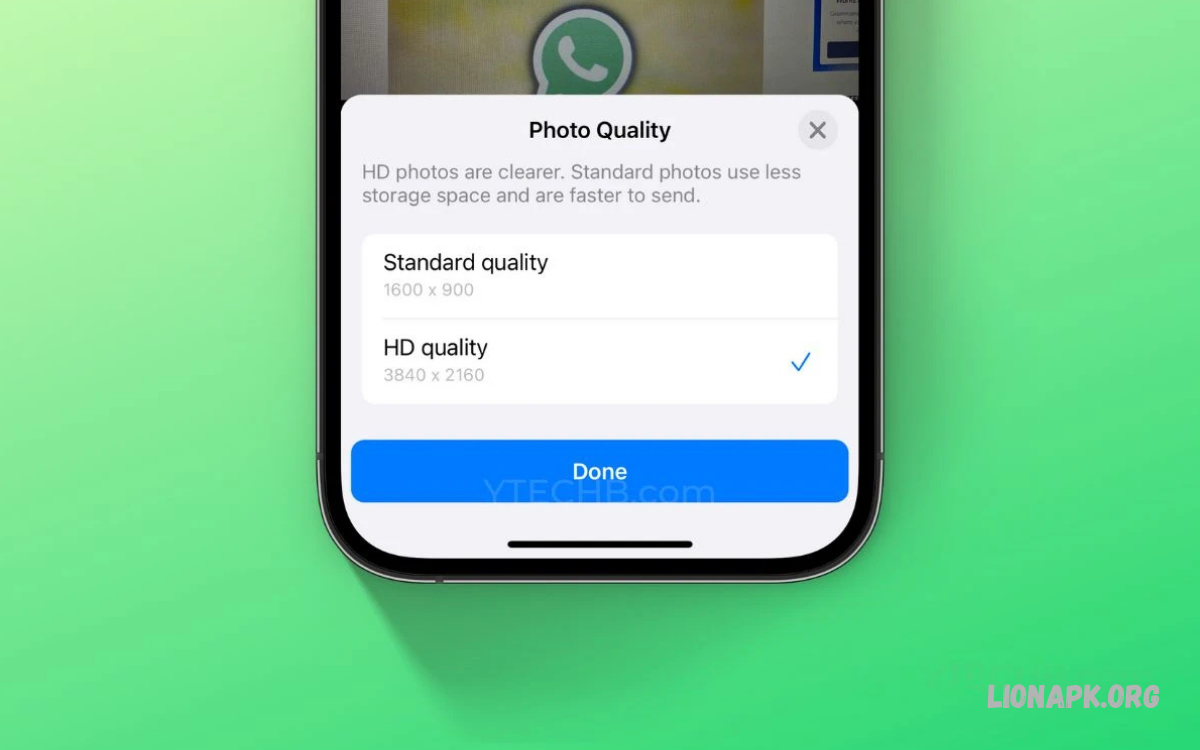
WhatsApp is one of the most popular messaging apps for sharing photos, videos, documents, and personal moments. However, its standard photo-sharing option compresses images, reducing their original quality and sharpness.
Learning How to Send HD Photos on WhatsApp helps you share clearer pictures with friends, family, classmates, and colleagues. WhatsApp offers an HD media option that preserves more image detail and improves the overall sharing experience.
What Does HD Photo Sharing Mean on WhatsApp?
HD stands for High Definition. In photo sharing, it generally means a higher-resolution image with more visible details, clearer textures, and better overall quality than a compressed standard image.
When you send a photo through WhatsApp, the app may reduce its resolution or file size to make delivery faster. Selecting the HD option lets you send a higher-quality version, though it may not preserve every detail of the original file.
Why Does WhatsApp Reduce Photo Quality?
WhatsApp compresses images to reduce file sizes and help photos upload and download efficiently. This can save mobile data, reduce storage needs, and speed up sharing on slow internet connections.
However, compression may make small text, fine textures, and distant objects look less detailed. Sending a photo using the HD option can reduce this loss, making it a useful choice for important pictures and high-quality images.
How to Send HD Photos on WhatsApp on Android
Sending HD photos on an Android phone is straightforward. Open WhatsApp, enter an individual or group chat, and tap the attachment or camera icon to select the picture you want to share.
Choose the photo from your gallery, then look for the HD icon or quality option near the top of the preview screen. Select HD quality, confirm your choice if prompted, and tap the send button to share the image.
How to Send HD Photos on WhatsApp on iPhone
iPhone users can also share higher-quality pictures through WhatsApp. Open the app, select the conversation, tap the plus icon, and choose Photos or the relevant media option to find the image you want to send.
After selecting the picture, look for the HD button on the preview screen. Tap it, select HD quality, and send the photo. The exact interface may vary depending on your WhatsApp version and device settings.
How to Enable HD Photo Quality by Default
WhatsApp may allow you to choose a preferred media upload quality in its settings. This option can help you avoid selecting HD manually every time you share a picture.
Open WhatsApp Settings, then look for Storage and Data and the Media Upload Quality option. If available, select HD quality as the default. Menu names and available options may differ between Android, iPhone, and app versions.
How to Send HD Photos in WhatsApp Chats
Individual chats are a convenient way to share personal photographs in higher quality. Open the conversation, select your image, activate the HD option, and send it after checking the preview.
The recipient can view the photo directly in WhatsApp and may be able to download it to their device. Remember, choosing HD improves image quality, but the result still depends on the source image and the app’s processing.
How to Send HD Photos in WhatsApp Groups
WhatsApp groups make it easy to share photographs with several people at once. You can send HD pictures to family groups, school groups, event teams, and other conversations without sharing each image individually.
Open the group, choose a photo, select HD quality, and tap Send. Before sharing, consider whether everyone in the group needs the image, especially if it contains personal information or photographs of other people.
How to Send Multiple HD Photos on WhatsApp
WhatsApp lets users select multiple pictures for sharing in a single message, depending on the device and interface. Open a chat, access your gallery, and select the photographs you want to send.
Check whether the HD quality option is available for your selection, then apply it if supported. If the interface does not allow HD selection for all chosen images, send them in smaller batches and confirm the quality setting before each upload.
How to Send HD Photos Without Losing Quality
The HD option preserves more detail than standard photo sharing, but it doesn’t guarantee original quality. If you need to retain the original image file, sending it as a document is often a better alternative.
Open the chat, tap the attachment icon, and choose Document. Browse your device storage, select the original image file, and send it. This method can help preserve the file’s original resolution and format, depending on the file and transfer process.
How to Send Photos as Documents on Android
Android users can share photographs as documents through WhatsApp’s attachment menu. First, make sure the original image is saved on your device and that you can locate it using your file manager.
Open WhatsApp, enter the chat, tap the attachment icon, and select Document. Browse the available files, choose the original photograph, and confirm the upload. The recipient can download the file and open it with a compatible image viewer.
How to Send Photos as Documents on iPhone
On an iPhone, you may need to save the image to the Files app before sharing it as a document. Open Photos, select the picture, tap Share, and choose Save to Files.
Next, open WhatsApp and enter the conversation. Tap the plus icon, select Document, browse your saved files, and choose the image. This approach is useful when preserving the original file matters more than displaying the photo as a regular image preview.
HD Photos vs. Standard Photos on WhatsApp
Standard photo sharing prioritizes smaller file sizes and convenient delivery. It suits everyday pictures, casual conversations, and situations where fast uploads matter more than fine image details.
HD photo sharing prioritizes better visual quality by retaining more detail than standard sharing. Sending a photo as a document can be preferable when you need the original file, but recipients may need to download and open it separately.
Benefits of Sending HD Photos on WhatsApp
One major benefit of sharing HD photos is improved clarity. Images can retain more visible detail, making them useful for travel photographs, family memories, event pictures, and other images where quality matters.
HD sharing also lets you send better-looking photos without switching to another app. Because the feature works within WhatsApp conversations, users can quickly share images with contacts who already use the platform.
Best Situations for Sending HD Photos
HD photo sharing is helpful when you want to show landscapes, architecture, artwork, product details, or other subjects where clarity matters. It can also help when sharing photos from celebrations, trips, school activities, and special occasions.
For casual images, memes, or quick snapshots, standard quality may be sufficient. For important documents, detailed artwork, or images that require the original resolution, consider sending the file as a document instead.
How to Check Whether a Photo Was Sent in HD
After sending a photo, open the WhatsApp conversation and check the image preview. Depending on the app version and interface, an HD label or indicator may appear on a photo sent using the HD option.
You can also open the picture to inspect its visible detail. Keep in mind that appearance alone cannot confirm the exact resolution or whether the image matches the original file. For precise file details, download the image and inspect its properties on your device.
How to Download HD Photos on WhatsApp
When someone sends you an HD photo, open the conversation and tap the image to view it. Depending on your settings and connection, WhatsApp may download the image automatically or require you to tap it to start the download.
Once downloaded, you can save the photo to your phone’s gallery or Photos app. If the image was sent as a document, download the attachment and save it to an appropriate folder for easier access.
How to Send HD Photos Using WhatsApp Web
WhatsApp Web allows users to share photographs from a computer browser. Open WhatsApp Web, connect your account, select the conversation, and click the attachment icon to choose a picture stored on your computer.
If the HD option appears in the photo preview, select it before sending. Available controls can vary by browser and WhatsApp interface. If you cannot find the HD setting, consider sending the original image as a document.
How to Send HD Photos Using WhatsApp Desktop
WhatsApp Desktop provides another way to share pictures from a Windows computer or Mac. Open the application, choose the recipient, and use the attachment button to select the image from your files.
Review the preview screen for the HD option before sending. If maintaining the original file is important, attach the image as a document when the interface supports it. This method is particularly useful for photographs transferred from a camera or editing application.
Does Sending HD Photos Use More Data?
Yes, HD photos can use more mobile data than standard compressed images because their files are generally larger. The exact difference depends on the image dimensions, format, compression level, and detail in the photo.
If you have a limited data package, consider using Wi-Fi for large image transfers. You can also reserve HD quality for important photos and use standard quality for everyday sharing to balance clarity with data use.
Do HD Photos Take More Storage Space?
Higher-quality images can occupy more storage space because they often contain more data than compressed versions. File size varies widely, so not every HD photo will be larger by the same amount.
If you regularly receive many photographs, review WhatsApp’s storage management tools to identify large files and unnecessary media. Save important images separately before deleting them, and remember that removing a photo from a chat may not remove every copy stored elsewhere on your device.
Why Is the HD Option Missing on WhatsApp?
If the HD button doesn’t appear, your WhatsApp version or the current sharing method may not support it. The interface can also vary depending on your operating system, device, and the type of media you select.
Update WhatsApp through the official app store, restart the application, and try selecting a single image from your gallery. If the option remains unavailable, sending the original picture as a document may provide a practical alternative.
Read Also: How to Transfer WhatsApp to a New Phone: Without Losing Chats
Why Do HD Photos Still Look Blurry?
Selecting HD quality cannot restore details that are missing from the original photograph. If the image was captured in poor lighting, moved during capture, or already compressed by another app, it may still look blurry after being shared.
Check the original picture before uploading it and avoid repeatedly saving or forwarding compressed copies. When image quality is especially important, find the original file and send it as a document instead of relying on an already compressed version.
How to Fix WhatsApp HD Photo Upload Problems
HD photo uploads may fail because of an unstable internet connection, limited device storage, temporary app issues, or a file that cannot be processed correctly. Start by checking your internet connection and confirming that WhatsApp can access the photos you selected.
If the problem continues, close and reopen WhatsApp, check for updates, and free up device storage if necessary. You can also try sending one image at a time or switching to a document attachment to see whether the issue is with the photo-sharing interface.
Tips for Maintaining Photo Quality on WhatsApp
Start with the original image whenever possible. Avoid repeatedly downloading, editing, and forwarding the same compressed picture, because each processing step can reduce the detail available for later sharing.
Choose HD quality when visual clarity matters, and use document sharing when you need to preserve the original file. Before sending, check the image preview and confirm that you selected the correct photograph, especially when sharing several pictures in one conversation.
Common Mistakes When Sending HD Photos
A common mistake is assuming that WhatsApp automatically retains the original resolution of every photo. Standard image sharing may compress pictures, so users should check the HD option or choose document sharing when necessary.
Another mistake is selecting a low-quality copy instead of the original image. Sending that copy in HD cannot restore lost detail. Always find the highest-quality version available on your device before sharing it with friends, colleagues, or clients.
Is Sending HD Photos on WhatsApp Safe?
WhatsApp offers end-to-end encryption for personal messages and calls under certain conditions, helping protect message content as it travels between participants. However, image quality settings do not determine who can access a photograph after it reaches a recipient.
Share sensitive photographs only with trusted people, and check group membership before uploading private images. Recipients may save, copy, or forward photographs, so consider the privacy of everyone shown in the image before sending it.
Best Alternative Methods for Sharing Original Photos
WhatsApp document sharing is a convenient alternative when you want to preserve the original image file. It is useful for photographs that need their original resolution, file format, or other file properties to remain intact during sharing.
For very large collections, cloud storage services can be useful. Upload the original files to a trusted service and share access through an appropriate link. Check the sharing permissions carefully, especially when the pictures contain private or confidential information.
Frequently Asked Questions
How to Send HD Photos on WhatsApp Without Losing Quality?
Open a WhatsApp chat, select your photo, tap the HD option, choose HD quality, and send it. For the best chance of preserving the original file, send the photograph as a document instead.
How Do I Send HD Photos on WhatsApp on Android?
Open a conversation, choose a picture from your gallery, select HD quality on the preview screen, and tap Send. If the option isn’t available, update WhatsApp or try sharing as a document.
How Do I Send HD Photos on WhatsApp on iPhone?
Select a conversation, tap the plus icon, choose Photos, and select your image. Tap HD if available, select the higher-quality setting, and send the photograph.
Can I Send Original-Quality Photos on WhatsApp?
You can often preserve the original image file by sending it as a document. This is a useful alternative when the HD photo option still compresses the image or doesn’t retain the exact original file.
Does WhatsApp HD Reduce Photo Quality?
HD sharing retains more detail than standard photo sharing, but it may still compress the image. Sending the original image as a document is best when you need to preserve the original file.
How Can I Set HD Quality as the Default?
Open WhatsApp Settings and look under Storage and Data for Media Upload Quality. If your version offers the setting, select HD quality as your preferred default for supported media uploads.
Why Is My WhatsApp HD Photo Blurry?
The original image may already be blurry, compressed, or poorly lit. Select the highest-quality original file and send it using HD quality or as a document.
Does WhatsApp HD Photo Sharing Use More Internet Data?
Yes, HD images can require more data than standard compressed photographs. Using Wi-Fi for large transfers can help reduce mobile data consumption.
Can I Send Multiple HD Photos at Once?
Yes, WhatsApp supports sending multiple photos in many situations. Select the pictures, check whether HD quality is available for the selection, and send them. If necessary, send smaller batches.
Is Sending Photos as Documents Better Than HD?
It depends on your needs. HD is convenient for viewing photos directly in chats, while sharing as a document is generally better when you want to preserve the original image file.
Conclusion
Learning how to send HD Photos on WhatsApp makes it easier to share clearer pictures with friends, family, and colleagues. Selecting HD quality improves detail compared with standard photo sharing and provides a convenient solution for everyday image transfers.
For photos that need their original file quality, sending them as documents is often a better option. Choose the method that suits your needs, check your image before sharing, and use Wi-Fi when transferring large files to make the process more convenient.
