

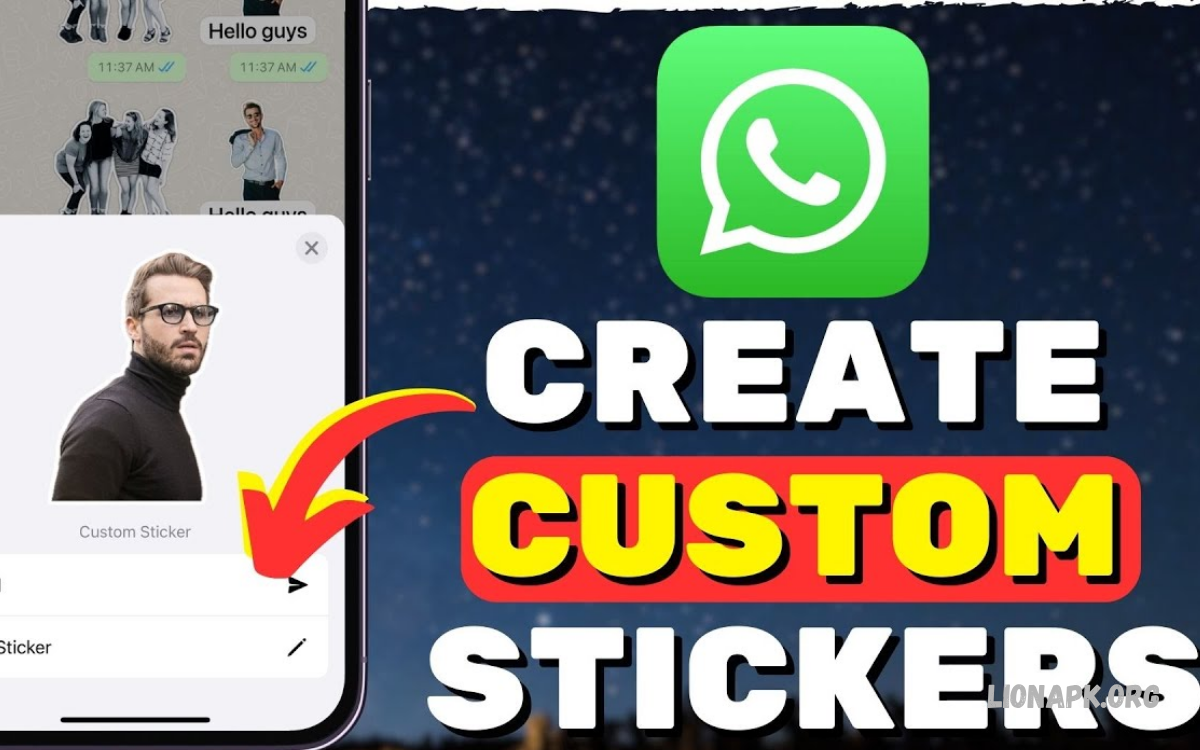
WhatsApp stickers make conversations more expressive, creative, and enjoyable. Learning to create WhatsApp stickers lets you turn personal photos, funny moments, and original designs into chat stickers.
You can create custom stickers using WhatsApp’s built-in tools or third-party sticker-making apps. This guide explains different methods, editing tips, customization options, and ways to share your creations with friends.
What Are WhatsApp Stickers?
WhatsApp stickers are small graphic images that users send in individual chats, group conversations, and other supported messaging spaces. They can include emojis, cartoon characters, text, personal photos, memes, and illustrations.
Unlike ordinary text messages, stickers communicate emotions through visual expressions. Custom WhatsApp stickers also help users personalize conversations, celebrate special occasions, and share creative ideas with friends and family.
Why Create Custom WhatsApp Stickers?
Creating custom stickers gives you more freedom than using standard emojis or downloaded sticker packs. You can transform memorable photographs, favorite expressions, and original artwork into personalized images for everyday conversations.
Custom stickers are also useful for birthdays, festivals, celebrations, and friendly jokes. Instead of searching through existing collections, you can create designs that match your personality and use them whenever you want.
Requirements for Creating WhatsApp Stickers
Before learning how to create WhatsApp stickers, make sure you have WhatsApp installed on a compatible device. Update the app when necessary so you can access available sticker creation and editing features.
You may also need a suitable photograph, a graphic design, or a sticker-making application. Choose clear images and use pictures you own or have permission to edit and share.
How to Create WhatsApp Stickers on Android
Android users can create stickers through WhatsApp’s available built-in tools or compatible sticker-maker applications. The exact options depend on the app version, device, and features currently available in your region.
Start by opening WhatsApp and checking the sticker section in a conversation. If a sticker creation option appears, select a photo and use the available editing tools to personalize your design.
Create Stickers Using WhatsApp’s Built-In Tools
Open an individual or group chat and tap the emoji icon beside the message box. Switch to the stickers section and look for an option to create a sticker from an image.
Choose a suitable photo from your gallery and follow the on-screen instructions. If editing tools are available, adjust the image, add text or drawings, and confirm the result before sending it.
Create Stickers Using a Sticker Maker App
If your WhatsApp version does not offer the tools you need, install a reputable sticker-maker application from Google Play. Review its permissions, ratings, privacy information, and recent updates before using it.
Open the application, create a new sticker pack, and import your chosen images. Edit each image, remove the background if supported, and use the app’s WhatsApp export option to add the finished stickers.
How to Create WhatsApp Stickers on iPhone
iPhone users can create stickers using WhatsApp’s available features or compatible tools in iOS. Depending on the iOS version, you may also be able to create photo stickers through Apple’s Photos application.
Choose a clear photograph, open the available editing options, and separate the main subject from its background when supported. You can then copy, share, or export the sticker using a compatible method.
Create Stickers Directly in WhatsApp on iPhone
Open WhatsApp and enter a conversation where you want to use your sticker. Tap the sticker icon and check whether the sticker creation option is available in your version.
Select an image, customize it using the available editing features, and save or send the finished design as supported. If the creation option is missing, update WhatsApp or use a compatible sticker-making application.
Use the iPhone Photos App
Open the Photos app and select an image with a clearly visible subject. On supported iPhones and iOS versions, touch and hold the subject until it separates visually from the background.
Choose the available option to add the subject as a sticker or copy it. Depending on your device and software version, you may be able to use the resulting sticker in WhatsApp or another compatible application.
How to Create WhatsApp Stickers from Photos
Personal photographs are among the most popular sources of custom WhatsApp stickers. You can use pictures of yourself, pets, objects, or everyday moments to create designs that feel unique and recognizable.
Choose a photo with good lighting and a clear subject. Images with simple backgrounds are generally easier to edit because the main subject can be separated from surrounding objects more effectively.
Choose the Right Photograph
Select a photograph with sharp details and a subject that stands out clearly. Avoid heavily blurred images, dark photographs, and pictures with complicated backgrounds when you want a clean sticker.
Consider how the image will look at a small size on a phone screen. A close-up face, expressive pet, or recognizable object often works better than a photograph containing many small details.
Remove the Image Background
Background removal helps your sticker blend naturally into different chat themes. Many sticker-maker apps provide automatic background removal, while some photo-editing tools allow you to erase unwanted areas manually.
After removing the background, inspect the edges around the subject. Correct rough outlines, restore missing details, and make sure the final image does not contain unwanted fragments.
Crop and Resize the Image
Crop the image to focus on its most important details. A well-framed sticker communicates its message quickly and remains recognizable when displayed at a smaller size.
Follow the dimensions and file requirements of your chosen sticker tool. Many WhatsApp sticker workflows use square images around 512 × 512 pixels, although you should check the current requirements of the application you use.
How to Create WhatsApp Stickers with Text
Text stickers are useful for greetings, reactions, short jokes, and everyday expressions. You can create designs featuring phrases such as “Good Morning,” “Thank You,” or “See You Soon.”
Use a readable font and strong contrast between the text and its background. Keep phrases short because large blocks of writing can become difficult to read on a small mobile screen.
Add Text Using a Sticker Maker
Open your preferred sticker editor and import an image or start with a blank design. Find the text tool, enter your phrase, and adjust the font, size, alignment, and color.
Position the words so they do not cover important details in the image. Preview the design at a smaller size before exporting it to ensure that the message remains easy to understand.
Create Funny Text Stickers
Funny text stickers can make group conversations more entertaining. Use original phrases, familiar reactions, or lighthearted expressions that fit the type of conversation you usually have with friends.
Combine a short phrase with an expressive photograph or illustration. Avoid overcrowding the design with unnecessary effects, because simple layouts often communicate humor more effectively.
How to Create WhatsApp Stickers Without an App
You may not need an additional application to create simple stickers. WhatsApp’s built-in tools and supported features in your phone’s operating system can provide convenient ways to turn images into stickers.
Open WhatsApp and check its sticker creation options first. If those features are unavailable, explore your device’s built-in photo tools or image-sharing options that work with WhatsApp.
Use WhatsApp’s Sticker Creation Feature
Open a chat, access the sticker panel, and look for a creation tool if your version supports one. Choose an image, make the available adjustments, and confirm the sticker before sending it.
The advantage of this method is convenience because you can work within WhatsApp. However, available editing options may differ from those provided by dedicated sticker-maker applications.
Use Built-In Phone Editing Features
Some phones include photo cutout, subject selection, or image editing features that can help prepare sticker artwork. These tools may let you isolate a person, animal, or object without installing another application.
Once the image is ready, open a compatible sticker editor or WhatsApp feature to finish the process. The exact sharing method depends on your phone model, operating system, and installed applications.
How to Create Animated WhatsApp Stickers
Animated stickers add movement to conversations and can communicate reactions in a more dynamic way. They may feature simple gestures, moving characters, or short visual sequences.
To create animated stickers, use a reputable application that explicitly supports animated WhatsApp sticker packs. Check the current export requirements because supported formats, animation limits, and import options can vary between tools.
Choose an Animation Source
Start with a short animation, a series of images, or original artwork that you want to bring to life. Make sure you have permission to use the material, especially when it comes from another creator.
Choose an animation with a clear subject and a simple action. Short, recognizable movements generally work better than complicated sequences containing too many visual details.
Edit and Export Animated Stickers
Import your animation into a compatible sticker editor and adjust the duration, crop, and playback settings. Remove unnecessary frames when appropriate and preview the animation to check whether it plays smoothly.
Export the design using the format required by the application. Follow its instructions to add the animated sticker pack to WhatsApp and test the animation in a conversation.
How to Create WhatsApp Sticker Packs
A sticker pack organizes multiple related designs into one collection. You can create packs for funny reactions, personal photographs, birthday greetings, gaming characters, or everyday expressions.
Using themed packs makes your stickers easier to find and keeps similar designs together. Before exporting a pack, review the application’s requirements for the number of stickers, image dimensions, pack names, and author information.
Create a New Sticker Pack
Open a compatible sticker-maker application and select the option to create a new pack. Enter a recognizable pack name and add an author label if the application requests one.
Import your prepared images and edit each sticker individually. Check that every design follows the application’s technical requirements before using the export or add-to-WhatsApp option.
Add More Stickers to an Existing Pack
Open your sticker-making application and select the pack you want to update. If the application supports editing existing packs, use its add-sticker option to import additional images.
Review the updated collection and follow the export instructions. Some applications require you to re-export a pack or have specific limitations on editing collections that have already been added to WhatsApp.
Best Apps for Creating WhatsApp Stickers
The best sticker-making tool depends on your preferred editing style and the features available on your device. WhatsApp’s built-in editor is convenient, while dedicated applications may provide more options for background removal, text, cropping, and pack management.
You can also use general image editors to prepare sticker artwork before importing it into a compatible sticker application. Compare available features, export support, advertisements, privacy policies, and subscription requirements before choosing a tool.
Sticker Maker Applications
Sticker Maker-style applications are designed to organize images into packs for WhatsApp. Many offer tools for importing photos, removing backgrounds, adding text, and exporting completed collections.
Look for an application that clearly explains its export process and does not request unnecessary permissions. Check recent reviews and compatibility information before installing it from your device’s official app store.
General Photo Editing Applications
Photo editors can help you prepare polished sticker images with better cropping, colors, outlines, and text. They are particularly useful when you want to create detailed designs instead of using a simple photo cutout.
After editing, save your artwork in a format supported by your sticker-making workflow. You may need another compatible tool to convert the artwork into an installable WhatsApp sticker pack.
How to Make WhatsApp Stickers Look Professional
Professional-looking stickers usually have a clear subject, clean edges, balanced colors, and readable details. Consistent styling also makes a collection feel organized, particularly when all stickers belong to the same theme.
Choose a visual style before creating a large pack. For example, you might use bold outlines, pastel colors, expressive faces, or simple illustrations throughout the collection.
Use High-Quality Images
Start with a sharp source image and avoid enlarging small, blurry photographs unnecessarily. Better source quality helps preserve facial features, text, and other important details during editing.
Check the exported sticker on your phone before adding many designs to a pack. Make adjustments if the subject appears too small, the edges look rough, or important details disappear at reduced sizes.
Read Also: How to Send HD Photos on WhatsApp: Without Losing Quality
Keep Sticker Designs Simple
A sticker should communicate its meaning quickly without requiring the viewer to examine many small details. Remove unnecessary backgrounds, decorations, and text that distract from the main subject.
Use a limited number of colors and effects to maintain visual clarity. Simple designs are also easier to recognize when users scroll through a sticker collection during a conversation.
Use Transparent Backgrounds When Appropriate
Transparent backgrounds allow sticker subjects to appear naturally against different chat colors. They work especially well for cutout photographs, cartoon characters, and illustrations with clean outlines.
Check that your editing application preserves transparency during export. Some image formats replace transparent areas with solid colors, so preview the finished sticker before importing it into WhatsApp.
How to Organize and Manage WhatsApp Stickers
As your collection grows, organizing sticker packs can save time. Group related designs by purpose, such as greetings, funny reactions, celebrations, pets, or gaming themes.
Use recognizable pack names and remove duplicate stickers when they are no longer useful. Review the sticker management options available in WhatsApp to keep your frequently used collections easy to access.
Save and Find Your Favorite Stickers
When someone sends you a sticker you like, WhatsApp may provide an option to add it to your favorites. This feature helps you reuse individual stickers without searching through every pack.
To manage your favorites, open the sticker panel and look for its favorites section. Available controls may differ between app versions, so follow the options displayed on your device.
Share Custom Stickers with Friends
Once your stickers are available in WhatsApp, you can send them in supported individual and group conversations. Recipients may be able to save individual stickers, depending on the features available in their version of the app.
If you want to share an entire collection, check whether your sticker application provides a sharing or export feature. Some applications offer a direct pack-sharing link, while others support only local installation.
Common Problems When Creating WhatsApp Stickers
Sometimes a sticker pack fails to import, an image appears blurry, or the background looks different than expected. These problems can result from unsupported file formats, incorrect dimensions, application limitations, or incomplete export steps.
Start by checking the requirements provided by your sticker editor. Update WhatsApp and the sticker application when appropriate, and try exporting a smaller test pack to identify the problem.
Sticker Pack Is Not Adding to WhatsApp
If your sticker pack does not appear in WhatsApp, confirm that the application supports the version of WhatsApp installed on your phone. Check whether every required sticker has been added and whether the pack meets the application’s limits.
Restart the relevant applications and repeat the export process if necessary. If the problem continues, consult the sticker application’s help information or use another reputable tool with compatible export support.
Sticker Images Look Blurry
Blurry stickers often come from low-resolution source images or excessive enlargement during editing. Choose a sharper original image and avoid repeated resizing or saving through multiple low-quality formats.
Follow the current dimensions and file specifications of your chosen sticker tool. Preview the exported result before sending it so you can identify quality issues early.
Background Removal Looks Uneven
Automatic background removal may struggle with hair, transparent objects, complex edges, or subjects that blend into the background. Use manual editing tools when available to correct these areas.
Zoom in and inspect the outline around the subject. Small adjustments can improve the result, but avoid excessive smoothing that removes important details or makes the sticker look unnatural.
Privacy and Copyright Tips for WhatsApp Stickers
Before creating stickers from photographs, consider the privacy of everyone shown in the images. Ask for permission when appropriate, particularly if you plan to share personal photographs or use them in a public sticker collection.
Use your own artwork or material you have permission to edit and distribute. Avoid creating stickers intended to embarrass, harass, impersonate, or expose someone’s private information.
Protect Personal Photos
Choose carefully which photographs you upload to third-party editing applications. Review the app’s privacy policy, requested permissions, and information about how images are stored or processed.
Prefer trusted tools and avoid uploading sensitive images unnecessarily. If you are making stickers from pictures of friends or family, consider whether they would be comfortable with the finished designs being shared.
Respect Copyrighted Material
Not every image found online is free to reuse. Photographs, illustrations, logos, and characters may be protected by copyright or other rights, even when they are easy to download.
Use original designs, properly licensed resources, or material that you have permission to share. Review the applicable terms before distributing sticker packs beyond your personal conversations.
Creative WhatsApp Sticker Ideas
There are many ways to personalize WhatsApp stickers for different occasions and conversations. You can create greeting stickers, funny reactions, pet expressions, study reminders, gaming designs, and seasonal artwork.
Choose ideas that match your interests and the people you communicate with most often. A collection built around a specific theme can feel more useful and memorable than a large pack of unrelated images.
Birthday and Celebration Stickers
Create stickers featuring birthday greetings, balloons, cakes, gifts, or celebratory messages. You can personalize them with a person’s name or a short phrase for a more meaningful design.
Seasonal stickers can include holiday greetings, festival artwork, and congratulatory messages. Use clear typography and recognizable symbols so each sticker communicates the occasion immediately.
Gaming and Entertainment Stickers
Gaming stickers can feature original characters, gaming-inspired reactions, victory messages, or humorous moments. Fans can organize these designs into packs for discussions with friends who share similar interests.
When using existing game artwork or entertainment characters, check the relevant usage rights before distributing your stickers. Creating original illustrations inspired by a general theme can provide more creative freedom.
Everyday Reaction Stickers
Everyday reaction stickers can include expressions for happiness, surprise, confusion, appreciation, or excitement. You can use original drawings, personal photographs, or simple text-based designs to communicate these feelings.
Keep the collection varied without making the designs difficult to understand. A consistent style helps users recognize your stickers quickly and select the right reaction during a conversation.
Benefits of Creating Your Own WhatsApp Stickers
Custom stickers make digital communication more personal by allowing you to express ideas through images you choose or design yourself. They can turn familiar photographs and original artwork into reusable parts of your everyday conversations.
Creating sticker packs can also help you practice basic graphic design and image editing. By experimenting with cropping, typography, colors, and composition, you can gradually improve your creative skills.
Frequently Asked Questions
Can I Create WhatsApp Stickers for Free?
Yes, you can create WhatsApp stickers for free using built-in features or free sticker-making apps. Some third-party apps may offer optional paid features, subscriptions, or advertisements.
Can I Create WhatsApp Stickers from My Photos?
Yes, you can turn compatible photos into stickers using WhatsApp’s built-in creation tools or a suitable sticker editor. Choose a clear image, and remove the background if needed for a cleaner result.
How Do I Create WhatsApp Stickers Without Downloading an App?
Check whether WhatsApp offers a built-in sticker creation option on your device. You can also use compatible photo-cutout features already included in your phone’s operating system.
Can I Create WhatsApp Stickers on Android and iPhone?
Yes, both Android and iPhone users can create stickers through supported WhatsApp features and compatible editing tools. The exact steps depend on the device, operating system, and installed app versions.
How Do I Add Custom Stickers to WhatsApp?
Create your stickers in WhatsApp or a compatible sticker-maker app, then follow the on-screen instructions to save, export, or add them to WhatsApp. Confirm that the sticker pack appears in your sticker panel before using it.
Can I Create Animated WhatsApp Stickers?
Yes, animated stickers can be created using applications that support compatible animated WhatsApp sticker packs. Follow the application’s current format and export requirements to ensure the stickers work correctly.
Why Are My WhatsApp Stickers Blurry?
Stickers may look blurry because the original image is low quality or has been resized excessively. Use a sharp source image and follow the dimensions and export settings recommended by your sticker-making application.
Can I Share My Custom WhatsApp Sticker Pack?
Some sticker-making applications support pack sharing, while others only allow local installation. Check the application’s sharing options and make sure you have permission to distribute the images in your collection.
Are Third-Party WhatsApp Sticker Apps Safe?
Safety depends on the application and its privacy practices. Download apps from official stores, check recent reviews, review requested permissions, and avoid tools that demand unnecessary access to personal information.
What Is the Best Image Size for WhatsApp Stickers?
Many WhatsApp sticker workflows use images measuring 512 × 512 pixels. However, requirements vary by tool and sticker type, so check the current specifications in your chosen application before exporting.
Conclusion
Learning how to create WhatsApp stickers is easier when you start with a simple photograph and a compatible editing tool. WhatsApp’s built-in features, phone editing tools, and dedicated sticker-maker applications offer different ways to create personalized designs.
Focus on clear images, readable text, clean edges, and thoughtful organization to make useful sticker packs. With practice, you can create collections for everyday reactions, special occasions, hobbies, and conversations with friends.
