

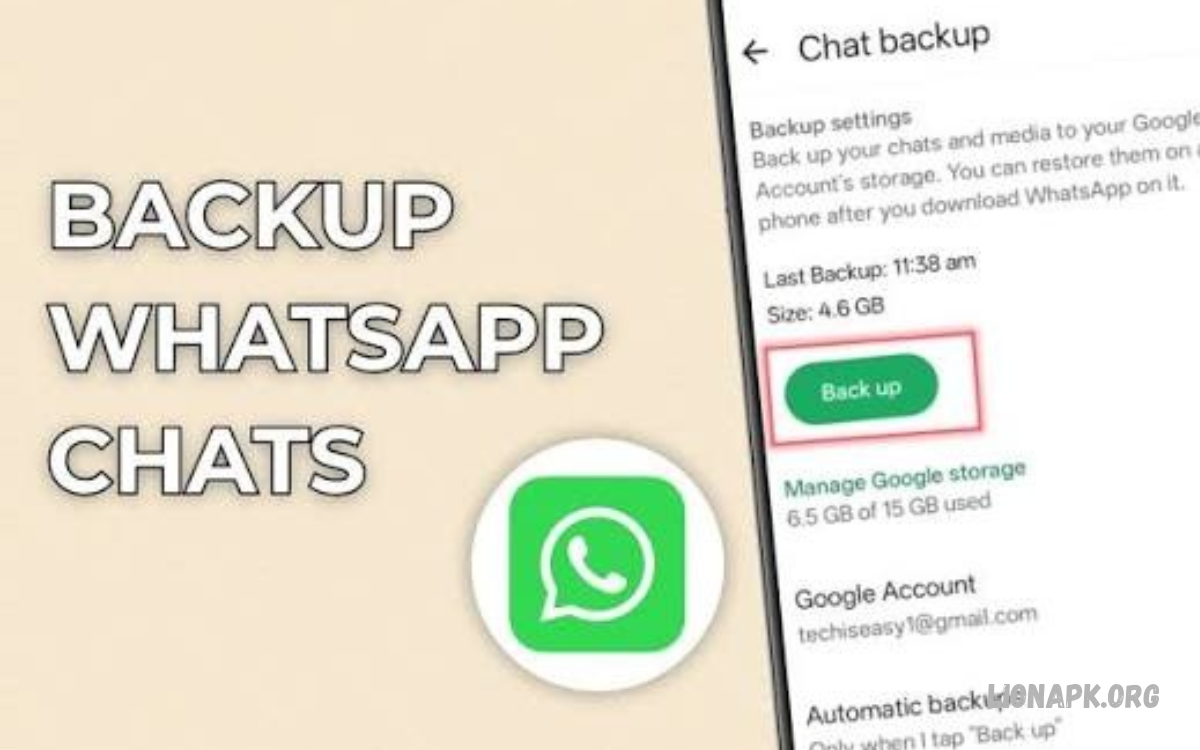
Backing up WhatsApp chats is one of the easiest ways to protect important conversations, personal messages, photos, videos, and documents. A reliable backup lets you restore your chat history when you switch phones, reinstall WhatsApp, or recover from unexpected data loss.
If you want to learn How to Backup WhatsApp Chats, this guide explains the process step by step for Android and iPhone users. You will also learn how to enable automatic backups, manage storage, troubleshoot common problems, and restore your messages safely.
Why Backing Up WhatsApp Chats Is Important
WhatsApp conversations often contain valuable information, including family messages, work discussions, study materials, photos, voice notes, and shared documents. Without a recent backup, you may lose access to these conversations if your phone is lost, damaged, reset, or replaced.
Creating regular backups gives you a practical way to preserve your chat history and move it to another compatible device. A recent, successful backup can make restoring your conversations much easier when setting up WhatsApp again.
Understanding WhatsApp Backup Options
WhatsApp offers different backup options depending on your device and operating system. Android users can generally back up chats to their Google Account through Google Drive, while iPhone users can use iCloud to store their chat backups.
Android devices may also support local backups stored in the phone’s internal storage. Each method has different requirements, so choosing the right option depends on your device, available storage, internet connection, and recovery needs.
How to Backup WhatsApp Chats on Android
Android users can back up WhatsApp conversations through the app’s chat backup settings. Open WhatsApp, tap the three-dot menu, select Settings, open Chats, and choose Chat backup to view your available backup options.
Select the Google Account you want to use, choose a suitable backup frequency, and tap Back up. Keep your phone connected to a stable Wi-Fi network and wait until the backup finishes before closing the process.
How to Backup WhatsApp Chats on iPhone
iPhone users can save WhatsApp chat history through iCloud. First, open your iPhone’s Settings, tap your name, select iCloud, and make sure iCloud Drive is enabled for your account.
Next, open WhatsApp and navigate to Settings > Chats > Chat Backup. Tap Back Up Now to start the backup process, and keep your iPhone connected to the internet until WhatsApp completes the operation.
How to Enable Automatic WhatsApp Backups
Automatic backups help protect your conversations without requiring you to remember to back them up manually. On Android, open WhatsApp > Settings > Chats > Chat backup, then select a backup frequency that suits your needs.
On iPhone, open WhatsApp > Settings > Chats > Chat Backup and choose Auto Backup. Select daily, weekly, or monthly backups according to the available options, and verify that your iCloud account has enough storage for the backup.
How to Backup WhatsApp Chats Before Changing Phones
Before changing your phone, create a fresh WhatsApp backup on your current device. Check the last backup date and time, confirm that the process completed successfully, and make sure you can access the Google Account or Apple Account associated with the backup.
Install WhatsApp on your new compatible phone and verify the same phone number when prompted. Follow the restore instructions displayed during setup, using the account associated with your backup to retrieve your available conversations and media.
How to Backup WhatsApp Chats Without Google Drive
Android users who do not want to use Google Drive may be able to use local backups stored on their phones. WhatsApp can create local database backups, although the exact storage location and available transfer methods vary by Android version and app configuration.
Open your phone’s file manager and look for the WhatsApp database folder, commonly found under Android/media/com.whatsapp/WhatsApp/Databases on newer Android installations. Copying the relevant WhatsApp data to a secure location may help with migration, but local files alone are not a substitute for a verified backup.
How to Backup WhatsApp Chats Without iCloud
iPhone users generally rely on iCloud for WhatsApp’s built-in chat backup feature. If iCloud storage is unavailable, review your account settings, free up storage, or upgrade your available storage if appropriate.
You can also investigate WhatsApp’s official chat transfer feature when moving between supported iPhones. This method transfers conversations directly between devices under the conditions supported by WhatsApp, but it is not the same as creating a separate, recoverable iCloud backup.
How to Include Photos and Videos in WhatsApp Backups
WhatsApp backups can include chat media, depending on the platform and backup settings. Photos, videos, voice messages, and shared documents may increase backup size significantly, so check the available storage before starting a large backup.
On Android and iPhone, review the Include Videos option in the Chat Backup settings when available. Enable it if you want videos included, and remember that videos can consume considerable cloud storage and increase backup time.
How to Backup WhatsApp Chats Automatically Every Day
Daily backups are useful for people who frequently exchange important messages or receive documents through WhatsApp. A daily schedule reduces the time between backups and can help preserve more recent conversations if something happens to the phone.
Open the Chat Backup settings and select the daily option if your device offers it. Automatic backups still depend on factors such as storage availability, account access, internet connectivity, and system settings, so check the last successful backup periodically.
How to Check Whether a WhatsApp Backup Is Complete
Checking your backup status is essential because starting a backup does not always mean it has finished successfully. Open WhatsApp > Settings > Chats > Chat Backup and review the latest backup date, time, and available details.
If the displayed information shows an older backup, your newest conversations might not be included. Start another backup when your internet connection is stable, then return to Settings and confirm the recorded backup time has updated.
How to Fix WhatsApp Backup Stuck at a Certain Percentage
A WhatsApp backup may appear stuck because of a weak internet connection, insufficient cloud storage, large media files, or temporary app issues. Connect to a reliable Wi-Fi network, check available storage, and ensure WhatsApp has permission to access the necessary data.
If the backup still does not progress, restart your phone and try again. Avoid deleting WhatsApp or clearing its app data before confirming that your conversations are safely backed up, because doing so may remove data needed for recovery.
How to Fix WhatsApp Backup Failed Errors
Backup failures can occur if your Google Account or Apple Account has a problem, your cloud storage is full, or your internet connection keeps disconnecting. Check your account settings, confirm you have enough storage, and retry the backup after fixing any connection issues.
On Android, verify that you have selected the correct Google Account in WhatsApp’s Chat Backup settings. On iPhone, check iCloud availability and make sure WhatsApp can use it, then start another backup and confirm the updated status.
How to Restore WhatsApp Chats From a Backup
Restoring a backup lets you recover supported conversations and media after reinstalling WhatsApp or setting up a new phone. Install the official WhatsApp app, verify the phone number associated with the backup, and follow the restore prompt when it appears.
On Android, use the Google Account associated with your Google Drive backup; on iPhone, use the relevant Apple Account and iCloud settings. Restore your chats during setup, and avoid skipping the restore prompt if you need the backup, because restoring later may require reinstalling WhatsApp again.
Read Also: How to Use WhatsApp Status: A Complete Beginner’s Guide
How to Backup WhatsApp Chats Before Reinstalling the App
Before uninstalling WhatsApp, open Chat Backup and create a new backup. Wait for the operation to finish, then check its timestamp and verify that the correct cloud account is selected so you can find the backup during setup.
Confirm that you can access your account and receive verification messages on your phone number. Once the backup is verified, reinstall WhatsApp from the official app store and follow the recovery instructions, keeping in mind that a backup may not contain every item or message.
How to Backup WhatsApp Chats With End-to-End Encryption
WhatsApp offers an optional end-to-end encrypted backup feature that adds another layer of protection to stored chat backups. When enabled and configured correctly, the backup can only be accessed using the credentials or key required by the encryption method you selected.
To review this feature, open WhatsApp > Settings > Chats > Chat Backup > End-to-end encrypted backup, where available. Follow the on-screen instructions carefully, and keep your password or encryption key somewhere secure because losing the required credentials may prevent you from restoring that encrypted backup.
How to Manage WhatsApp Backup Storage
WhatsApp backups can occupy substantial cloud storage when conversations contain many videos, images, and documents. Check the available space in Google Drive or iCloud and review other files or backups using that same account before starting a new backup.
If storage is nearly full, remove unnecessary files that you have already reviewed and saved elsewhere. You can also exclude videos from future WhatsApp backups to reduce their size, while remembering that deleting a cloud backup may permanently remove a recovery option.
How to Backup WhatsApp Chats Using Mobile Data
Some users prefer mobile data when Wi-Fi is unavailable or unreliable. Depending on your phone and WhatsApp version, you may be able to adjust network settings or use mobile data for backup-related transfers, but large backups can consume significant data allowances.
Check your device’s network settings and WhatsApp backup options before proceeding. If your backup includes many photos and videos, Wi-Fi is usually a practical choice because it reduces mobile data usage and helps you avoid unexpected charges from your mobile provider.
How to Backup WhatsApp Business Chats
WhatsApp Business users can also back up conversations to preserve customer inquiries, order discussions, shared files, and other business communications. Open the app’s settings, select Chats, and find Chat backup to review the available backup options for your device.
Choose the appropriate Google Account or Apple Account, then start a backup and verify its completion. Businesses should also keep records of important transactions and customer information, following applicable privacy requirements rather than relying solely on WhatsApp chat history.
Common WhatsApp Backup Mistakes to Avoid
One common mistake is assuming that a backup exists simply because automatic backups are enabled. Always check the last successful backup time, confirm the correct cloud account, and verify you have enough storage before replacing or resetting your phone.
Another mistake is uninstalling WhatsApp before completing a recent backup. Avoid sharing encryption credentials, deleting backup files without checking their purpose, or assuming you can restore a backup from one platform directly to another without using a supported transfer method.
Best Tips for Keeping WhatsApp Backups Safe
Create backups regularly and check their status before making major changes to your phone. Keep your Google Account or Apple Account secure, use a strong device passcode, and enable encrypted backups if you need the additional protection they provide.
Avoid storing backup passwords or encryption keys in easily accessible places. Before deleting old files, resetting your device, or changing accounts, verify that your latest backup is available and that you understand the steps required to restore it.
Frequently Asked Questions
How to Backup WhatsApp Chats on Android?
Open WhatsApp and go to Settings > Chats > Chat backup. Select your Google Account, choose a backup frequency, and tap Back up to save your conversations.
How to Backup WhatsApp Chats on iPhone?
Open WhatsApp > Settings > Chats > Chat Backup and tap Back Up Now. Ensure iCloud Drive is enabled and sufficient iCloud storage is available.
Can I Backup WhatsApp Chats Automatically?
Yes, WhatsApp supports automatic backups. Open Chat Backup settings and select a daily, weekly, or monthly schedule, depending on the available options.
How Can I Backup WhatsApp Chats Without Google Drive?
Android users may use local WhatsApp database backups stored on their phones. The available method depends on the device and Android version, so verify your local backup before making changes.
How Do I Restore WhatsApp Chats on a New Phone?
Install WhatsApp, verify your phone number, and follow the restore prompt. Use the Google Account or Apple Account associated with your backup.
Does WhatsApp Backup Include Photos and Videos?
Yes, backups can include photos and other media. Videos may require enabling the Include Videos option, and including media increases the backup size.
Why Is My WhatsApp Backup Failing?
Common reasons include insufficient storage, an unstable internet connection, account issues, or temporary app problems. Check your connection, free storage, and backup account before trying again.
Can I Backup WhatsApp Chats Without Internet?
Cloud backups require an internet connection. Depending on your setup, Android local backups may be created on the device without uploading data to the cloud.
Are WhatsApp Backups End-to-End Encrypted?
WhatsApp offers optional end-to-end encrypted backups. You must securely retain the password or encryption key needed to access an encrypted backup.
How Often Should I Backup WhatsApp Chats?
Daily backups are useful for frequently updated conversations. Weekly backups may suit lighter users, but choose a schedule that matches how often you need to preserve new messages.
Can I Transfer WhatsApp Chats From Android to iPhone?
Yes, WhatsApp supports chat transfer between Android and iPhone. Follow the official transfer instructions because a Google Drive backup cannot simply be restored directly from Google Drive onto an iPhone.
What Happens If I Skip WhatsApp Backup Restoration?
Your previous chats may not appear on the new installation. If you need them, check whether your backup is available before reinstalling WhatsApp and attempting restoration again.
Conclusion
Learning how to back up WhatsApp Chats helps you protect valuable messages, photos, videos, and documents. Android users can generally use Google Drive, while iPhone users can use iCloud to create and restore WhatsApp backups.
For better protection, enable automatic backups, check the last successful backup, manage storage carefully, and secure your account credentials. These simple habits can make switching phones or recovering conversations easier when you need your WhatsApp history again.
