

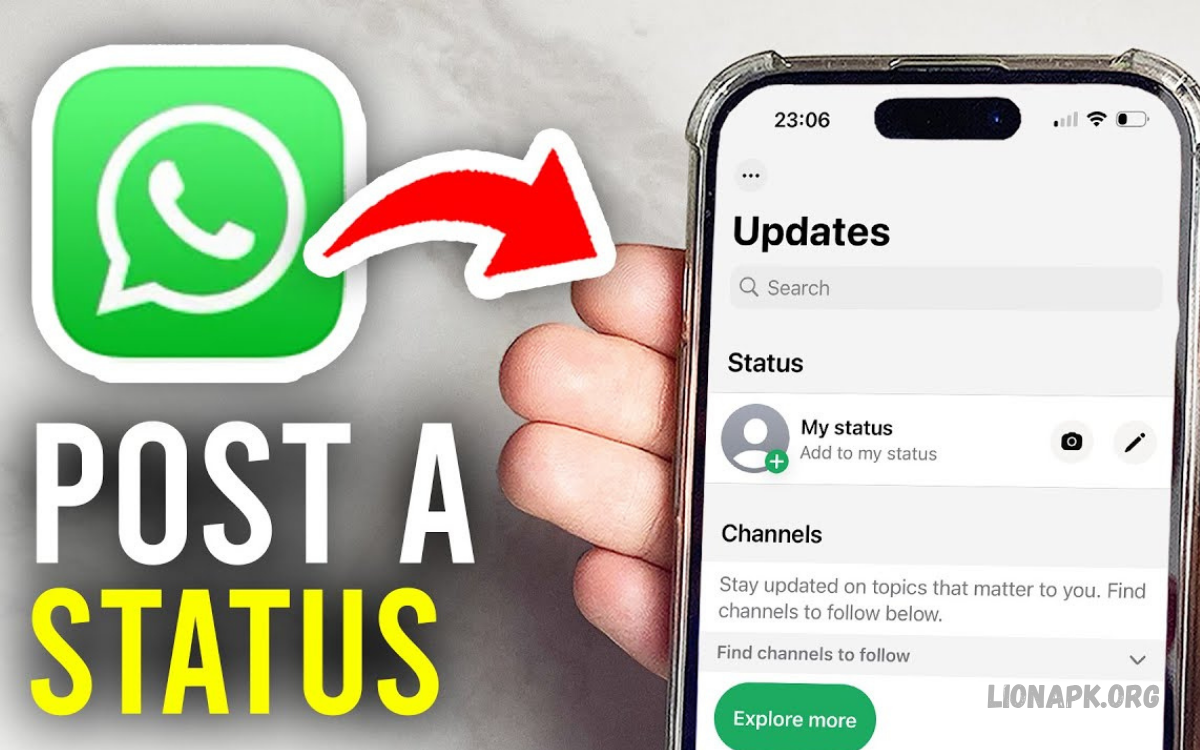
WhatsApp Status lets users share photos, videos, text messages, and voice recordings with their contacts for a limited time. Learning how to use WhatsApp Status helps you communicate with friends, share daily moments, and keep people updated without sending individual messages.
Whether you are a beginner or an experienced WhatsApp user, understanding Status features can improve your messaging experience. This guide explains how to create, customize, share, view, reply to, and manage WhatsApp Status updates while keeping your privacy in mind.
What Is WhatsApp Status?
WhatsApp Status lets users share temporary updates with selected contacts. These updates can include pictures, short videos, text, and voice recordings, making it easy to share moments without creating a separate message for every person.
Status updates generally disappear after 24 hours. Users can control who sees their updates through privacy settings, react to contacts’ posts, and reply privately. This feature is useful for personal communication, announcements, celebrations, travel memories, and everyday updates.
How to Use WhatsApp Status for the First Time
To start using WhatsApp Status, open WhatsApp on your Android phone or iPhone and locate the Updates section. Depending on your app version, the layout may look slightly different, but the Status feature is available within this area.
Tap the option to add a Status, usually represented by your profile picture with a plus sign or a camera icon. You can then choose a photo, record a video, write text, or select another supported format. Before posting, review your audience settings to ensure your update reaches the right people.
How to Create a WhatsApp Status Update
Creating a WhatsApp Status is simple and requires only a few steps. Open the Updates section, select the option to add a Status, and choose whether you want to capture new content or upload something from your gallery.
After selecting your content, you can add a caption, emoji, text, or drawing if the available editor supports these options. Review the final result, confirm your audience, and tap the send button to publish your update. Your selected contacts can then view it during its availability period.
How to Post Photos on WhatsApp Status
Photos are one of the most popular ways to use WhatsApp Status. You can share pictures of family celebrations, meals, travel destinations, pets, hobbies, or memorable moments directly from your phone’s gallery.
Open the Status creation screen and select a photo, or take a new one with the camera. Add a caption or decorative elements if desired, then publish it. Choose clear, appropriate images and check the audience before posting personal photographs.
How to Upload Videos to WhatsApp Status
WhatsApp Status supports short video updates, making it useful for sharing activities, events, tutorials, and memorable experiences. You can record a video in WhatsApp or select an existing clip from your device, depending on your options.
Select your video and check its length before publishing. WhatsApp may impose limits on video duration or processing, and these can change with app versions and regional availability. If your clip exceeds the current limit, trim it using the built-in editor or divide it into multiple updates.
How to Write a Text Status on WhatsApp
A text Status helps when you want to share a thought, announcement, short message, or personal update without uploading a photo. It can also be useful when you have limited internet access or prefer a simple, text-based post.
Open the Status section and choose the text creation option, often shown as a pencil icon. Type your message, adjust the background or font if those controls are available, and review your spelling. Publish the update when you are satisfied with the result.
How to Share Voice Notes on WhatsApp Status
Voice Status allows you to communicate through recorded audio instead of typing a message. It’s useful for sharing greetings, personal thoughts, short announcements, or messages that are easier to express by voice.
To create one, open the Status creation interface and select the microphone or voice-recording option. Record your message, listen to it if playback is available, and publish it after checking your audience. Speak clearly, avoid unnecessary background noise, and never include private information you do not want others to hear.
How to Add Music to WhatsApp Status
Music can make a Status more engaging when you want to share a celebration, travel memory, or personal moment. Depending on your WhatsApp version and region, you may be able to add music to supported photo or video updates.
Choose your photo or video and look for the music feature in the editing screen. Select an available track and adjust the section or duration if the app provides those controls. If the option isn’t available, you may need to update WhatsApp or wait for the feature to become available for your account.
How to Edit WhatsApp Status Before Posting
Editing your Status before publishing helps you create cleaner, more attractive updates. Depending on the content type and app version, WhatsApp may provide tools for adding text, emojis, drawings, captions, or other visual elements.
Select your photo or video and use the available editing tools to make the changes you want. Keep text readable, avoid covering important parts of an image, and check the final preview before posting. Careful editing can improve your update’s quality without needing a separate app.
How to Change WhatsApp Status Privacy Settings
Privacy settings determine which contacts can view your Status updates. WhatsApp generally offers audience choices that let you share updates with all eligible contacts, exclude selected people, or limit visibility to specific contacts.
Open WhatsApp Settings and find the Privacy section, then locate Status privacy. Choose the audience option that best suits your needs before publishing an update. Remember that changing the audience setting may not alter the visibility of a Status already posted, so review the current app guidance when managing existing updates.
How to Hide WhatsApp Status from Specific Contacts
Sometimes, you may want to share a personal update with most contacts while preventing particular people from seeing it. WhatsApp offers an audience exclusion option that lets you control visibility without blocking those contacts entirely.
Open Status privacy and select the option that excludes specific contacts. Choose the people you want to leave out, confirm your selection, and publish your update. Review this list occasionally because contact changes and privacy preferences may affect who should be included in future posts.
How to Share WhatsApp Status with Selected Contacts
Sharing a Status with only a few people can be useful for family updates, private announcements, or information intended for a small group. WhatsApp’s selected-contact privacy option lets you limit the audience instead of sharing with your full contact list.
Open Status privacy and select the option for sharing with chosen contacts. Pick the people who should be able to view your updates, save the selection, and create your Status. Review the audience before publishing, especially if the content includes personal photos or information.
How to View WhatsApp Status Updates
Viewing Status updates helps you keep up with photos, videos, announcements, and other content your contacts share. Open the Updates section and select a contact’s Status to begin viewing the available updates.
If a contact has shared multiple items, WhatsApp generally plays them in sequence. You can move between updates using the on-screen controls or gestures supported by your device. If you cannot see someone’s Status, they may not have posted an update, or their privacy settings may exclude you.
How to Reply to Someone’s WhatsApp Status
Replying to a Status gives you a convenient way to start a conversation about a particular photo, video, or message. Instead of sending a separate message without context, you can respond directly to the update that caught your attention.
Open the contact’s Status and use the reply field or reaction controls shown on the screen. Type your message or choose an available reaction, then send it. Your response is generally delivered as a private chat interaction rather than a public comment visible to everyone who viewed the Status.
How to React to WhatsApp Status Updates
Status reactions allow you to respond quickly without writing a full message. They can help you acknowledge celebrations, appreciate photos, or respond to a friend’s update when a short reaction is enough.
Open a Status and look for the available reaction controls. Choose an emoji or another supported response, depending on your app version. Reactions can help make conversations more natural, but remember that your response may be delivered privately to the person who posted the update.
How to Like a WhatsApp Status
Some WhatsApp versions offer a dedicated Like button for Status updates. This feature allows you to show appreciation for a contact’s post without writing a message or selecting a more expressive reaction.
Open the Status update and look for the heart or Like control if it is available. Tap it to register your response. If you do not see the option, your app version may use emoji reactions or may not yet support the feature on your account.
How to Mention Someone in WhatsApp Status
Mentioning someone can help you draw their attention to an update or acknowledge their participation in a shared moment. WhatsApp has introduced Status mention features in some versions, although availability and controls may vary.
When creating a Status, look for a mention option if your account supports it. Select the intended contact and check how the mention will appear before publishing. Only mention people when it is appropriate, and avoid sharing information about others without considering their privacy.
How to Share WhatsApp Status from Other Apps
You may sometimes want to share a photograph, link, or other supported content from another application directly to WhatsApp. Many apps include a Share button that lets you send compatible content to WhatsApp, although available destinations depend on the source app.
Open the content you want to share and tap its Share option. Select WhatsApp and choose the Status destination if it appears, then review the content before publishing. If Status is not offered, save the content to your device and upload it through WhatsApp’s Status creation screen instead.
How to Download or Save WhatsApp Status Photos and Videos
WhatsApp does not provide a universal download button for every contact’s Status update. If you want to keep a photo or video, the most respectful approach is to ask the person to send you the original file or give permission to save and reuse it.
For your own updates, keep the original photographs and videos in your phone’s gallery or backup service. This makes it easier to reuse your content later without relying on temporary Status posts. Be careful with third-party Status saver apps because they may request access to private files, notifications, or other sensitive information.
How to Delete a WhatsApp Status Update
You may occasionally publish the wrong photo, share an incomplete message, or decide that an update should no longer be visible. WhatsApp allows you to delete your own Status updates before their normal expiration time.
Open the Updates section and select your active Status. Find the menu or options control, choose Delete, and confirm the action if prompted. If you published several items, check each one separately to make sure you remove the intended update rather than leaving unwanted content visible.
How to See Who Viewed Your WhatsApp Status
WhatsApp can show a viewer list for your Status updates when the relevant features and privacy conditions allow it. This helps you understand which contacts have viewed a post, although the information may be limited by read receipt settings.
Open your own Status and look for the viewer indicator or swipe-up control. Tap it to check the available viewer information. If you cannot see the list or it appears incomplete, review your read receipt settings and remember that privacy settings can affect which viewing information is displayed.
How to Mute Someone’s WhatsApp Status
If a contact posts frequent updates that you do not want to see regularly, muting their Status can help keep your Updates section organized. Muting usually changes how their updates are displayed rather than notifying the person that you have muted them.
Open the Updates section and find the contact’s Status. Use the menu or press-and-hold controls supported by your device, then choose the mute option if available. Muted updates are typically moved to a separate area, where you can still access them when needed.
How to Unmute WhatsApp Status Updates
You may want to see a muted contact’s updates again after some time. Unmuting restores their Status to the normal viewing area, depending on your WhatsApp version and the contact’s current activity.
Open the Updates section and locate the muted updates area. Select the contact, open the available menu, and choose the option to unmute their Status. Their future updates should then appear as usual, based on your interface and privacy settings.
Read Also: How to Create WhatsApp Stickers: Complete Guide for Android and iPhone
How to Stop WhatsApp Status Updates from Taking Too Much Storage
Photos and videos shared through WhatsApp can use storage space, especially when automatic media downloads are enabled. Although Status updates are temporary, other downloaded media and saved files may remain on your device after an update disappears.
Open WhatsApp Settings and review Storage and Data options. Check your storage usage, manage large files, and adjust media download preferences where necessary. Before deleting anything, confirm you no longer need the files, and consider backing up important photos or videos.
How to Use WhatsApp Status for Business
WhatsApp Status can help small businesses share product announcements, service updates, offers, new arrivals, and useful information with interested contacts. It offers a simple communication channel for businesses that already interact with customers through WhatsApp.
Create clear updates that explain what you offer and how customers can contact you. Use accurate product images, readable text, and appropriate posting frequency instead of publishing repetitive promotions. Always respect customer privacy, and don’t add people to marketing lists or send unwanted promotional messages.
How to Use WhatsApp Status for Marketing
Status marketing can help you introduce new products, highlight services, announce events, and remind customers about important deadlines. Short, informative updates are often easier to understand than crowded images containing too much text.
Plan content around your audience’s needs and include a clear next step when appropriate. You might invite viewers to ask a question, browse a catalogue, or contact your business through an available link. Measure engagement through replies and conversations while following WhatsApp’s applicable policies and respecting user preferences.
How to Make WhatsApp Status More Attractive
An attractive Status usually combines a clear message, suitable visuals, and simple formatting. You don’t need advanced design skills to create an effective update; a well-framed photo and a short caption can communicate your message clearly.
Use readable text, balanced colours, and uncluttered images. Avoid adding too many stickers or decorative elements that distract from the main point. For videos, check the audio quality and keep the important information near the beginning so viewers can understand the content quickly.
How to Use WhatsApp Status Without Saving Contacts
WhatsApp’s Status feature generally relies on contacts and privacy settings, so visibility depends on whether phone numbers are saved and how accounts manage their settings. Exact behaviour may vary with WhatsApp’s current features and privacy rules.
If you want a particular person to see your update, review the current Status privacy options and contact requirements shown in your app. Do not assume that knowing someone’s phone number guarantees access to their Status. The other person’s settings and WhatsApp’s current contact rules can affect visibility.
How to Fix WhatsApp Status Not Showing
If WhatsApp Status updates are missing, first check your internet connection and make sure the app is working properly. A weak connection, an outdated app version, a contact synchronization issue, or privacy restrictions can affect which updates appear.
Restart WhatsApp and check for updates in your device’s official app store. Confirm that the relevant contact is saved correctly and that neither account’s privacy settings prevent visibility. If the issue continues, consult WhatsApp’s official help resources before reinstalling the application or changing data settings.
How to Fix WhatsApp Status Upload Problems
A Status upload may fail because of an unstable internet connection, a large media file, limited device storage, or a temporary application issue. Video processing and file compatibility can also affect whether an update uploads successfully.
Switch between Wi-Fi and mobile data to test your connection, then try uploading again. Trim an oversized video, free up storage if needed, and restart the app. Make sure WhatsApp is updated, and avoid deleting app data unless you understand the consequences and have backed up important chats.
How to Keep WhatsApp Status Private and Secure
Protecting your privacy matters when you share temporary updates. Even though a Status normally disappears after 24 hours, viewers may save or capture content using other methods, so you should avoid sharing anything you would not want copied or seen outside your intended audience.
Review Status privacy before posting personal photographs, travel plans, or sensitive information. Keep WhatsApp updated, secure your phone with a strong screen lock, and be cautious about unknown contacts. Temporary visibility should never be treated as a guarantee that content cannot be saved or shared.
Common WhatsApp Status Mistakes to Avoid
One common mistake is publishing an update without checking its audience. Another is sharing unclear photos, videos that exceed current limits, or text thatis hard to read. Taking a moment to review your post can prevent avoidable problems.
Avoid posting private details, repeatedly sharing the same promotion, or uploading other people’s content without permission. Check captions for mistakes and verify that the selected photo or video is the correct one. Good posting habits help you use WhatsApp Status more confidently and responsibly.
Best Tips for Using WhatsApp Status Effectively
To get more value from WhatsApp Status, focus on relevant content and choose the format that fits your message. Use photos for visual moments, text for quick announcements, and voice recordings when speaking feels more natural than typing.
Review your privacy settings regularly and post at a frequency that suits your contacts. Keep your updates clear, genuine, and respectful. Whether you use WhatsApp for personal communication or business promotion, thoughtful posts can help you share information without overwhelming your audience.
Frequently Asked Questions
How do I use WhatsApp Status?
Open WhatsApp, go to Updates, and select Add Status. Choose a photo, video, text, or supported voice recording, review the audience, and publish your update.
How long does WhatsApp Status last?
WhatsApp Status updates generally remain available for 24 hours after publication. After that period, they disappear from the normal Status viewing area, although viewers may have saved copies separately.
Can I choose who sees my WhatsApp Status?
Yes. WhatsApp provides Status privacy options that can let you share updates with eligible contacts, exclude selected people, or limit visibility to chosen contacts. The available controls may vary by version.
Can I see who viewed my WhatsApp Status?
You can generally view available viewer information by opening your own Status and checking its viewer indicator. Read receipt settings and other privacy conditions may affect the information shown.
Can I view WhatsApp Status without being seen?
Read receipt settings can affect Status viewing information, but behaviour may vary by feature and version. Review WhatsApp’s current privacy settings and do not assume that viewing activity is always invisible.
How can I delete a WhatsApp Status?
Open your active Status, access its options menu, and select Delete. Confirm the action if prompted, and check other active updates if you want to remove more than one item.
Why can I not see someone’s WhatsApp Status?
The contact may not have posted a recent update, or their privacy settings may exclude you. Internet problems, contact synchronization issues, or application errors can also affect visibility.
Can I add music to WhatsApp Status?
Music may be available for supported Status formats in certain WhatsApp versions and regions. Open the Status editor and check for the music option. If it is missing, the feature may not yet be available to your account.
Can I use WhatsApp Status for business promotion?
Yes. Businesses can share product information, service announcements, new arrivals, and special offers through Status. Use clear content, respect customers’ privacy, and avoid sending unwanted promotional messages.
How can I make my WhatsApp Status more attractive?
Use clear photographs, readable text, suitable colours, and short captions. Keep each update focused on one message and check the preview before publishing.
Can I save someone else’s WhatsApp Status?
WhatsApp does not provide a universal save button for every contact’s Status. Ask the person to share the original file or obtain permission before saving or reusing their content.
What should I do if WhatsApp Status won’t upload?
Check your internet connection, update WhatsApp, check your device’s available storage, and try uploading again. If the issue persists, consult official WhatsApp support for further troubleshooting.
Conclusion
Learning to use WhatsApp Status makes it easier to share daily moments, announce updates, and interact with contacts through photos, videos, text, and voice messages. By understanding the creation tools, privacy controls, reactions, and troubleshooting options, you can use the feature more effectively.
The most important habit is to review your audience and content before you publish. Keep your updates useful, respect other people’s privacy, and use the available settings to control visibility. With these simple practices, WhatsApp Status can become a convenient part of your everyday communication.
