

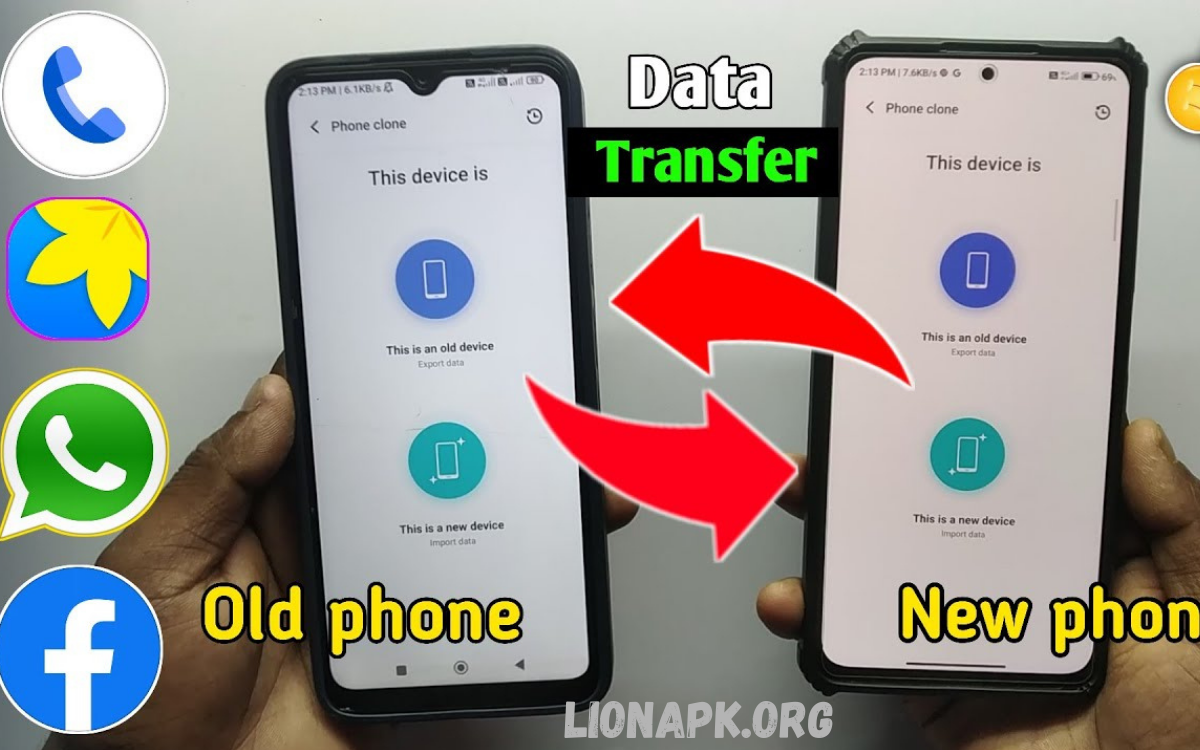
Transferring data to a new phone can feel daunting, but with the right approach, it’s a straightforward process that ensures all your important information, contacts, photos, apps, and settings move seamlessly. The first step is preparation: back up your old device to a secure location. Depending on your phone type, this could be a cloud service or a computer.
Once your backup is ready, power on your new device and follow the setup instructions. You’ll typically be prompted to restore from a backup or to transfer data directly from your old phone, either wirelessly or via a cable. Pay attention to app sign-ins and permissions, as some credentials may need to be re-entered for security.
Preparation Before Transfer
Before starting, ensure both devices are fully charged. Backups create safety nets. Android users can use Google Backup to back up contacts, app data, and device settings. iPhone users benefit from iCloud backups, which store photos, messages, and app information. Organizing data on the old phone, deleting duplicates, and confirming internet connectivity optimize transfer speed.
Transferring Data Within the Same Platform
Android to Android
Google provides seamless migration tools. After enabling backup on the old phone, sign in to the new device using the same Google account. During setup, select restore from backup. Google Drive automatically transfers contacts, apps, messages, photos, and Wi-Fi passwords. Some manufacturers, including Samsung, provide Smart Switch, which allows transfers via cable or Wi-Fi for enhanced speed and reliability.
iPhone to iPhone
iCloud simplifies transfer for iPhone users. Ensure the latest iOS updates. During device setup, choose restore from iCloud backup. All messages, photos, apps, and device settings restore automatically. For offline transfers, Apple’s Quick Start tool uses direct Wi-Fi between devices, reducing reliance on cloud storage.
Read Also: App Not Opening on Android Fix – Proven Solutions for Smooth Performance
Cross-Platform Transfer
Switching from iPhone to Android or Android to iPhone requires special tools. Google’s “Move to iOS” app transfers contacts, messages, photos, and bookmarks from Android to iPhone. Similarly, Android’s migration apps can import iCloud data. Cloud storage solutions such as Google Photos and Dropbox also facilitate efficient media transfer.
Direct Cable Transfer
For faster and secure migration, direct cable connections work well. Many devices support USB-C or Lightning cables with adapters. Connecting devices allows direct copying of media, contacts, and app data, bypassing cloud limitations. This method reduces the risk of data loss due to connectivity interruptions.
Verifying Transferred Data
After migration, verify essential files. Check messages, contacts, photos, and app functionality. Ensure passwords and two-factor authentication are up to date where required. Reinstall apps that did not migrate automatically and adjust notification preferences.
Tips for Smooth Transfer
- Update both devices to latest software versions.
- Use strong, stable Wi-Fi for cloud-based transfers.
- Delete unnecessary files before transfer to reduce transfer time.
- Keep devices connected to power sources during migration.
- Consider encryption options for sensitive data.
Frequently Asked Questions
What is the easiest way to transfer data to a new phone?
For same-platform transfers, use built-in tools: Google Backup for Android or iCloud/Quick Start for iPhone. These methods automatically move contacts, messages, photos, apps, and settings.
Can I transfer data from Android to iPhone?
Yes. Apple’s Move to iOS app allows migration of contacts, messages, photos, videos, web bookmarks, and some app data from Android to iPhone.
How long does it take to transfer data to a new phone?
Time depends on data size and transfer method. Cloud backups may take several hours for large media libraries, while direct cable transfers usually complete faster, often under an hour for standard use.
Will all my apps transfer to the new phone?
Apps from the same platform will transfer automatically if using backup tools. Cross-platform transfers may require downloading the corresponding app version from the new device’s app store.
How can I transfer WhatsApp messages to a new phone?
WhatsApp provides in-app backup and restore options. On Android, use Google Drive backup; on iPhone, use iCloud backup. Cross-platform transfers require the WhatsApp Move to iOS feature.
Conclusion
Knowing how to transfer data to a new phone reduces stress and safeguards information during upgrades. Proper preparation, platform-specific methods, cross-platform tools, and verification steps ensure seamless migration of all essential data. Following these professional strategies provides efficiency, security, and peace of mind when transitioning to a new device.
