

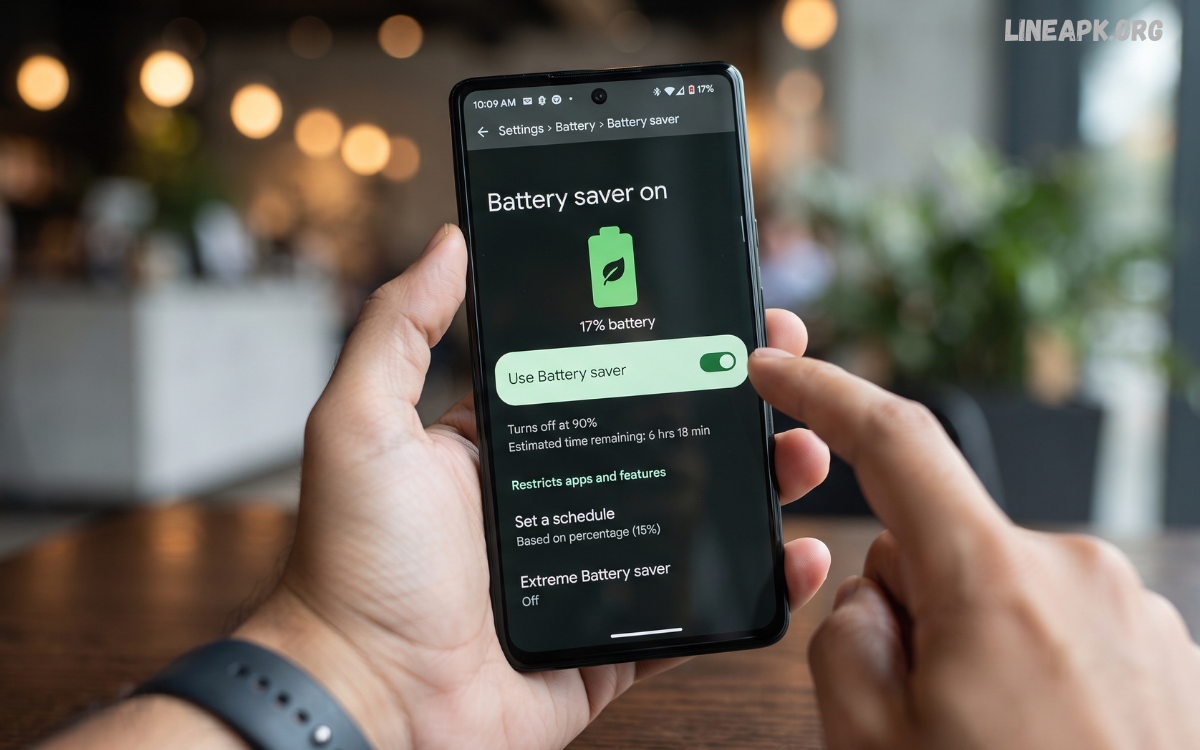
Smartphones have become essential for communication, entertainment, work, learning, gaming, photography, and everyday tasks. However, heavy usage can quickly drain a phone’s battery, especially when multiple apps run in the background, location services remain active, or the display operates at a high refresh rate. This is where battery saver Android features can make a significant difference.
Modern Android devices include built-in battery management tools designed to reduce unnecessary power consumption and extend the time between charges. In addition to the default Battery Saver mode, users can improve battery life by controlling background activity, adjusting screen settings, managing notifications, and identifying apps that consume excessive power.
What Is Battery Saver Android?
Battery Saver Android is a power-management feature that reduces battery consumption when your smartphone reaches a specific battery level or when you activate the feature manually. Its purpose is to help your device operate for longer before the battery needs to be recharged.
When Battery Saver is enabled, Android may restrict background activity, reduce certain performance-intensive processes, limit visual effects, and delay some background operations. Exact behavior varies depending on the Android version and smartphone manufacturer.
Why Battery Saver Is Important
Battery life affects how comfortably you can use your smartphone throughout the day. A phone that constantly requires charging can become inconvenient, especially during travel, school, work, or outdoor activities.
Using Android’s battery-saving features can help you:
- Extend daily battery life
- Reduce unnecessary background activity
- Control power-hungry applications
- Minimize excessive screen consumption
- Reduce unnecessary notifications and syncing
- Maintain essential communication for longer
- Identify applications that consume unusual amounts of power
Battery Saver should not be viewed as a replacement for good battery habits. Instead, it works best alongside sensible settings and responsible app management.
How to Turn On Battery Saver Android
The easiest way to activate Battery Saver is through the device’s quick settings panel or battery settings.
On many Android smartphones, you can swipe down from the top of the screen and select Battery Saver or a similarly named option. You can also find battery-management controls through the phone’s Settings app.
Use Adaptive Battery
Adaptive Battery is one of the most useful Android features for managing long-term power consumption. It learns how you use applications and can limit resources for apps that you rarely open.
Instead of treating every application equally, adaptive battery management attempts to prioritize the apps you use most frequently while reducing unnecessary background activity from less important applications.
Reduce Screen Battery Consumption
The display is one of the biggest sources of smartphone battery consumption. Bright screens, high refresh rates, and long screen timeout periods can all increase power usage.
To improve battery life, consider reducing screen brightness when maximum brightness is unnecessary. You can also enable automatic brightness if it works well for your environment.
Manage Background Apps
Many applications perform tasks even when you are not actively using them. Examples include social networking apps, cloud services, shopping applications, messaging platforms, and some games.
Android provides battery information that can help you determine which applications are consuming the most power. If an app consistently uses a large amount of battery in the background, check whether you actually need its background activity.
Disable Unnecessary Location Access
Location services can consume additional battery when applications frequently request your location.
Review which apps have location permission and determine whether they genuinely need continuous access. Many applications only require location information while you are actively using them.
Control Notifications
Notifications can contribute to battery consumption because they may activate the display, trigger sounds or vibrations, and cause applications to perform background work.
If you receive frequent notifications from apps that are not important, consider reducing or disabling them. This can make your phone quieter while potentially reducing unnecessary battery activity.
Reduce Unnecessary Connectivity
Wireless connections such as Bluetooth, Wi-Fi, mobile data, and location services can contribute to power consumption depending on how they are used.
If you are not using a particular connection, turning it off may reduce unnecessary activity. However, modern Android devices are designed to manage wireless connections efficiently, so there is no need to constantly switch every setting off throughout the day.
Identify Battery-Draining Apps
One of the best ways to improve battery performance is to identify the applications responsible for excessive consumption.
Open your device’s battery settings and review battery usage. Android typically provides a breakdown showing which apps and system features have consumed the most power.
Battery Saver Android for Gaming
Mobile gaming can place significant demands on a smartphone. High-performance processors, graphics processing, bright displays, high refresh rates, network connections, and prolonged screen usage can all increase battery consumption.
Battery Saver may reduce performance on some devices, so it may not be ideal during demanding gaming sessions. If maximum gaming performance is your priority, you may prefer standard battery settings while playing and enable Battery Saver afterward.
Battery Saver Android for Streaming
Video streaming can also consume considerable battery power because the screen remains active while the device continuously processes and displays video content.
To improve battery life while streaming, reduce screen brightness, use a stable Wi-Fi connection when appropriate, and avoid unnecessarily high video quality when you are trying to conserve power.
Does Battery Saver Damage Your Phone?
Using Battery Saver does not normally damage an Android smartphone. It is a built-in power-management feature designed to reduce consumption and extend operating time.
Battery Saver primarily changes how the phone manages resources. Depending on the device, this can include background activity restrictions, performance adjustments, synchronization changes, or other power-saving measures.
Read Also: Android Security Apps: Complete Guide to Protecting Your Smartphone in 2026
Battery Health vs Battery Saving
Battery saving and battery health are related but different concepts.
Battery saving focuses on reducing power consumption during everyday use. Battery health refers to the physical condition and remaining capacity of the rechargeable battery over time.
Common Battery-Saving Mistakes
Some battery-saving habits can actually make smartphone use less convenient without providing meaningful benefits.
One common mistake is constantly force-closing applications. Android already manages background applications automatically, and repeatedly closing and reopening apps can sometimes use additional resources.
Best Battery Saver Android Settings
For everyday use, a balanced configuration is usually more practical than aggressively restricting everything.
Consider the following settings:
- Enable Adaptive Battery
- Use automatic or moderate screen brightness
- Reduce unnecessary screen timeout
- Review battery usage regularly
- Restrict unnecessary background activity
- Remove unused applications
- Manage location permissions
- Reduce unnecessary notifications
- Keep Android and apps updated
- Avoid excessive device heat
- Use Battery Saver when battery levels are low
These changes can work together to provide better battery performance without making the smartphone difficult to use.
Should You Keep Battery Saver On All the Time?
You can use Battery Saver frequently, but whether you should keep it enabled permanently depends on your priorities.
For users who prioritize maximum battery life, keeping a power-saving mode active can be useful. However, some devices may reduce performance, delay background synchronization, or limit certain functions while Battery Saver is enabled.
Frequently Asked Questions
What is Battery Saver Android?
Battery Saver Android is a built-in feature that reduces certain power-consuming activities to help your smartphone remain operational for longer.
Does Battery Saver improve battery life?
It can extend the time between charges by reducing unnecessary power consumption, but it does not increase the physical capacity of the battery.
Is Battery Saver safe to use?
Yes. Battery Saver is designed as a normal Android power-management feature and is generally safe for everyday use.
Should I use Battery Saver while gaming?
It depends on your priorities. Battery Saver can extend runtime, but some devices may reduce performance while power-saving features are active.
What drains an Android battery the most?
Common sources include the display, demanding applications, gaming, video streaming, mobile connectivity, location services, and background activity.
Does dark mode save battery?
Dark mode can reduce power consumption on OLED and AMOLED displays, particularly when much of the screen content is dark.
Should I close background apps?
Usually, there is no need to repeatedly force-close apps. Android manages background applications automatically.
How can I find battery-draining apps?
Open your Android battery settings and review the battery-usage section to identify applications consuming significant power.
Can Battery Saver damage battery health?
Battery Saver itself does not normally damage the battery. It simply changes how the phone manages power consumption.
How can I get better battery life in 2026?
Use Adaptive Battery, manage screen brightness and refresh rate, control background activity, review battery usage, limit unnecessary permissions, keep software updated, and activate Battery Saver when needed.
Coclusion
A reliable Android battery saver strategy is not based on a single setting. The best results come from combining Android’s built-in Battery Saver and Adaptive Battery features with sensible screen, connectivity, notification, location, and app-management settings.
Start by checking which applications consume the most power and adjust only the settings that have a meaningful impact. Reduce unnecessary background activity, manage your display intelligently, keep your software updated, and avoid excessive heat.
