

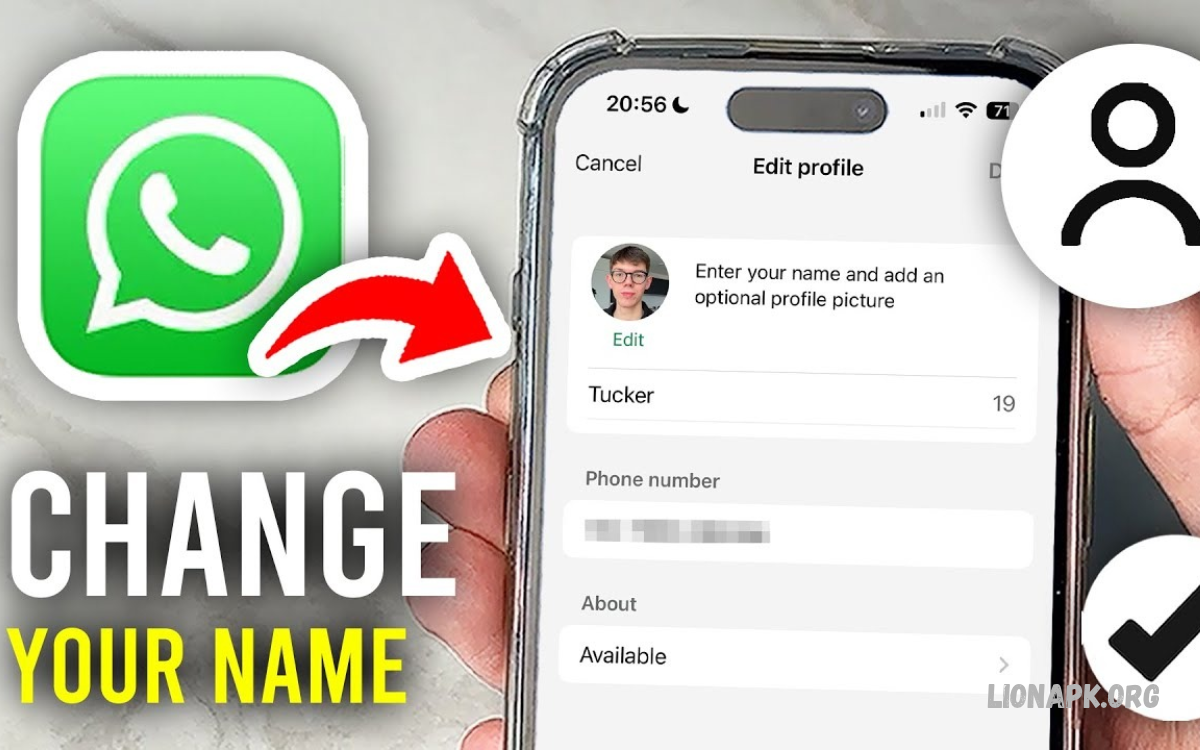
WhatsApp lets users personalize their profiles with names, profile pictures, and status information. Learning how to change WhatsApp name helps you keep your account professional, recognizable, and easy for contacts to identify.
Changing your WhatsApp name takes only a few moments. Whether you use an Android phone or an iPhone, you can update your profile name directly through the application without creating a new account.
What Is a WhatsApp Name?
A WhatsApp name is the display name associated with your account profile. It helps people recognize you, especially if they haven’t saved your phone number in their contacts.
Your WhatsApp profile name differs from the name saved in someone else’s phone contacts. Changing your profile name updates your WhatsApp information, but it does not automatically change how existing contacts identify you in their address books.
How to Change WhatsApp Name on Android
Changing your WhatsApp name on Android is straightforward. Open WhatsApp, tap the three-dot menu in the upper-right corner, select Settings, and tap your profile name or profile picture.
Next, tap the name field, remove your existing name, and enter your preferred name. Tap Save or the checkmark to confirm the change, depending on your application version.
How to Change WhatsApp Name on iPhone
iPhone users can update their WhatsApp names directly through the application settings. Open WhatsApp, tap Settings in the bottom-right corner, and select your profile at the top of the screen.
Tap your current name, enter the new name you want to display, and save the changes using the available confirmation control. Your updated profile information should appear in WhatsApp after the change is completed.
How to Change WhatsApp Business Name
WhatsApp Business provides profile options designed for businesses, shops, freelancers, and service providers. Personal WhatsApp profile names and business display names follow different rules, so choose the instructions that match your account type.
For a personal profile, open Settings, select your profile, and edit the name field. For a business account, open Business Tools or your business profile settings and look for the business name option; available controls may vary by application version.
How to Change WhatsApp Name Without Losing Chats
Changing your WhatsApp name does not normally delete messages, groups, photos, or conversations. Your account stays connected to the same phone number, so you don’t need to create a new account just to update your display name.
Open your profile settings and change the name using the normal procedure. If your conversations are important, keep regular backups as a sensible precaution, although a name change alone shouldn’t require restoring or transferring your chats.
How to Change WhatsApp Name on WhatsApp Web
WhatsApp Web allows users to access conversations through a computer browser. Some profile details can be viewed or edited through the interface, but available editing options may differ across versions and linked devices.
Open WhatsApp Web, connect your account if necessary, and select your profile picture or profile settings. If the name field is editable, update it and save the change; otherwise, use WhatsApp on your primary phone to complete the update.
How to Change WhatsApp Name on WhatsApp Desktop
WhatsApp Desktop provides a convenient way to manage messages from a Windows computer or Mac. Depending on the installed version, profile information may be accessible through the profile menu or application settings.
Launch WhatsApp Desktop and open your profile settings. If the name field supports editing, enter your preferred name and confirm the change; if editing is unavailable, follow the Android or iPhone instructions instead.
How to Choose a Good WhatsApp Name
A good WhatsApp name should be recognizable, appropriate, and easy to read. Personal accounts usually work best with a first name, a full name, or a familiar nickname that friends and family can identify quickly.
For professional communication, consider using your real name or a consistent business identity. Avoid unnecessary symbols, confusing spellings, or excessive decorative characters that make your profile difficult to recognize.
Best WhatsApp Name Ideas for Personal Accounts
Personal WhatsApp names can reflect your identity, hobbies, or preferred style. Simple names are often the most practical because contacts can recognize them quickly in chats, groups, and profile information.
Examples include your first name, a short nickname, or a combination of your name and profession. Choose a name that represents you comfortably without revealing private information that you would rather keep confidential.
Best WhatsApp Name Ideas for Business Accounts
A business WhatsApp name should help customers recognize your brand. Using the same business name across your website, social media profiles, and messaging channels can make your company easier to identify.
Choose a clear name that matches your business identity and follows WhatsApp’s applicable business naming guidelines. Avoid misleading brand references, excessive punctuation, or wording that could confuse customers about the products or services you provide.
How to Change WhatsApp Name in a Group
Your WhatsApp profile name can help other group members identify you, particularly when they do not have your number saved. Updating your account name may help improve recognition across conversations and groups.
Change your name through your profile settings rather than creating a separate account. Keep in mind that people who have saved your number under a different contact name may continue seeing the name stored in their own address books.
Why Is My WhatsApp Name Not Changing?
Sometimes, a new WhatsApp name may not appear immediately to every contact. This can happen because of app differences, temporary sync delays, cached information, or how someone saved your number.
First, reopen your profile settings and confirm that the updated name has been saved correctly. Then close and reopen WhatsApp, check your internet connection, and install any available official application update if the problem continues.
How to Fix WhatsApp Name Editing Problems
If WhatsApp won’t let you edit your name, check that you are using the correct account and that you’re in the right profile settings. Business accounts may display different controls from standard personal accounts.
Restart the application and make sure your phone has a stable internet connection. If the issue persists, consult the official WhatsApp Help Center for instructions that match your device and application version.
Read Also: Exploring the Excitement of Modern Online Gaming and Digital Entertainment
Can You Change Your WhatsApp Name Without Changing Your Number?
Yes, you can change your WhatsApp name without changing your phone number. Your display name is profile information, while your phone number identifies the account associated with your WhatsApp registration.
Open your profile settings, update the name, and save your changes. Your chats, groups, and account generally remain associated with the same number, so changing your display name does not require using the account-change feature.
Can You Change Your WhatsApp Name Without Notifying Contacts?
WhatsApp does not generally send a dedicated notification to every contact simply because you edit your profile name. However, people may notice the new name when they view your profile or interact with you in conversations.
Remember that your profile name and another person’s saved contact name are separate. If someone has saved your number as a particular name, WhatsApp may continue displaying that locally saved name to them.
How Often Can You Change Your WhatsApp Name?
WhatsApp users can generally edit their profile names whenever they need to update their information. There is no ordinary requirement to create a new account every time your preferred display name changes.
However, the application may enforce formatting or other account-related restrictions. Use a consistent name where possible, especially for business communication, so customers and contacts can identify your account without confusion.
WhatsApp Name Rules and Formatting Tips
WhatsApp names should be appropriate, understandable, and consistent with the platform’s applicable requirements. A name that clearly identifies an individual or legitimate business is generally more useful than a confusing collection of symbols or unrelated promotional terms.
Before saving your new name, check spelling, capitalization, and readability. If WhatsApp rejects the name, simplify the wording and remove unusual characters or formatting that might conflict with its current requirements.
Difference Between WhatsApp Name and Username
Your WhatsApp profile name is the display name associated with your account. It is different from a username or handle used on platforms where people can search for accounts using unique identifiers.
Changing your profile name does not necessarily change your phone number, account identifier, or any username feature available in a particular version of WhatsApp. Check the relevant settings to understand which profile detail you are editing.
How to Change Your WhatsApp Profile Picture and Name
You can personalize your WhatsApp account by updating your profile name and profile picture. These details help friends, relatives, colleagues, and customers recognize your account during everyday communication.
Open WhatsApp settings and select your profile. Edit the name field to update your display name, then select the profile picture to change your image if desired; save each change using the controls provided.
Privacy Tips When Choosing a WhatsApp Name
Your WhatsApp name should make your account recognizable without exposing unnecessary personal details. Avoid including your home address, private identification numbers, passwords, or other sensitive information in your display name.
If you use WhatsApp for work, choose a professional name that does not reveal confidential business information. Review your privacy settings separately because changing your display name does not automatically change who can see your profile photo, status, or other account details.
Frequently Asked Questions
How do I change my WhatsApp name?
Open WhatsApp Settings, tap your profile, select your current name, enter the new name, and save your changes. The exact controls may differ slightly between Android and iPhone.
Can I change my WhatsApp name without deleting my account?
Yes. You can edit your display name directly through your profile settings without deleting your account or reinstalling the application.
Why can my contacts still see my old name?
Contacts may have saved your phone number under your previous name. Their local contact information can override or differ from your updated WhatsApp profile name.
Does changing my WhatsApp name delete my chats?
No. Updating your profile name does not normally remove your messages, groups, or media. Your account remains associated with the same phone number.
Can I use emojis in my WhatsApp name?
WhatsApp may accept certain emojis or special characters, depending on its current formatting rules. If a name is rejected, try a simpler version using standard characters.
How do I change my WhatsApp Business name?
Open your business profile or Business Tools settings and locate the business name field. Follow the available instructions and any applicable business naming requirements.
Can I change my WhatsApp name from a computer?
Some WhatsApp Web and Desktop versions may provide profile editing options. If the name field is unavailable, use the primary mobile application instead.
Is my WhatsApp name the same as my phone contact name?
No. Your WhatsApp profile name is tied to your account, while a contact name is saved locally in another person’s address book.
Conclusion
Learning how to change your WhatsApp name makes it easy to keep your messaging profile updated. Android and iPhone users can usually complete the process through Settings and their profile information without changing their phone numbers or losing conversations.
Choose a recognizable name, review the spelling before saving, and keep your privacy preferences in mind. If the updated name doesn’t appear immediately, verify the saved information and check the app settings before trying again.
