

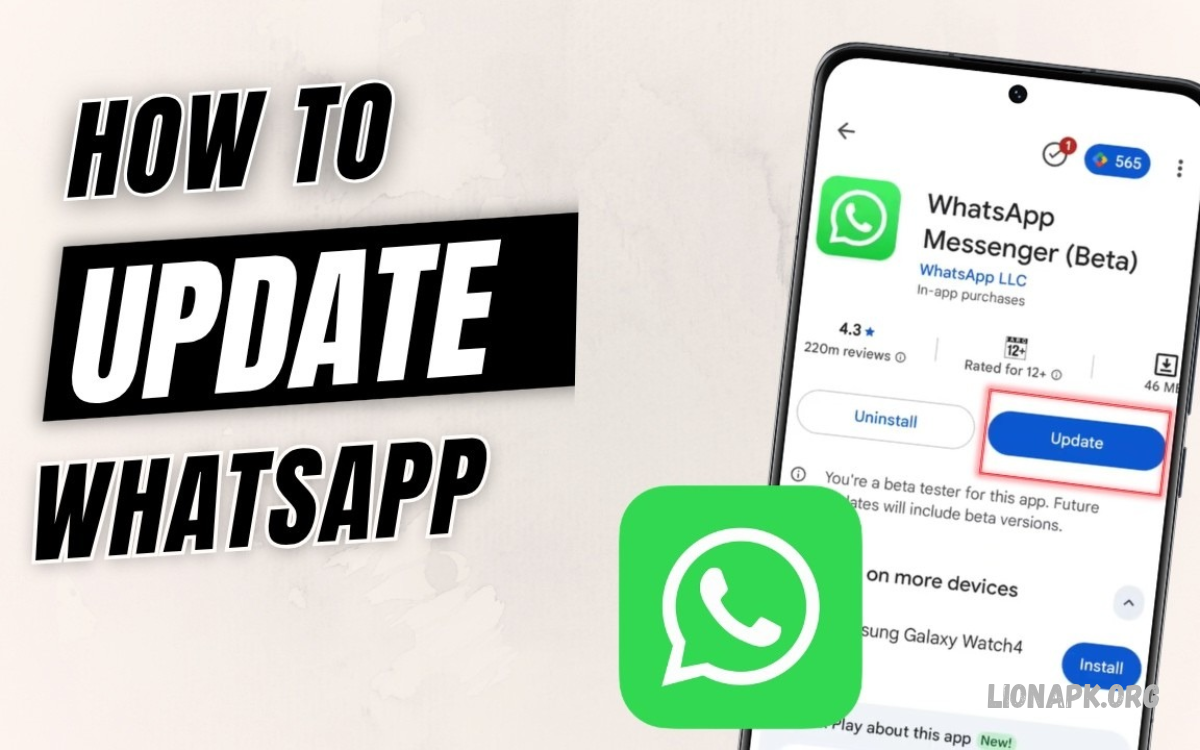
WhatsApp updates help users access new features, improve messaging performance, and receive important security fixes. Learning how to update WhatsApp ensures a smoother messaging experience across Android phones, iPhones, tablets, and supported computers.
Updating WhatsApp usually takes only a few minutes through the official app store. This guide covers every step, common update problems, troubleshooting methods, and ways to protect chats before you install a new version.
Why Should You Update WhatsApp?
WhatsApp regularly releases updates to improve reliability, introduce messaging tools, and fix technical problems. An outdated version may miss new features or experience compatibility issues with newer operating systems.
Security improvements also make updates important for everyday users. Installing official updates helps protect the app against known vulnerabilities and reduces problems caused by outdated software.
How to Update WhatsApp on Android
Android users can update WhatsApp through the Google Play Store. Open the Play Store, search for WhatsApp Messenger, open the official app listing, and tap Update when the option appears.
Wait until the download and installation finish before opening WhatsApp. If the listing displays Open instead of Update, the installed version may already be current or an update may not yet be available for your device.
Steps to Update WhatsApp Using Google Play Store
Open Google Play Store on your Android phone and tap the search bar. Type WhatsApp Messenger, select the official listing published by WhatsApp LLC, and check whether an update is available.
Tap Update and keep your internet connection active during installation. After completion, open WhatsApp and confirm your chats, contacts, and essential messaging features work normally.
Update WhatsApp Through Play Store Settings
Google Play Store can also manage app updates automatically. Open the Play Store, search for WhatsApp, visit its app listing, and use the available menu to review automatic update preferences.
Automatic updates may depend on your network, battery settings, device configuration, and Play Store preferences. Check these settings if WhatsApp does not update when expected.
How to Update WhatsApp on iPhone
iPhone users can update WhatsApp through Apple’s App Store. Open the App Store, search for WhatsApp Messenger, select the official listing, and tap Update if a newer version is available.
Allow the installation to finish before launching the app. If the button displays Open, your iPhone may already have the latest version available to your account or device.
Steps to Update WhatsApp Using the App Store
Launch the App Store and tap Search. Enter WhatsApp Messenger, open the official application page, and check for an Update button beside the app information.
Tap Update and wait for the process to complete. Open WhatsApp afterward and check whether messages, calls, notifications, and other important functions work correctly.
Enable Automatic WhatsApp Updates on iPhone
Automatic app updates can reduce the need to check manually. Open your iPhone’s Settings, navigate to Apps or the App Store settings depending on your iOS version, and locate the automatic app update option.
Enable automatic updates if you prefer your iPhone to install eligible app releases automatically. Availability and timing can vary according to system settings, connectivity, storage, and Apple’s update distribution.
How to Update WhatsApp Without Losing Chats
Updating WhatsApp through an official app store normally preserves existing conversations and account information. However, backing up important chats before troubleshooting or reinstalling the app provides an additional layer of protection.
Open WhatsApp and navigate to Settings, then Chats, then Chat Backup. Review the available backup options and create a recent backup using the supported Google account or iCloud account before making major changes.
Back Up WhatsApp Chats on Android
On Android, open WhatsApp and tap the three-dot menu. Select Settings, open Chats, choose Chat Backup, and review the Google account and backup settings available on your device.
Tap Back Up to create a current backup when needed. Confirm that the backup finishes successfully before reinstalling WhatsApp or clearing app data, since these actions can affect locally stored conversations.
Back Up WhatsApp Chats on iPhone
On iPhone, open WhatsApp, select Settings, tap Chats, and choose Chat Backup. Review the last backup date, iCloud availability, and backup settings before starting a new backup.
Tap Back Up Now and wait until the process completes. Keep sufficient iCloud storage and a stable internet connection available, especially when the backup contains many photos, videos, or documents.
How to Update WhatsApp Using the Official Website
Android users may sometimes need an alternative to the Play Store, particularly when the store is unavailable or an installation issue prevents updating. WhatsApp provides official Android download options through its website.
Visit the official WhatsApp website at https://www.whatsapp.com/android using your browser. Follow the current download instructions and verify that the file comes from the genuine WhatsApp website before installing anything.
Is It Safe to Download WhatsApp APK Files?
APK files are Android application installation packages. Downloading an APK from an unofficial website can expose your device to modified apps, unwanted software, privacy risks, or fraudulent versions.
Use the official WhatsApp website or Google Play Store whenever possible. Avoid modified WhatsApp applications promising unlimited features, hidden tools, or special versions because they may compromise account security or violate WhatsApp’s terms.
Can You Update WhatsApp Without Uninstalling It?
Yes, the normal update process does not require uninstalling WhatsApp first. Updating through the official app store generally replaces the existing application version while preserving supported app data.
Uninstalling should not be your first troubleshooting step. If an update fails, check storage, internet connectivity, operating system compatibility, and the app store before considering reinstallation.
How to Update WhatsApp on Windows and Mac
WhatsApp Desktop users can update the application through the Microsoft Store, the Mac App Store where applicable, or the official WhatsApp download page. The correct method depends on how the desktop application was installed.
Open the store or official source associated with your installation and check for an available update. Install the update, reopen WhatsApp Desktop, and follow any instructions needed to reconnect your account.
Update WhatsApp on a Windows Computer
On Windows, open Microsoft Store and visit the Downloads or Library section. Check for app updates and install any available WhatsApp update associated with your installation.
If WhatsApp was installed through another official distribution method, follow that source’s update instructions. Restart the application after installation and confirm that messages synchronize correctly with your linked account.
Update WhatsApp on a Mac
Mac users should check the Mac App Store if WhatsApp was installed from that source. Open the store, locate WhatsApp, and select Update when an eligible newer version is available.
For installations obtained directly from WhatsApp, visit the official WhatsApp website and follow its current macOS instructions. Avoid third-party installers and verify compatibility with your Mac’s operating system before updating.
What to Do When WhatsApp Update Is Not Showing
Sometimes the Update button does not appear even when users expect a newer release. This can happen because the installed version is current, the release is being distributed gradually, or the device does not support the newest version.
First, open the official app listing and check again later if necessary. Confirm that the correct WhatsApp application is selected and that your device meets the current operating system requirements.
Check Your Internet Connection
A weak or unstable connection can interrupt downloads and prevent app store pages from loading properly. Switch between Wi-Fi and mobile data when appropriate, then reopen the app store and try again.
If the connection works slowly, pause other large downloads and check whether your network has restrictions. Avoid repeatedly downloading installation files from unknown websites as a workaround.
Free Up Storage Space
Insufficient storage can prevent WhatsApp from downloading or installing updates. Open your device’s storage settings and review unused applications, downloaded files, and other items that can be safely removed.
Do not delete WhatsApp data or important media without checking your backup first. Once you have enough space, return to the official store and retry the update.
Restart Your Phone
A restart can resolve temporary software issues that affect app downloads or installations. Save any ongoing work, restart your phone, then reopen the Google Play Store or the App Store.
After restarting, check the WhatsApp listing again. If the problem continues, check for system updates, review app store errors, and confirm device compatibility before trying more advanced troubleshooting.
Read Also: How to Change WhatsApp Name: Complete Guide for Android and iPhone
How to Fix WhatsApp Update Errors
Update errors can result from storage limitations, network interruptions, outdated operating systems, account restrictions, or temporary store problems. Identifying the specific error message can help you choose the right solution instead of repeating unsuccessful attempts.
Check whether other applications can update successfully. If other downloads also fail, the issue may involve your device, connection, or app store rather than WhatsApp alone.
Update Google Play Store and System Software
On Android, check whether Google Play Store and Google Play services require updates. Also review your phone’s system update settings because older operating systems may eventually lose compatibility with newer WhatsApp releases.
Install compatible system updates using your phone’s official settings. If your device no longer meets WhatsApp’s minimum requirements, you may need a supported device to continue receiving newer versions.
Clear App Store Cache on Android
A corrupted temporary cache can occasionally interfere with Play Store downloads. Open Android Settings, navigate to Apps, select Google Play Store, and look for Storage or Storage and cache.
Choose Clear cache if the option is available, then reopen Play Store and try again. Menu names vary by manufacturer and Android version, so avoid selecting Clear storage unless you understand its effects.
Check Date, Time, and Device Compatibility
Incorrect date or time settings can cause problems with secure connections and online services. Open your phone’s date and time settings and enable automatic settings when available.
Next, review WhatsApp’s current operating system requirements through its official support information. If the phone is unsupported, changing settings or repeatedly attempting installation may not resolve the underlying compatibility issue.
How to Check Your WhatsApp Version
Checking your installed version helps determine whether an update succeeded. On Android, open WhatsApp, tap the three-dot menu, select Settings, then Help, and look for App Info or version information.
On iPhone, open WhatsApp and navigate to Settings, then Help or the app’s available information section. Menu names may change between releases, so consult the current interface if version details appear elsewhere.
How to Know Whether WhatsApp Is Updated
Open the official app store listing after installing an update. If the listing displays Open instead of Update, no newer store update is currently offered to your device.
You can also compare the installed version with the information available through official WhatsApp sources. Remember that different devices and regions may receive releases at different times.
Common Mistakes to Avoid When Updating WhatsApp
One common mistake is downloading installation files from unfamiliar websites. Such files may contain altered software or create unnecessary risks for your privacy and account security.
Another mistake is uninstalling WhatsApp before checking backup availability. Always use official update methods first, verify that important chats are protected, and avoid sharing verification codes with anyone claiming to provide technical assistance.
Avoid Modified WhatsApp Applications
Modified applications may advertise extra themes, privacy controls, or features unavailable in the official app. However, these versions can introduce security vulnerabilities and may lead to account restrictions.
Use the official WhatsApp application from a trusted source. If you want new features, check official release information instead of installing unofficial modifications.
Do Not Interrupt Important Updates
Interrupting a download may cause the update to fail or require another attempt. Keep your device sufficiently charged and maintain a stable internet connection while the installation completes.
After updating, open WhatsApp and verify that the app works as expected. If an error appears, record the message and follow official support guidance instead of deleting application data immediately.
Frequently Asked Questions
How do I update WhatsApp to the latest version?
Open Google Play Store on Android or the App Store on iPhone. Search for WhatsApp Messenger, open the official listing, and tap Update if available.
How can I update WhatsApp for free?
WhatsApp updates are available through official app distribution channels at no extra cost. Internet data charges may apply depending on your mobile plan or network.
Will updating WhatsApp delete my chats?
A normal official update generally preserves chats and account information. However, create a recent backup before reinstalling the app, clearing its data, or performing other troubleshooting that could affect stored conversations.
Why is WhatsApp not updating on my phone?
Possible causes include insufficient storage, a weak connection, temporary store errors, or an unsupported operating system. Check each factor and retry through the official app store.
Can I update WhatsApp without the Play Store?
Android users can download the official Android version from WhatsApp’s website when available. Verify the source carefully and follow the official installation instructions.
How often should I update WhatsApp?
Check for updates regularly or enable automatic app updates. Install important security and compatibility updates promptly when they become available for your device.
Do I need to update WhatsApp on my computer separately?
WhatsApp Desktop may receive updates through its installation source, such as the Microsoft Store, the Mac App Store (where applicable), or WhatsApp’s official website. Check the relevant source if an update is required.
What should I do if WhatsApp says my version is outdated?
Open the official app store and install any available update. If no update appears, check your operating system compatibility and WhatsApp’s official support information for your device.
Conclusion
Learning how to update WhatsApp helps you keep messaging reliable, access new features, and receive important improvements. Android users can usually update through the Google Play Store, while iPhone users can use Apple’s App Store.
Always download WhatsApp from official sources, maintain a recent chat backup, and check compatibility when updates fail. These simple habits help keep your messaging app up to date while reducing avoidable installation and data-loss problems.
