

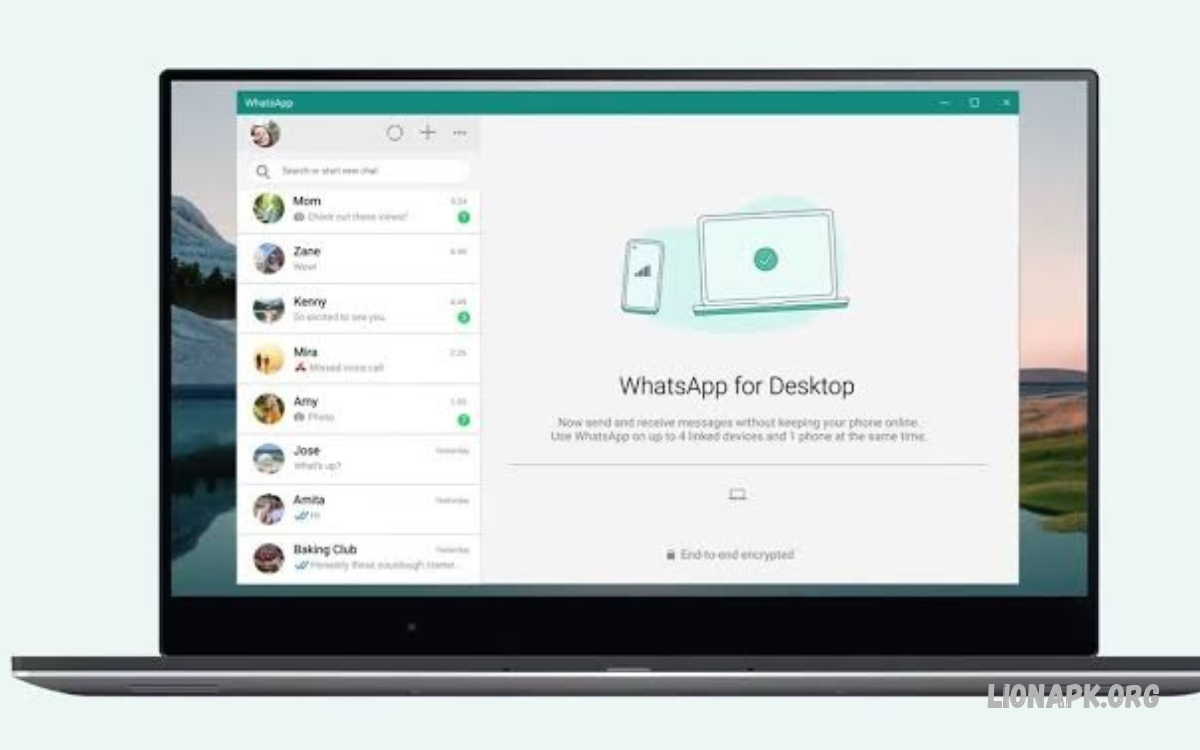
Learning How to Use WhatsApp on PC helps users manage messages, share files, and communicate efficiently from a computer. WhatsApp offers browser-based access and a desktop application for Windows and macOS.
WhatsApp on PC gives you convenient access to personal and group chats without constantly checking your smartphone. Users can type faster, send documents, share photos, and manage conversations through a larger screen.
What Is WhatsApp on PC?
WhatsApp on PC lets users access their WhatsApp accounts through a web browser or desktop app. Both options support messaging, media sharing, group conversations, and other communication features.
WhatsApp Web runs inside supported browsers, while WhatsApp Desktop installs directly on a computer. Both options connect to an existing WhatsApp account and support linked devices.
Benefits of Using WhatsApp on PC
Using WhatsApp on a computer makes everyday communication easier, especially during work, study, and online meetings. A physical keyboard helps users write longer messages quickly and reduces typing effort.
The computer interface also makes documents, images, and downloaded files easier to manage. Users can switch between chats and other applications without repeatedly picking up their phones.
How to Use WhatsApp Web on PC
WhatsApp Web is a convenient option for users who prefer accessing WhatsApp through a browser. It does not require installing a separate desktop application and works on supported browsers.
Open a browser such as Chrome, Microsoft Edge, Firefox, or Safari, depending on compatibility. Visit the official website at https://web.whatsapp.com and follow the instructions displayed on the screen.
How to Link WhatsApp Using a QR Code
After opening WhatsApp Web, a QR code usually appears on the computer screen. This code connects the browser session to your existing WhatsApp account through the official linking process.
Open WhatsApp on your smartphone, access the Linked Devices section, and select the option to link a device. Scan the QR code displayed on the computer and wait for your chats to load.
How to Use WhatsApp Desktop on Windows
WhatsApp Desktop provides a dedicated application for Windows computers. Users can install it through the Microsoft Store or obtain the official version from WhatsApp’s website.
After installation, open the application and follow its linking instructions. Use WhatsApp on your phone to approve the connection or scan the displayed QR code, then access your conversations.
How to Use WhatsApp on Mac
Mac users can access WhatsApp through a supported web browser or the official macOS application. The desktop application offers a dedicated interface, while WhatsApp Web provides an installation-free alternative.
Download WhatsApp from an official source and install the application if you prefer the desktop experience. Open it, follow the linking instructions, and connect your existing account to begin chatting.
How to Send Messages on WhatsApp PC
Sending messages through WhatsApp on PC is straightforward. Select an existing conversation from the chat list or start a new conversation by choosing a contact.
Click the message field, type your text, and press Enter to send it. Depending on your settings and interface, Shift + Enter can insert a new line without sending the message.
How to Send Photos and Videos on WhatsApp PC
WhatsApp on PC supports sharing photos and videos directly from your computer. Open a conversation, select the attachment icon, and choose the relevant media option to locate your files.
Select the desired photos or videos, review the attachments, and send them when ready. You can also drag compatible files into a conversation if your browser or desktop application supports this feature.
How to Send Documents Through WhatsApp PC
WhatsApp makes sharing documents convenient for students, professionals, and everyday users. You can send supported files, including PDFs, spreadsheets, presentations, and other document formats, subject to current file limits.
Open the required conversation and select the attachment option. Choose the document you want to share, confirm the correct file, and send it to the recipient.
How to Make Voice and Video Calls on WhatsApp PC
WhatsApp Desktop supports voice and video calling on compatible computers and operating systems. Availability can depend on the application version, device compatibility, and microphone or camera permissions.
Open a supported chat and look for the voice-call or video-call icon. Allow access to your microphone and camera when requested, then check your audio and video settings before starting a call.
How to Manage WhatsApp Group Chats on PC
WhatsApp on PC allows users to participate in group conversations, read messages, share media, and communicate with multiple people. Group chats are useful for family discussions, school projects, and workplace coordination.
Open the relevant group from your chat list to view recent messages. Depending on your permissions, you can send messages, share files, mention participants, and manage available group settings.
How to Use WhatsApp Status on PC
WhatsApp Status allows users to share photos, videos, and text updates that remain available for a limited period. Supported Status features can be accessed through compatible web or desktop versions.
Open the Updates or Status section if it appears in your interface. You can view available updates and use supported publishing options, depending on your account, application version, and regional availability.
How to Download Files From WhatsApp on PC
Downloading files from WhatsApp on PC lets you save important documents, photos, and videos directly to your computer. This feature is particularly useful when preparing assignments or organizing work files.
Open the conversation containing the required attachment and select the file. Click the download option, choose a destination if prompted, and check your computer’s Downloads folder or selected location.
Read Also: How to Update WhatsApp: Complete Guide for Android and iPhone
How to Log Out of WhatsApp on PC
Logging out is important when using WhatsApp on a shared, public, or workplace computer. Disconnecting your account helps prevent others from accessing your conversations on that computer.
Open WhatsApp Web or Desktop and locate the logout option in the menu or settings. You can also open Linked Devices on your phone, select the computer session, and log it out remotely.
How to Keep WhatsApp on PC Secure
Security should remain a priority whenever you access personal conversations through a computer. Use a trusted device, keep your operating system updated, and avoid leaving an active WhatsApp session unattended.
Enable your phone’s screen lock and WhatsApp’s available privacy protections. Never scan unfamiliar linking codes or approve unexpected device-linking requests, because these actions could connect your account to someone else’s device.
How to Fix WhatsApp Web Not Working on PC
WhatsApp Web may occasionally fail to load because of internet problems, browser issues, outdated software, or temporary service interruptions. Start by checking your computer’s internet connection and refreshing the official WhatsApp Web page.
If the problem continues, update your browser, clear relevant browser cache data, or try another supported browser. You can also log out and reconnect your device after confirming that the official service is working.
How to Fix WhatsApp Desktop Connection Problems
WhatsApp Desktop may experience connection problems when the computer has an unstable internet connection or the application requires an update. Check your network, restart the application, and install available updates from the official source.
If messages still fail to synchronize, restart your computer and verify that WhatsApp works correctly on your phone. Relinking the computer may help, but log out carefully and make sure you can access your account before changing linked devices.
WhatsApp Web vs WhatsApp Desktop
WhatsApp Web and WhatsApp Desktop provide access to the same account through different interfaces. Web access is convenient for occasional use, while the desktop application may suit users who communicate frequently from a computer.
Both options support core messaging and media-sharing functions, although some features may differ by platform and version. Choose WhatsApp Web for quick browser access or Desktop for a dedicated application and supported calling features.
Can You Use WhatsApp on PC Without Your Phone?
WhatsApp’s linked-device system allows a linked computer to continue working even when your primary phone is not continuously connected to the internet. This makes everyday messaging more flexible across supported devices.
However, you generally need your phone or primary account during the initial linking process. Certain account-management or security actions may still require access to your primary device, so keep it available when needed.
Can You Use WhatsApp on Multiple Computers?
WhatsApp supports linking additional devices, subject to its current device limits and account policies. This feature helps users access conversations across a personal computer, a laptop, and other supported devices.
To connect another computer, open WhatsApp Web or Desktop and follow the linking instructions. Review the Linked Devices section on your phone regularly and remove any sessions you no longer recognize or use.
Common Mistakes to Avoid When Using WhatsApp on PC
One common mistake is opening unofficial websites that imitate WhatsApp’s login or linking process. Always use the official WhatsApp website or a trusted application store to protect your account and personal information.
Another mistake is leaving an account signed in on a shared computer. Log out after use, avoid unknown QR codes, and verify the recipient before sending confidential documents or personal messages.
Frequently Asked Questions
Is WhatsApp on PC Free?
Yes, WhatsApp Web and the official WhatsApp Desktop application are generally free to use. An internet connection is required, and your internet provider may apply its usual data charges.
How Do I Open WhatsApp on My Computer?
Visit https://web.whatsapp.com in a supported browser or install the official WhatsApp Desktop application. Follow the linking instructions and use your phone to connect the computer to your account.
Can I Use WhatsApp on PC Without Downloading an App?
Yes, WhatsApp Web lets you use WhatsApp directly through a supported browser. Open the official website, link your account, and start messaging without installing the desktop application.
Can I Make WhatsApp Calls on My Computer?
Yes, compatible versions of WhatsApp Desktop support voice and video calls. Check your application version, operating system compatibility, microphone permissions, and camera settings before placing a call.
Why Is WhatsApp Web Not Connecting?
Connection problems can result from an unstable internet connection, browser issues, outdated software, or a temporary service outage. Check your network, refresh the page, update your browser, and reconnect your account if necessary.
Is WhatsApp on PC Safe?
WhatsApp uses end-to-end encryption for personal messages and calls, subject to its service design and supported features. Account safety also depends on using official software, protecting your computer, and reviewing linked devices regularly.
Conclusion
Learning How to Use WhatsApp on PC makes messaging, document sharing, group communication, and supported calls more convenient. WhatsApp Web offers quick browser access, while WhatsApp Desktop provides a dedicated application for compatible computers.
Choose the option that suits your daily routine, follow the official linking process, and protect your account with sensible security practices. With the correct setup, you can manage conversations efficiently from your computer while keeping your WhatsApp account secure.
