

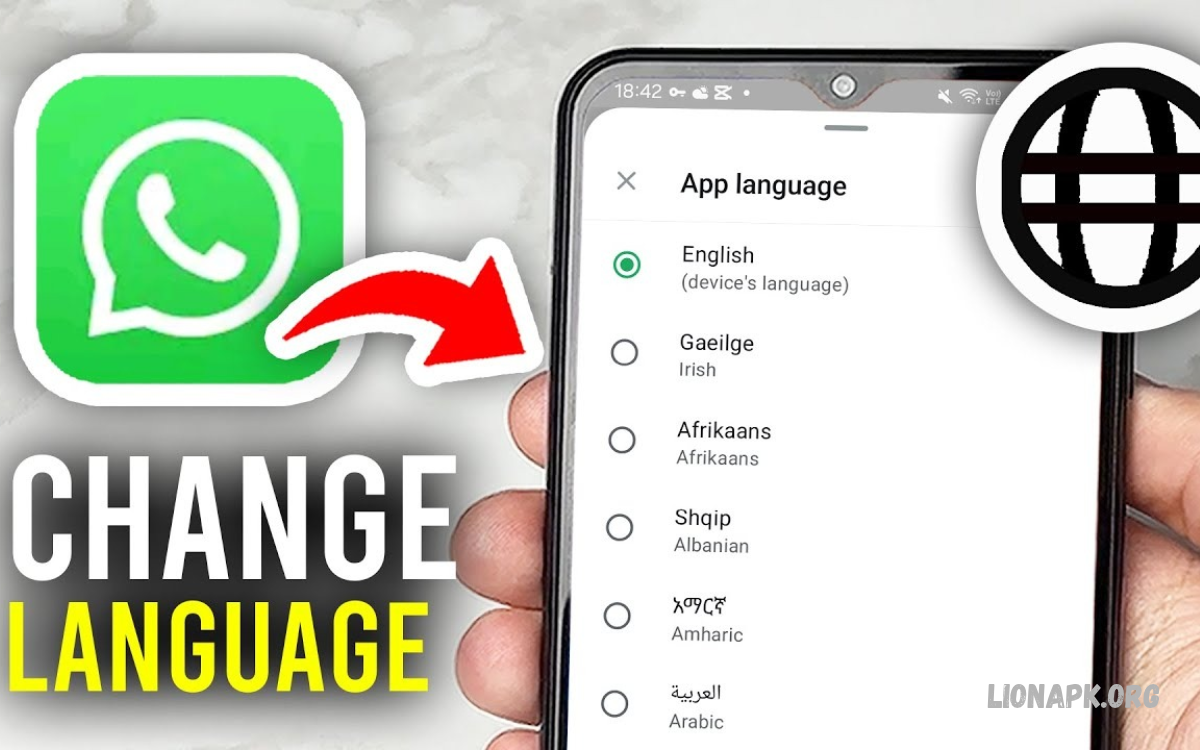
WhatsApp supports convenient messaging, voice calls, video calls, and file sharing across different devices. Changing its language helps users understand menus, settings, notifications, and other app features more comfortably.
Learning how to change WhatsApp language takes only a few minutes. Depending on your device, you can change the language through WhatsApp settings or your phone’s language preferences.
Why Change WhatsApp Language?
WhatsApp provides a familiar messaging experience for people worldwide. Switching to a preferred language makes the app easier to navigate, especially when English or another default language feels unfamiliar.
A suitable language setting helps users recognize privacy controls, manage notifications, adjust account preferences, and understand available features. It can also make WhatsApp more accessible for family members who prefer communicating in their native language.
How to Change WhatsApp Language on Android
Some Android phones provide a dedicated language option inside WhatsApp, while others rely on Android’s app-language settings. The available method depends on your WhatsApp version, Android version, device manufacturer, and region.
Follow these steps to change WhatsApp language on a compatible Android device:
- Open WhatsApp on your Android phone.
- Tap the three-dot menu in the upper-right corner.
- Select Settings.
- Look for App Language, if available.
- Choose your preferred language.
- Confirm your selection if prompted.
WhatsApp may update its interface automatically after you select a language. If the App Language option does not appear, use your phone’s system settings to check whether WhatsApp supports an individual app-language preference.
How to Change WhatsApp Language Through Android Settings
Android includes an app-language feature on supported versions and devices. This feature allows users to select a language for an individual application without necessarily changing the language of the entire phone.
Use the following steps when your Android device supports this feature:
- Open your phone’s Settings.
- Select System, General Management, or the relevant language settings menu.
- Open Languages or App Languages.
- Find WhatsApp in the application list.
- Select your preferred language.
- Return to WhatsApp and check the interface.
Menu names vary between Samsung, Google Pixel, Xiaomi, OPPO, Vivo, and other Android devices. If WhatsApp is missing from the list, your device or app version may not support a separate language preference.
How to Change WhatsApp Language on Samsung Phones
Samsung Galaxy phones offer language controls through One UI settings. Depending on the installed software version, users may find individual app languages under General Management.
Open Settings, go to General Management, and select App Languages. If WhatsApp appears, select it and choose your preferred language. The exact options depend on your phone model and software version.
How to Change WhatsApp Language on iPhone
On iPhone, WhatsApp generally follows the language settings available through iOS. Some iOS versions let users set a preferred language for an individual app when the app supports it.
To check the available options, open Settings on your iPhone and scroll to WhatsApp. If a Language option appears, tap it and select your preferred language. Reopen WhatsApp to confirm the change took effect.
How to Change WhatsApp Language on WhatsApp Web
WhatsApp Web allows users to send messages and manage conversations through a computer browser. Its interface language may depend on the available WhatsApp settings and the language configuration of the service.
Open WhatsApp Web in your browser and go to the Settings menu. Check whether a language preference is available in your version. If the option is missing, WhatsApp Web may not offer a separate interface-language setting for your account.
How to Change WhatsApp Language Without Changing Phone Language
Many users want to change WhatsApp language while keeping the rest of their phone in its current language. This is possible when WhatsApp or the operating system supports individual application-language preferences.
On Android, check WhatsApp’s App Language setting or the App Languages menu in your phone’s settings. Select the desired language, then return to the app. When the individual-app feature works as intended, your phone’s other menus should remain unchanged.
How to Change WhatsApp Language to English
Changing WhatsApp to English can make its menus and settings easier to follow for users who prefer an English interface. The process depends on whether your device supports language selection within WhatsApp or through its operating system.
On Android, open WhatsApp settings and look for App Language. Choose English from the available list. If you don’t see this option, check Android’s app language settings or the device’s system language preferences.
How to Change WhatsApp Language to Urdu
Urdu is a useful choice for users who prefer reading application menus in their native language. If Urdu is supported by your WhatsApp version and device configuration, you can select it through the available language settings.
On Android, check WhatsApp’s internal language menu first. If Urdu appears in the list, select it and allow the interface to update. Alternatively, look for WhatsApp under your phone’s individual app-language settings.
How to Change WhatsApp Language to Hindi
Hindi is another popular language option for people who want a more familiar messaging interface. When Hindi is available for your WhatsApp installation, selecting it can make supported menus and interface labels easier to understand.
On Android, open WhatsApp settings and look for the app-language option. Select Hindi if it appears. If your phone doesn’t offer this option, check the Android app language settings or your device’s supported system languages.
Read Also: How to Use WhatsApp on PC: Complete Step-by-Step Guide
How to Change WhatsApp Language to Arabic
Arabic-speaking users may prefer an Arabic interface for easier navigation. WhatsApp’s language availability depends on the app version and device, and supported interface languages may display differently depending on operating-system settings.
On a compatible Android device, open WhatsApp settings and select App Language if available. Choose Arabic and check the resulting interface. Arabic uses right-to-left writing, so supported interface elements may automatically adjust their alignment.
What Happens After Changing WhatsApp Language?
Changing WhatsApp language primarily affects the application’s supported interface elements, such as settings, menu labels, and certain system messages. The exact changes depend on the selected language and the version installed on your device.
Your existing conversations, contacts, groups, photos, videos, and account information should remain intact when you change the language through normal settings. You generally do not need to uninstall WhatsApp or create a new account to change its interface language.
Does Changing WhatsApp Language Change Chat Messages?
No. Changing WhatsApp language does not automatically translate messages exchanged with other people. Your existing conversations and the messages you receive remain in their original languages.
For example, selecting Urdu as your interface language does not convert English messages into Urdu. To translate individual messages, you may need a compatible translation feature or a separate translation application. Availability depends on your device and the tools you use.
How to Fix WhatsApp Language Not Changing
Sometimes WhatsApp continues displaying the previous language after you select a new one. This may happen because of device limitations, an unsupported language preference, an outdated application, or a setting that requires the app to be reopened.
Try these troubleshooting steps:
- Close WhatsApp and open it again.
- Check that your preferred language is selected correctly.
- Update WhatsApp through the official app store.
- Check your Android or iPhone language settings.
- Restart your device if the change does not appear.
- Confirm that your selected language is supported.
If the interface remains unchanged, your device may not support individual app-language settings for WhatsApp. Review the official WhatsApp Help Center and your phone manufacturer’s support information for guidance specific to your device.
How to Update WhatsApp for More Language Options
Keeping WhatsApp updated helps maintain compatibility with current operating systems and available application features. Updates can include interface improvements, bug fixes, and setting changes, but additional languages aren’t guaranteed with every release.
On Android, open the Google Play Store, search for WhatsApp, and select Update if available. On iPhone, open the App Store, search for WhatsApp, and install an available update. Use the official store for your device to avoid unofficial or modified apps.
Common Mistakes to Avoid When Changing WhatsApp Language
One common mistake is changing your phone’s language when you only need a different interface language in WhatsApp. This can alter system menus, notifications, and other applications, making the device less familiar until the original language is restored.
Another mistake is uninstalling WhatsApp to solve a language problem. Reinstallation is usually unnecessary for a simple language change and can introduce avoidable account or backup complications. Always verify your chat backup status before considering any action that removes application data.
Tips for Choosing the Best WhatsApp Language
Choose a language that makes settings, privacy options, and account controls easy to understand. If you regularly use multiple languages, select the interface language that helps you navigate the application most comfortably.
Keep in mind that the application interface and conversation language are separate. You can use WhatsApp’s menus in one language while sending messages in another. Choose the setting that suits your preferences without unnecessarily changing other device settings.
Frequently Asked Questions
Can I Change WhatsApp Language Without Losing Chats?
Yes. Changing WhatsApp’s language through its normal settings should not delete your messages, contacts, or media. You generally do not need to uninstall the application or clear its data to switch languages.
Why Is There No Language Option in WhatsApp Settings?
The option may depend on your operating system, device model, WhatsApp version, or region. Check your phone’s application-language settings to see whether WhatsApp supports a separate language preference.
Can I Use WhatsApp in Urdu and Type in English?
Yes. The interface language does not restrict the language you use for messages. You can keep WhatsApp menus in Urdu while typing English, Urdu, or other languages supported by your keyboard.
Does WhatsApp Automatically Change Language When I Travel?
Not necessarily. Traveling to another country does not automatically mean WhatsApp will switch its interface language. The application generally uses its configured language preference or the relevant operating-system settings.
Can I Change WhatsApp Language on a Computer?
WhatsApp Web may offer different language controls from the mobile application. Check its settings for a language option. If none is available, changing your browser’s language may not affect WhatsApp’s interface.
Do I Need to Restart My Phone After Changing WhatsApp Language?
Usually, restarting the phone is unnecessary. Reopening WhatsApp is usually enough. If the interface doesn’t update, check your settings and restart your device as a troubleshooting step.
Conclusion
Learning how to change WhatsApp language helps you personalize the messaging experience and navigate settings more comfortably. Android users may have an in-app language option or an individual app-language setting, while iPhone users can check the language controls provided by iOS.
Choose your preferred language, reopen WhatsApp, and verify that the interface has updated. If the option is missing, check your device’s system settings and make sure you have the latest updates. Your chats should remain unchanged when you switch languages through the normal settings.
