

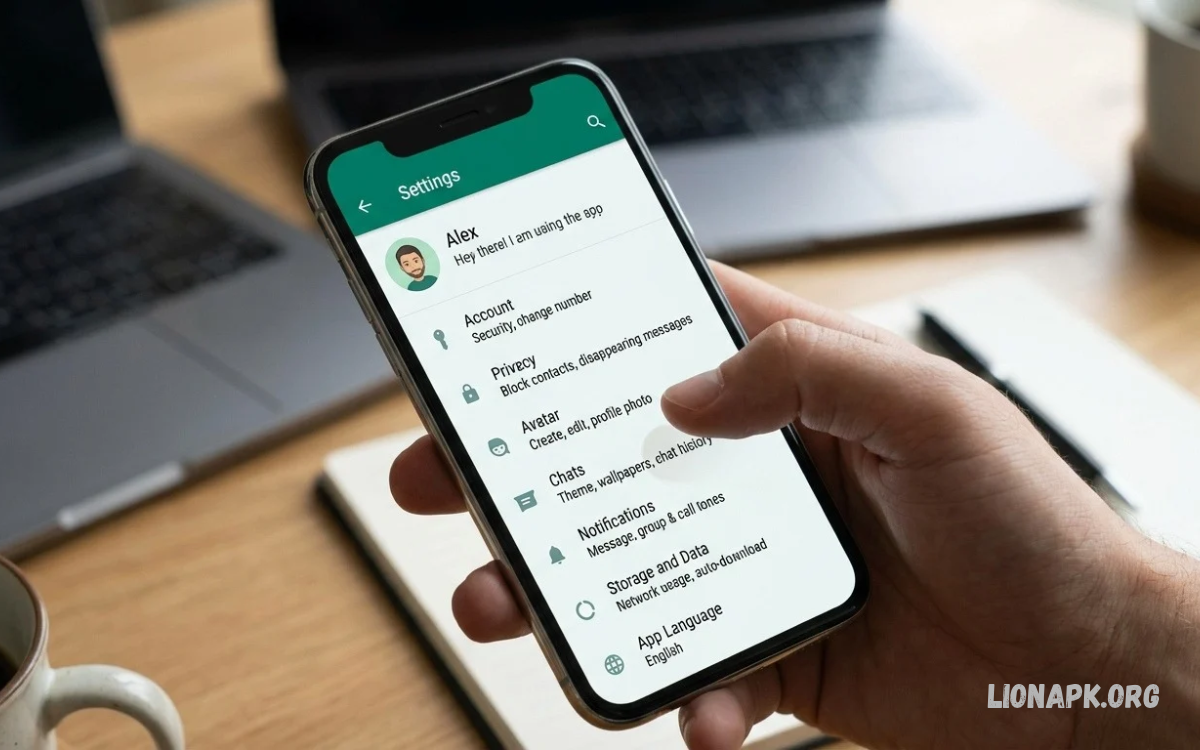
WhatsApp offers numerous customization options that help users personalize messaging, improve privacy, and manage notifications. Learning how to customize WhatsApp settings makes daily communication easier and more comfortable.
Whether you use Android or iPhone, WhatsApp offers tools to control profile visibility, chat appearance, security, and media downloads. This guide explains the essential settings and practical ways to personalize your WhatsApp experience.
Understanding WhatsApp Settings
WhatsApp settings offer options to manage your account, privacy, conversations, notifications, storage, and connected devices. You can access these controls through the Settings menu on iPhone or the three-dot menu on Android.
Most options work similarly across both platforms, although menu names and locations may differ. Keep WhatsApp updated to access features and security improvements.
How to Customize WhatsApp Settings on Android
Open WhatsApp on your Android phone and tap the three-dot menu in the upper-right corner. Select Settings to view your profile, privacy controls, chats, notifications, storage, and other customization options.
Choose the section you want to personalize and adjust its available controls. Review each option carefully, because changes to privacy, notifications, or media downloads can affect your everyday messaging experience.
How to Customize WhatsApp Settings on iPhone
Launch WhatsApp on your iPhone and tap Settings in the bottom navigation bar. You will find options for your account, privacy, chats, notifications, storage, and linked devices.
Tap any category to explore its available features and make your preferred changes. Some controls may appear differently from Android, so follow the labels displayed in your iPhone app.
Customize WhatsApp Privacy Settings
Privacy settings help you control who can view your personal information and contact you through WhatsApp. You can manage the visibility of your last seen status, online status, profile photo, About information, and Status updates.
Open Settings, select Privacy, and review each available option. Depending on the feature, you can choose Everyone, My Contacts, My Contacts Except, or Nobody, although available choices vary by setting and app version.
Control Last Seen and Online Status
Your last seen information indicates when you were last active on WhatsApp, while online status shows when you are currently using the app. Adjusting these options helps you control how much activity information others can see.
Open Settings, select Privacy, and tap Last Seen and Online. Choose your preferred visibility options from those available, remembering that restricting your visibility may also limit your ability to see similar information about others.
Customize Profile Photo Visibility
Your WhatsApp profile photo helps contacts recognize your account, but you may not want everyone to see it. Privacy controls let you limit its visibility according to your preferences.
Navigate to Settings, select Privacy, and open Profile Photo. Choose the appropriate audience, such as My Contacts or Nobody, depending on the available options and your desired level of privacy.
Manage WhatsApp Status Privacy
WhatsApp Status allows you to share photos, videos, text, and other updates with selected contacts. Customizing Status privacy helps ensure your updates reach the people you actually want to include.
Open Privacy settings and select Status to review the audience options. You can generally share updates with your contacts, exclude specific people, or select particular contacts, depending on the available controls.
Enable Two-Step Verification
Two-step verification adds an extra layer of protection to your WhatsApp account. It requires a PIN when registering your phone number again, helping protect your account if someone attempts to register it on another device.
Open Settings, select Account, and choose Two-Step Verification if the option appears in your version. Follow the instructions to create a PIN and add a recovery email address when available.
Customize WhatsApp Chat Settings
Chat settings help you personalize conversations, manage chat behavior, and improve your messaging experience. Available options may include themes, wallpapers, font-related controls, archived chats, and backup preferences.
Open Settings and select Chats to explore the available features. Choose the options that suit your needs, and remember that certain appearance settings may be available directly inside individual conversations rather than through the main menu.
Change WhatsApp Chat Wallpaper
Changing your chat wallpaper makes conversations feel more personal and visually appealing. WhatsApp may allow you to select built-in backgrounds, solid colors, or images from your phone’s photo library.
Open Chat settings and locate the Default Chat Theme or Wallpaper option, depending on your version. You may also open an individual conversation and select its chat theme or wallpaper settings to customize that conversation separately.
Customize WhatsApp Chat Themes and Colors
Chat themes can change the appearance of conversations through different colors and backgrounds. Supported versions may offer theme choices that affect message bubbles and other visual elements.
Open WhatsApp settings or an individual chat and look for Chat Theme or a similar appearance option. Select a preferred design and preview the result before applying it, noting that available themes and controls vary by device and app version.
Adjust WhatsApp Font Size
Changing message text size can make conversations easier to read, particularly on phones with smaller screens. Android users may find a dedicated font-size control within WhatsApp’s chat settings, while iPhone users can often adjust text through iOS display settings.
On Android, open Settings, select Chats, and look for Font Size if available. On iPhone, use Settings on your device to adjust text size through Display & Brightness or Accessibility, depending on your preferences.
Customize WhatsApp Notification Settings
Notifications help you identify new messages and calls without constantly opening WhatsApp. You can adjust notification sounds, vibration, previews, and other supported controls to suit your daily routine.
Open WhatsApp Settings and select Notifications to explore the available options. You can customize message and group notification sounds separately on supported devices, while additional controls may be available through your phone’s system settings.
Change WhatsApp Notification Sounds
Different notification sounds can help you recognize incoming messages without checking your phone screen. You may assign different tones to individual contacts or groups where WhatsApp supports those controls.
Open a conversation, tap the contact or group name, and look for Notifications or Custom Notifications if available. Select a preferred tone and save the change, keeping in mind that menu names and customization options differ between Android and iPhone.
Manage Group Notifications
Busy WhatsApp groups can generate frequent notifications throughout the day. Adjusting group notification preferences helps you stay informed without receiving unnecessary interruptions during work, study, or rest.
Open Settings, select Notifications, and review group notification options. You can also mute a particular group by opening its conversation, tapping its name or menu, and selecting the available mute option.
Customize WhatsApp Call Settings
WhatsApp supports voice and video calls over an internet connection, with some call-related controls available through app and device settings. Reviewing these options helps you manage call notifications, microphone access, camera access, and data usage.
Open your phone’s Settings and locate WhatsApp under the installed apps or permissions section. Review microphone, camera, and notification permissions, allowing only the access needed for features you intend to use.
Reduce WhatsApp Data Usage
WhatsApp can download photos, videos, documents, and other media automatically, depending on your preferences. Adjusting media download settings helps manage mobile data consumption and prevents unnecessary downloads.
Open Settings, select Storage and Data, and review Media Auto-Download. Choose whether photos, audio, videos, and documents download through mobile data, Wi-Fi, or roaming, using the options available in your version.
Enable Low Data Usage for Calls
WhatsApp may offer a setting that reduces data consumption during calls. This option can be useful when using a limited mobile data package or a connection with restricted bandwidth.
Open Settings, select Storage and Data, and look for Use Less Data for Calls if available. Enable the option to reduce call data usage, understanding that network conditions and call quality can affect the actual results.
Manage WhatsApp Storage
WhatsApp conversations can accumulate photos, videos, voice messages, and documents over time. Storage management tools help identify large files and remove unnecessary media without deleting every conversation.
Open Settings and select Storage and Data, followed by Manage Storage. Review files by size or conversation, select unwanted items, and delete them carefully after confirming that important photos or documents are backed up elsewhere if needed.
Customize Automatic Media Downloads
Automatic media downloads can save time, but they may fill your device storage quickly. Customizing download behavior lets you decide which files download automatically and which remain available for manual downloading.
Open Storage and Data settings and locate Media Auto-Download. Set different preferences for mobile data, Wi-Fi, and roaming, particularly if you frequently receive large videos or participate in active group conversations.
Customize WhatsApp Status Settings
Besides choosing your audience, you can personalize how you create and share Status updates. WhatsApp supports different media formats, text styles, and editing features that help make updates more expressive.
Open the Updates tab and select the option to create a Status. Add a photo, video, or text, use the available editing tools, and review your audience selection before sharing the update.
Customize Linked Devices
Linked Devices lets you access your WhatsApp account on supported computers, browsers, tablets, and other compatible devices. Managing these connections helps you keep track of where your account is active.
Open WhatsApp Settings and select Linked Devices. Review the listed sessions and log out of any device you no longer recognize or use, especially when accessing WhatsApp on shared or public computers.
Customize WhatsApp Backup Settings
Chat backups help preserve conversations when changing phones or reinstalling WhatsApp. Backup options may include Google Account integration on Android and iCloud integration on iPhone, depending on your device and account configuration.
Open Settings, select Chats, and choose Chat Backup. Review the backup schedule, account, included videos, and available encryption options, then configure the settings according to your storage capacity and recovery needs.
Enable Encrypted Chat Backups
End-to-end encrypted backups protect supported WhatsApp backups stored outside the app. Depending on the available feature, you may protect a backup using a password or another supported security method.
Open Chat Backup and look for End-to-End Encrypted Backup. Follow the on-screen instructions to enable it and securely retain the required recovery information, because losing the password or recovery key may prevent you from restoring the encrypted backup.
Read Also: How to Change WhatsApp Language: Complete Guide
Customize WhatsApp Group Privacy
Group privacy settings help you control who can add your number to WhatsApp groups. This reduces unwanted invitations and gives you more control over your group participation.
Open Settings, select Privacy, and tap Groups. Choose the available audience option that suits you, such as My Contacts or My Contacts Except, if supported, to limit who can add you directly to groups.
Customize WhatsApp Blocked Contacts
Blocking unwanted contacts can prevent direct messages and calls from those accounts through WhatsApp. The blocked contacts list also gives you a central place to review accounts you have restricted.
Open Settings, select Privacy, and find Blocked Contacts or Blocked. You can review the list and unblock a contact if needed, while remembering that blocking someone does not automatically remove every previous message from your chat history.
Customize WhatsApp App Permissions
WhatsApp requires certain device permissions to provide features such as voice messages, video calls, photo sharing, and location sharing. Reviewing permissions lets you control which device functions the app can access.
Open your phone’s system settings, find WhatsApp in the application list, and select Permissions. Review camera, microphone, photos, contacts, and location access, granting permissions according to the features you want to use.
Improve WhatsApp Account Security
Security settings help protect your account against unauthorized access and unwanted changes. In addition to two-step verification, you can review linked devices, secure your phone with a screen lock, and avoid sharing verification codes.
Never share WhatsApp registration codes or two-step verification PINs with other people. Keep your device and app updated, review unexpected login messages carefully, and use available account security features to reduce the risk of unauthorized access.
Common WhatsApp Customization Problems
Sometimes a setting appears missing because WhatsApp has an older version installed or because a feature is available only on certain devices. Menu layouts can also change after updates, so the same option might appear under a different heading.
Update WhatsApp through the official app store, then restart the app if a setting still doesn’t appear. If the problem continues, consult WhatsApp Help Center guidance for your device instead of installing unofficial versions of the app.
Best WhatsApp Settings for Everyday Use
For a balanced experience, review privacy visibility, group invitations, notification sounds, automatic downloads, storage usage, and backup schedules. These controls help you manage communication without sacrificing essential features or convenience.
Enable two-step verification, check linked devices regularly, and keep your backup information secure. Adjust appearance and notification preferences to your liking, then revisit important settings whenever WhatsApp introduces new features.
Frequently Asked Questions
How do I customize WhatsApp settings?
On Android, open WhatsApp and tap the three-dot menu, then select Settings. On iPhone, tap Settings in the bottom navigation bar and choose the category you want to personalize.
Can I customize WhatsApp settings for privacy?
Yes. Open Settings, select Privacy, and adjust available controls for profile photos, online status, last seen, Status updates, groups, and other personal information. Options vary by feature and app version.
How do I change WhatsApp chat colors?
Open an individual chat or the relevant appearance settings and look for Chat Theme or Wallpaper. Select an available color scheme or background and apply it according to your preferences.
How can I reduce WhatsApp data usage?
Open Settings, select Storage and Data, and customize automatic media downloads. You can also enable a lower-data calling option if your version supports it.
How do I secure my WhatsApp account?
Enable two-step verification, protect your phone with a screen lock, and regularly review linked devices. Never share verification codes, PINs, or recovery credentials with anyone.
Can I customize WhatsApp notifications for individual contacts?
On supported devices, open a contact’s conversation, tap the contact name, and look for notification customization options. You may be able to choose a different notification tone or other available preferences.
Will customizing WhatsApp settings delete my chats?
Most customization changes do not delete chats. However, clearing storage, deleting conversations, or changing backup arrangements can affect your data, so review any deletion or backup prompts before confirming.
Conclusion
Learning how to customize WhatsApp settings helps you create a messaging experience that matches your privacy preferences, communication habits, and device requirements. From chat themes and notification sounds to backups and account security, the available controls offer useful ways to personalize WhatsApp.
Start with privacy and security, then adjust chats, notifications, media downloads, and storage according to your needs. Review your settings occasionally to keep your account organized, secure, and comfortable to use.
