

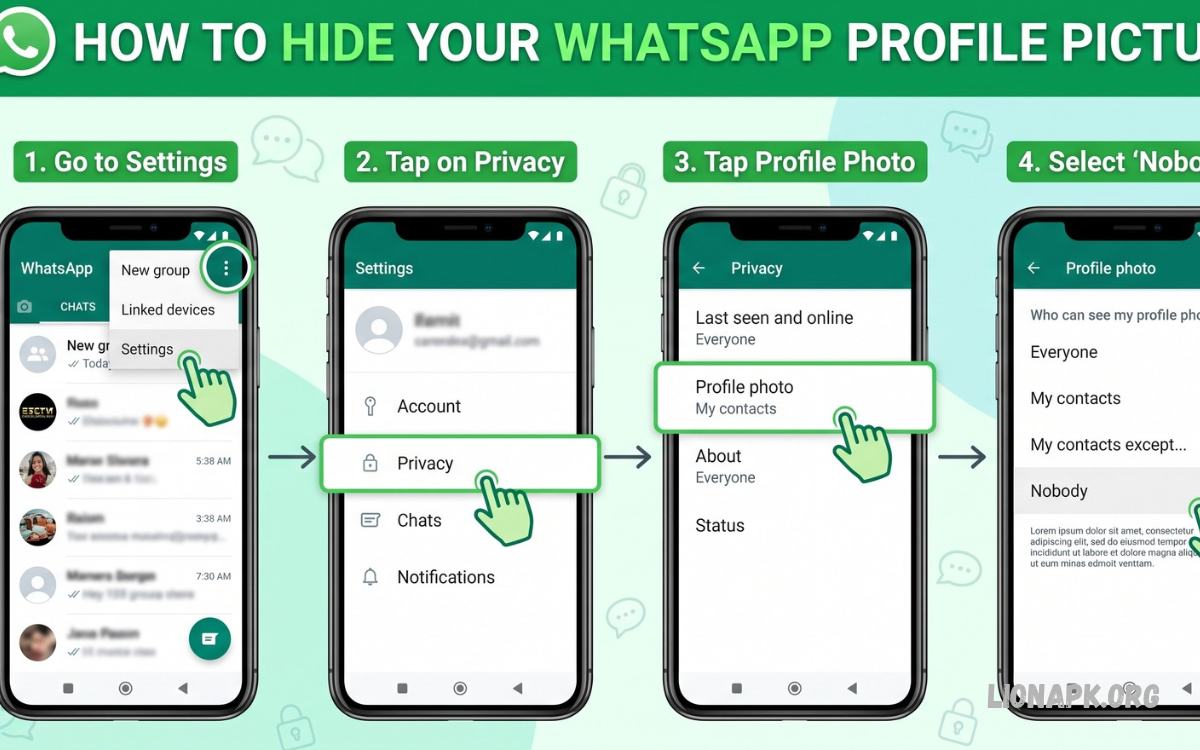
WhatsApp offers several privacy settings that help users control who can view their profile picture. Learning how to hide your WhatsApp profile picture can improve privacy and keep unwanted people from viewing your personal images.
Whether you use an Android phone or an iPhone, WhatsApp offers simple options to manage profile picture visibility. You can allow everyone, limit access to contacts, exclude specific people, or hide your picture from all users.
Why Hide Your WhatsApp Profile Picture?
Your WhatsApp profile picture can reveal personal information about your appearance, lifestyle, family, or daily activities. Restricting access helps maintain privacy and reduces unwanted attention from unknown numbers, strangers, or people outside your trusted circle.
Many users prefer to keep their profile pictures visible only to friends, family, and trusted contacts. WhatsApp privacy controls make this possible without extra apps or complicated steps.
How to Hide WhatsApp Profile Picture on Android
Android users can change profile picture visibility directly through WhatsApp settings. Open WhatsApp, tap the three-dot menu in the upper-right corner, select Settings, and open Privacy.
Find the Profile Photo option and select your preferred visibility setting. Choose My Contacts to restrict access to saved contacts, My Contacts Except… to exclude selected people, or Nobody to hide your profile picture from everyone.
How to Hide WhatsApp Profile Picture on iPhone
iPhone users can manage profile picture privacy in WhatsApp Settings. Open WhatsApp, tap Settings at the bottom of the screen, select Privacy, and tap Profile Photo.
Tap Profile Photo to view the available privacy choices. Select My Contacts, My Contacts Except…, or Nobody according to your preference, then return to the previous screen. Your selected setting will control who can view your profile picture.
Understanding WhatsApp Profile Picture Privacy Options
WhatsApp provides different profile picture visibility options for different privacy needs. Understanding each option helps you choose the appropriate setting without unnecessarily restricting access for trusted people.
The available choices generally include Everyone, My Contacts, My Contacts Except…, and Nobody. Availability and wording may vary slightly depending on your WhatsApp version, so check the options displayed in your application.
Everyone
The Everyone option allows a broader audience to view your WhatsApp profile picture. Depending on WhatsApp’s current privacy behavior, this can include people who have your number even when they are not saved in your contacts.
This option suits users who want their profile picture to remain widely visible. However, users concerned about personal privacy may prefer a more restrictive setting that limits visibility to known contacts.
My Contacts
The My Contacts option limits profile picture visibility to people saved in your phone’s contacts. Numbers that are not saved in your contacts generally cannot view your profile picture through this setting.
This option provides a convenient balance between privacy and accessibility. Friends, relatives, and other saved contacts can continue viewing your picture, while unknown numbers have more limited access.
My Contacts Except…
The My Contacts Except… option allows you to exclude specific saved contacts from viewing your profile picture. It is useful when you want most contacts to retain access but prefer additional privacy from selected individuals.
Select this option, choose the contacts you want to exclude, and confirm your selection if prompted. WhatsApp will apply the restriction to those contacts while keeping your picture visible to other eligible contacts.
Nobody
The Nobody option provides the broadest restriction for profile picture visibility. When selected, your WhatsApp profile picture is hidden from everyone through the normal profile picture viewing feature, regardless of whether they are saved contacts.
This setting is useful for users who prefer maximum privacy or do not want others to see their personal image. You can change the setting later whenever your privacy preferences change.
How to Hide WhatsApp Profile Picture From One Person
Sometimes, you may want to hide your profile picture from a particular person without restricting access for every contact. WhatsApp’s My Contacts Except… option offers a practical solution.
Open WhatsApp Settings, navigate to Privacy, select Profile Photo, and choose My Contacts Except…. Select the person you want to exclude and save or confirm your choice if required. That person should no longer be able to view your profile picture under the selected privacy rules.
How to Hide WhatsApp Profile Picture From Unknown Numbers
Unknown numbers may contact you through group conversations, forwarded messages, or direct chats. Restricting profile picture visibility reduces the personal information available to people you don’t know.
Open WhatsApp’s Privacy settings and set the profile photo to My Contacts. This prevents people outside your saved contacts from viewing your profile picture through the standard feature, while eligible saved contacts can still see it.
How to Hide WhatsApp Profile Picture From All Contacts
If you do not want any of your contacts to view your WhatsApp profile picture, select Nobody in the Profile Photo privacy menu. This setting applies broadly, so you don’t have to exclude each contact individually.
Open Settings, choose Privacy, tap Profile Photo, and select Nobody. After applying this setting, you can continue using WhatsApp normally while limiting profile picture visibility for other users.
How to Hide WhatsApp Profile Picture Without Blocking Someone
Blocking someone is not necessary simply to hide your WhatsApp profile picture. WhatsApp offers dedicated privacy controls that let you restrict picture visibility while keeping normal communication.
Choose My Contacts Except… to exclude a specific person, or select Nobody to hide your picture from everyone. These settings affect profile picture visibility, while blocking affects communication and other interactions.
Does Hiding Your Profile Picture Affect WhatsApp Messages?
Changing your profile picture privacy setting does not prevent you from sending or receiving WhatsApp messages. You can keep chatting, sharing media, making calls, and joining groups based on your usual account permissions.
The selected privacy option only controls access to your profile picture through WhatsApp’s standard visibility feature. Other privacy settings, such as Last Seen and Online, About, Status, and Read Receipts, are managed separately.
How to Hide WhatsApp Profile Picture on WhatsApp Web
WhatsApp Web and linked desktop experiences may provide access to profile and privacy settings, depending on the version and interface. If the Profile Photo option is available, open your settings and navigate to Privacy to review its visibility controls.
If you cannot find the required option on your computer, update WhatsApp or use the mobile application. The Android and iPhone apps provide a straightforward way to manage profile picture privacy from the main Settings menu.
Read Also: How to Customize WhatsApp Settings: A Complete Guide
How to Hide WhatsApp Profile Picture on Older WhatsApp Versions
Older WhatsApp versions may display privacy menus differently, although the basic process is generally similar. Look for Settings, Privacy, and Profile Photo, then review the available visibility options.
If the Profile Photo option is missing or behaves unexpectedly, update WhatsApp through the official Google Play Store or Apple App Store. Keeping the application updated can improve security, compatibility, and access to current privacy controls.
What Happens When You Hide Your WhatsApp Profile Picture?
When you restrict profile picture visibility, people outside your permitted audience may see a blank profile image or a default placeholder instead of your personal picture. The exact appearance can vary depending on the application version and the viewer’s circumstances.
Hiding your picture does not automatically delete the image from your WhatsApp account. It changes who can view it through the normal feature, letting you keep your profile picture while controlling access.
Can Someone Still See Your Old WhatsApp Profile Picture?
WhatsApp’s privacy settings control profile picture visibility, but they cannot guarantee that nobody has previously saved or captured an image. Someone who viewed your picture before you changed the setting may already have a copy on their device.
For this reason, review your profile picture before uploading it and avoid sharing images that contain sensitive personal details. Privacy settings reduce future visibility but cannot retrieve copies others may already have.
Additional WhatsApp Privacy Settings to Consider
Hiding your profile picture is only one part of maintaining privacy on WhatsApp. You can also review Last Seen and Online, About, Status, Groups, Calls, and other available privacy options to control how people interact with your account.
Open Settings, select Privacy, and review each category individually. Choose settings that match your comfort level, especially for information that reveals your activity, personal updates, or availability to other users.
Common Problems When Hiding a WhatsApp Profile Picture
Sometimes, users change their privacy settings but don’t immediately see the expected result. Possible reasons include selecting the wrong option, using an outdated application, misunderstanding contact restrictions, or experiencing a temporary synchronization issue.
Reopen the Profile Photo privacy menu and confirm your selection. Check that the intended contacts are excluded, update WhatsApp if needed, and restart the app if the setting still doesn’t work as expected.
Best Practices for WhatsApp Profile Picture Privacy
Choose a profile picture that does not reveal sensitive information, such as your home address, school details, identification documents, or private family moments. Even when visibility is restricted, it is sensible to assume someone may save an image they can access.
Review your privacy settings regularly, particularly after adding new contacts or changing your preferences. Avoid unofficial WhatsApp applications that promise extra privacy features, as they may introduce security risks or expose account information.
Frequently Asked Questions
How do I hide my WhatsApp profile picture from everyone?
Open WhatsApp Settings, select Privacy, tap Profile Photo, and choose Nobody. This setting restricts profile picture visibility for all users through WhatsApp’s standard viewing feature.
Can I hide my WhatsApp profile picture from one person?
Yes. Select My Contacts Except… under Profile Photo privacy and choose the contact you want to exclude. Other eligible contacts can continue viewing your picture.
Can unknown numbers see my WhatsApp profile picture?
If your setting is My Contacts, unknown numbers that are not saved in your contacts generally cannot view your profile picture through the standard feature. Your other privacy settings remain separate.
Does hiding my WhatsApp profile picture block someone?
No. Hiding your profile picture does not automatically block anyone. You can restrict visibility while still communicating with that person on WhatsApp.
Can I hide my profile picture on WhatsApp without deleting it?
Yes. Select Nobody or another restrictive visibility option. Your profile picture stays linked to your account, but access is limited based on your chosen setting.
Why can someone not see my WhatsApp profile picture?
Your privacy settings may prevent that person from viewing your picture. Other possible explanations include changes to your profile picture, contact restrictions, connectivity problems, or account-related circumstances.
Can I hide my WhatsApp profile picture from non-contacts only?
Yes. Choose My Contacts under the Profile Photo privacy menu. This setting limits visibility to your saved contacts instead of letting everyone view your picture.
Will WhatsApp notify someone when I hide my profile picture?
WhatsApp does not normally send a dedicated notification when you change your profile picture privacy settings. However, someone may notice that your picture is no longer visible to them.
Conclusion
Learning how to hide your WhatsApp profile picture gives you more control over your personal information. WhatsApp offers flexible options to hide your picture from everyone, limit access to saved contacts, or exclude selected individuals.
For a simple privacy solution, open Settings, select Privacy, choose Profile Photo, and apply the option that suits your needs. Review your other privacy settings regularly to maintain a safer and more comfortable WhatsApp experience.
