

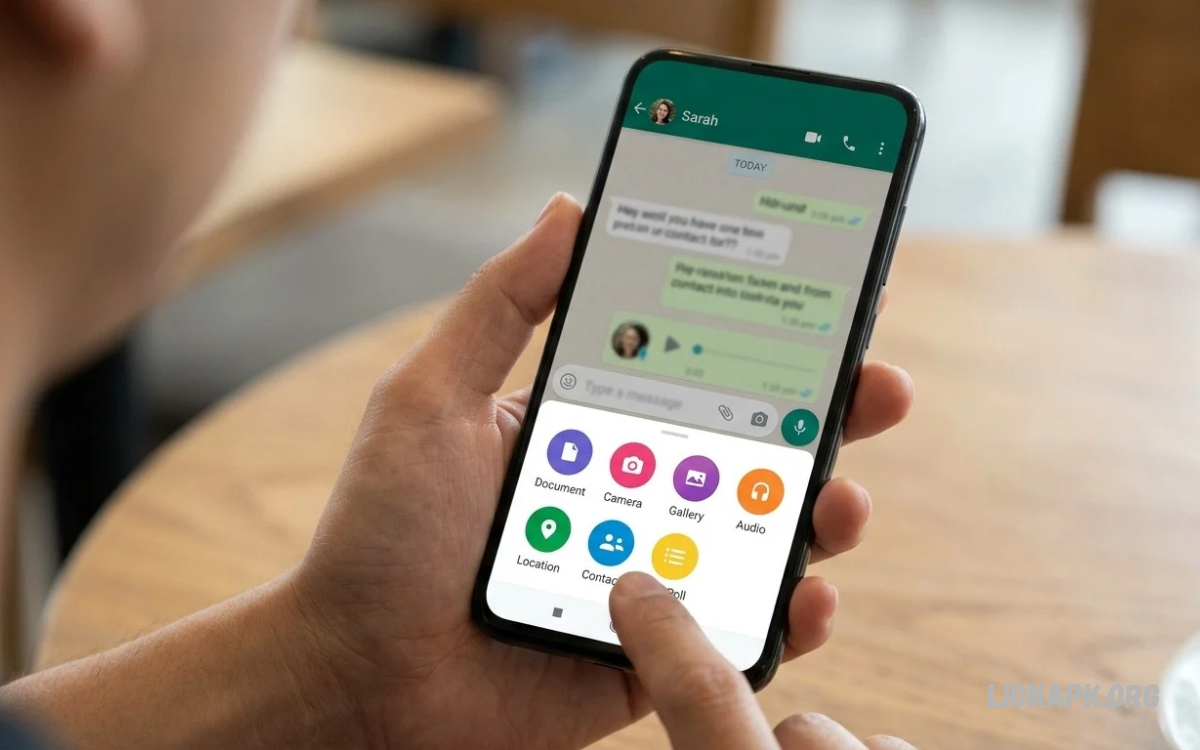
WhatsApp makes sharing contact information simple, letting users send phone numbers and contact details directly in chats. Instead of typing someone’s number manually, you can share a saved contact within seconds.
Learning how to Share Contacts on WhatsApp helps you connect more efficiently with friends, family members, classmates, and colleagues. You can share one contact, send multiple contacts separately, or exchange contact information through individual and group conversations.
Why Share Contacts on WhatsApp
Sharing contacts through WhatsApp saves time and reduces mistakes when exchanging phone numbers. The recipient can open the shared contact card, review the available details, and save the information directly to their phone’s contacts.
This feature is useful for personal conversations, professional communication, and everyday coordination. You can share a friend’s number with a family member, send a colleague’s details to a teammate, or help someone contact a local business without manually copying information.
How to Share Contacts on WhatsApp Using Android
Android users can share saved contacts directly from WhatsApp conversations. The application provides a contact-sharing option that lets you select a person from your phone’s address book and send the relevant details to another user.
Before sharing, make sure the contact is saved on your phone and WhatsApp has the necessary contact permission. The available options may vary slightly depending on your Android version and the WhatsApp interface.
Share a Saved Contact on Android
Open WhatsApp on your Android phone and select the conversation where you want to send the contact. Tap the attachment icon beside the message box and choose the contact option from the available menu.
Select the person you want to share, review the contact details, and tap the send button. The contact card will appear in the chat, allowing the recipient to open it and save the information to their address book.
Share a Contact From Your Phone’s Contacts App
You can also share contact details through your Android phone’s Contacts application. Open Contacts, select the person you want to share, and look for the Share option in the contact menu.
Choose WhatsApp from the available sharing applications, select the recipient or group, and send the contact card. This method can be convenient when you are already viewing a person’s information outside WhatsApp.
How to Share Contacts on WhatsApp Using iPhone
iPhone users can share contact details directly through WhatsApp or through the iOS Contacts application. Both options allow you to send information to an individual conversation or a group, depending on the available sharing features.
Make sure WhatsApp can access the contacts you want to share. If a contact is missing, check your iPhone’s contact permissions and confirm that the information is saved correctly in your address book.
Share a Contact From WhatsApp on iPhone
Open WhatsApp on your iPhone and enter the conversation where you want to share the contact. Tap the plus button beside the message field and select Contact from the menu that appears.
Choose the person you want to send, review the displayed details, and tap Done or the available send option. The recipient can then open the contact card and save the details to their iPhone.
Share Contacts Through the iPhone Contacts App
Open the Contacts app on your iPhone and select the person whose information you want to share. Tap Share Contact, review the available information, and choose WhatsApp from the sharing options if it appears.
Select the intended recipient and send the contact. Depending on the iOS version and sharing interface, you may be able to choose which contact details are included before sending.
How to Share Multiple Contacts on WhatsApp
WhatsApp allows you to share contact information with other users, but the process for sending multiple contacts together can vary by device and application version. If the interface does not support selecting several contacts at once, you can send each contact card separately.
Open the desired conversation, select the contact-sharing option, and choose the first person you want to share. Send the contact, then repeat the process for the remaining people whose details the recipient needs.
How to Share Your Own Contact on WhatsApp
Sharing your own contact information makes it easier for other people to save your phone number and communicate with you later. You can send your contact card if your details are saved in your phone’s address book.
Open your Contacts app, find your own contact entry, and select the sharing option. Choose WhatsApp, select the recipient, and review the details before sending so you do not accidentally share information you want to keep private.
How to Share a Contact in a WhatsApp Group
WhatsApp group chats make it easy to share contact information with family, class, team, or community members. You can send a saved contact card directly into a group conversation, where members can open it and save the details.
Open the group chat, tap the attachment or plus icon, and choose the contact-sharing option. Select the person whose details you want to share, review the information, and send the card to the group.
How to Share Contacts Without Saving a Number
Sometimes you need to send a phone number that is not saved in your address book. In this case, type the number into a WhatsApp message and send it as text, as long as you already have a conversation with the recipient.
If you want to share a complete contact card, you may need to create a contact entry first or use a compatible contact-sharing feature on your device. Check the details carefully before sending, especially if the phone number belongs to someone you don’t know well.
Read Also: WhatsApp Tips and Tricks: Essential Features, Hidden Settings, and Useful Hacks
How to Share Contacts Safely on WhatsApp
Contact cards may contain more information than a phone number, including email addresses, workplace details, or additional numbers. Before sharing, review the information and confirm that the recipient should receive those details.
Avoid sharing someone else’s private contact information without a suitable reason or permission. In group chats, remember that every member who can access the message may be able to view the contact details and save them to their own device.
Common Problems When Sharing Contacts on WhatsApp
Contact sharing may not work when WhatsApp lacks contact permissions, the saved information is incomplete, or the application encounters a temporary problem. Check that the contact exists in your address book and that WhatsApp is updated to a supported version.
If the contact option does not appear, close and reopen WhatsApp, review your device’s permission settings, and try again. You can also share the contact from your phone’s Contacts app if that option is available.
How to Fix WhatsApp Contact Permission Issues
On Android, open your device settings, find WhatsApp under Apps, and review its permissions. Allow contact access if you want WhatsApp to display the saved contacts available on your phone.
On iPhone, open Settings and locate WhatsApp or the system’s Contacts privacy settings. Make sure the appropriate contact access is enabled, then reopen WhatsApp and check whether the required contact appears.
Benefits of Sharing Contacts on WhatsApp
Sharing contacts through WhatsApp reduces the effort required to exchange phone numbers and other details. The recipient can save the contact card directly instead of copying information from a message and entering it manually.
This feature also supports faster communication in personal and professional settings. Whether you are introducing friends, coordinating a group project, or exchanging business details, contact sharing offers a practical way to keep communication organized.
Frequently Asked Questions
Can I share contacts on WhatsApp without saving them?
You can send a phone number as a text message without saving it to your address book. Sharing a complete contact card may require saving the information first or using a compatible sharing feature on your device.
Can I share contacts between Android and iPhone?
Yes, you can generally share WhatsApp contact cards between Android and iPhone users. The recipient can open the contact information and save it using the contact features available on their device.
Why can’t I see my contacts on WhatsApp?
WhatsApp may not display contacts if it lacks permission to access your address book or if the contact is not saved correctly. Check your phone’s privacy settings and confirm that the contact information is available in your Contacts app.
Can I share contacts in a WhatsApp group?
Yes, you can send a contact card directly into a WhatsApp group. Group members who can access the message may view the shared details and save the contact to their own devices.
Is sharing contacts on WhatsApp free?
WhatsApp does not charge a separate fee for sharing contact cards. However, an internet connection is required, and your mobile carrier may charge for mobile data usage.
Conclusion
Learning how to Share Contacts on WhatsApp helps you exchange phone numbers and contact information quickly on Android, iPhone, or through your phone’s Contacts app. You can send saved contacts to individual chats, share details in groups, and help others save information directly to their address books.
Always review contact details before sending them, and respect others’ privacy when sharing their information. With the right permissions and a few simple steps, WhatsApp contact sharing can make everyday communication easier, faster, and more convenient.
