

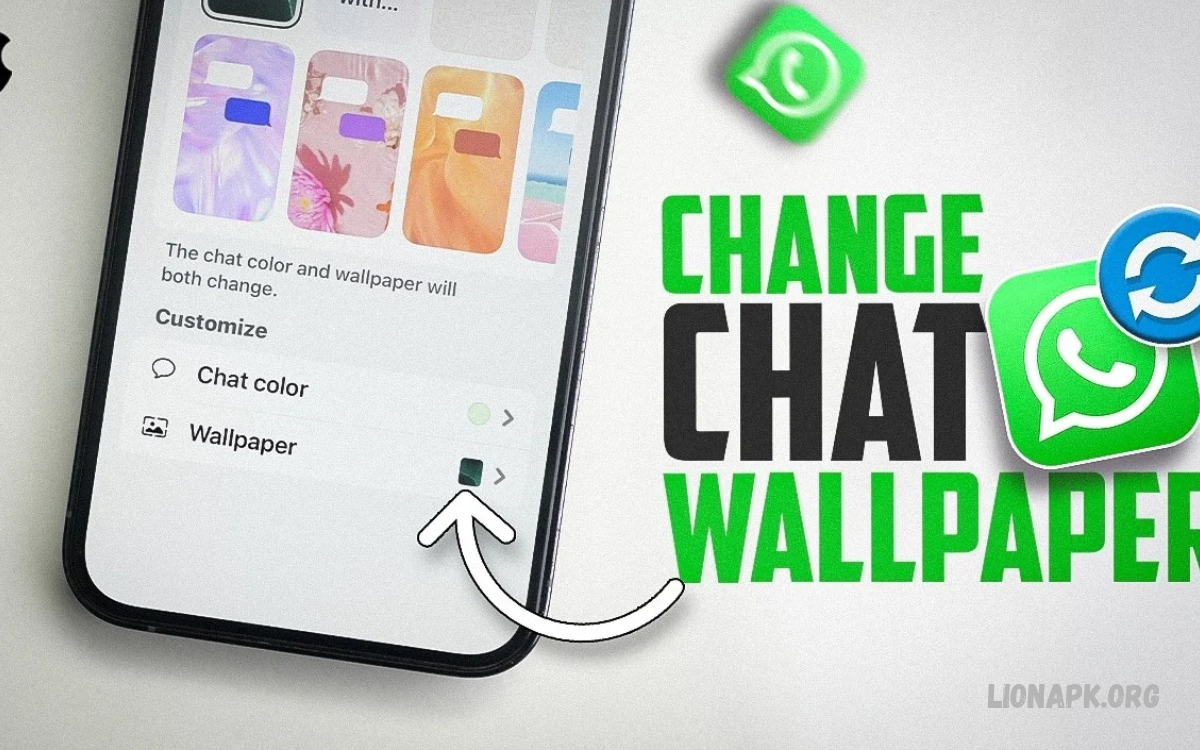
WhatsApp lets users personalize conversations by changing chat wallpapers. Choose a favorite photo, select a solid color, or use built-in wallpaper options to create a comfortable messaging experience.
Learning How to Change WhatsApp Chat Wallpaper helps you customize your chats according to your preferences. Whether you use Android or iPhone, WhatsApp offers simple settings for changing backgrounds in individual conversations or across all chats.
What Is WhatsApp Chat Wallpaper?
A WhatsApp chat wallpaper is the background behind messages in a conversation. It changes the appearance of your chat screen without affecting messages, contacts, shared photos, or other account information.
You can select a wallpaper that matches your style, improves readability, or makes conversations feel more personal. WhatsApp offers different background options, though available settings may vary slightly depending on your device and app version.
Why Change WhatsApp Chat Wallpaper?
Changing your WhatsApp wallpaper gives your messaging screen a fresh appearance. Instead of using the default background, you can choose something that reflects your interests, favorite colors, travel memories, or photography preferences.
Custom wallpapers can also help distinguish conversations when you assign different backgrounds to individual chats. A simple background with good contrast can make messages easier to read in everyday use.
How to Change WhatsApp Chat Wallpaper on Android
Android users can change their WhatsApp chat wallpaper through the application’s settings or directly inside a conversation. The available wallpaper choices may include solid colors, built-in images, and photos stored on the phone.
Before changing your wallpaper, make sure WhatsApp is updated to a recent version. This helps ensure that the latest personalization settings and available wallpaper options appear correctly on your device.
Change Wallpaper for All Chats
WhatsApp allows Android users to set a default wallpaper for their conversations. This option is useful when you want a consistent appearance across your messaging screen without customizing every conversation separately.
Open WhatsApp, tap the menu, and navigate to Settings, then Chats, then Default chat theme or Wallpaper, depending on your version. Choose your preferred background, preview the appearance, and apply the change using the available confirmation option.
Change Wallpaper for an Individual Chat
You can also personalize a specific conversation without changing the wallpaper used in other chats. This option is helpful when you want a unique background for a family member, friend, or important conversation.
Open the desired WhatsApp conversation, tap the contact or group name, and find the Chat theme or Wallpaper setting. Select a background, preview it, and apply the change if the option is available in your version of WhatsApp.
How to Change WhatsApp Chat Wallpaper on iPhone
iPhone users can customize WhatsApp conversations using the wallpaper and chat theme settings available in the application. Depending on the current version, you may be able to choose a built-in background, a color, or an image from Photos.
Open WhatsApp and check Settings, then Chats, for the default wallpaper or chat theme options. Select your preferred background, preview it, and confirm the change by following the instructions displayed on your screen.
Set a Wallpaper for a Specific Conversation
If you want to customize an individual conversation on an iPhone, open that chat and tap the contact’s name or group information. Look for the chat theme or wallpaper option to view the available customization settings.
Choose your preferred background and review how it looks behind your messages. Apply the selection when prompted, then return to the conversation to check that the wallpaper appears as expected.
Change the Default Chat Background
A default wallpaper is useful when you prefer the same appearance across multiple conversations. Depending on your WhatsApp version, the default chat theme or wallpaper settings may control the background used for chats without individual customization.
Open WhatsApp settings and navigate to the Chats section to locate the relevant option. Select a suitable background, preview it, and apply the change according to the options available on your iPhone.
How to Set Your Own Photo as WhatsApp Chat Wallpaper
Using a personal photo is an easy way to make WhatsApp conversations feel more familiar. You can choose a landscape, pet photograph, favorite memory, or another image saved in your phone’s gallery or Photos app.
Open the wallpaper settings for your chosen conversation or default chat appearance. Select the option to choose a photo, grant photo access if requested, select your preferred image, adjust the preview if available, and apply the wallpaper.
How to Change WhatsApp Wallpaper Using Solid Colors
Solid-color wallpapers are a practical choice for users who prefer a clean and simple chat screen. They can reduce visual distractions and help message bubbles stand out more clearly against the background.
Open WhatsApp’s wallpaper or chat theme settings and look for the available color options. Choose a color that provides comfortable contrast with your message bubbles, preview the result, and save your selection using the displayed controls.
How to Choose the Best WhatsApp Chat Wallpaper
The best wallpaper suits your preferences while keeping conversations easy to read. A beautiful image may look appealing, but busy patterns or bright details can make message text harder to distinguish.
Consider using soft colors, simple designs, or photographs with uncluttered areas behind the message bubbles. If you use WhatsApp frequently, choose a background that feels comfortable to look at during long conversations and everyday messaging.
Read Also: How to Create a WhatsApp Group: Step-by-Step Guide
How to Change WhatsApp Chat Wallpaper for Dark Mode
WhatsApp supports appearance options that can interact with your device’s light or dark theme. Depending on the app version, wallpaper brightness or theme controls may help you maintain a comfortable chat appearance when switching between light and dark mode.
Open your chat wallpaper or theme settings and review the options available for your device. If separate wallpaper settings are provided for light and dark appearances, choose backgrounds that remain clear and readable in both modes.
How to Fix WhatsApp Chat Wallpaper Not Changing
Sometimes a wallpaper change may not appear immediately because of an outdated application, an incorrect setting, or a temporary software issue. First, confirm that you applied the wallpaper to the intended conversation or default chat setting.
Close and reopen WhatsApp, check for an available application update, and try applying the background again. If the problem continues, restart your phone and review the application’s current settings before attempting more advanced troubleshooting.
Common WhatsApp Wallpaper Problems
Users may sometimes find that a custom wallpaper appears in one conversation but not another. This can happen when individual chat themes or wallpaper settings override the default background, depending on the features supported by the installed version.
Another issue is a wallpaper that makes messages difficult to read. Try selecting a simpler image or a different color, and preview the conversation before applying the change to make sure text and message bubbles remain clearly visible.
Tips for Personalizing WhatsApp Chats
Personalizing WhatsApp is easier when you choose backgrounds that fit how you use the app. A simple wallpaper can work well for busy conversations, while a favorite photograph may be more suitable for a personal chat.
Keep your wallpaper choices comfortable, avoid overly distracting images, and explore the built-in themes available in your version of WhatsApp. You can change the background whenever your preferences change without deleting conversations or altering your chat history.
Frequently Asked Questions
Can I change WhatsApp wallpaper for one chat only?
Yes, if your version of WhatsApp supports individual chat wallpaper or theme settings. Open the conversation, access its information or theme options, and choose a background specifically for that chat.
Can I use my own photo as WhatsApp wallpaper?
Yes, WhatsApp versions that support custom photo backgrounds let you select an image from your phone. Open the wallpaper settings, choose a photo, preview it, and apply the change.
Does changing WhatsApp wallpaper delete messages?
No, changing your chat wallpaper does not delete messages or remove your conversation history. It only changes the visual background displayed behind your messages.
Can I restore the default WhatsApp wallpaper?
Yes, you can usually return to the default background through the wallpaper or chat theme settings. Open the relevant settings, choose the default option if available, and apply it.
Why can I not find the wallpaper option in WhatsApp?
The option may appear under Chat theme, Wallpaper, or Default chat theme, depending on your device and application version. Update WhatsApp and check the Chats settings or the information screen for an individual conversation.
Does WhatsApp wallpaper change for both people?
Chat wallpaper customization generally affects your own view of the conversation rather than changing the other person’s background. Each user can personalize their own WhatsApp appearance independently.
Conclusion
Learning How to Change WhatsApp Chat Wallpaper helps you personalize your messaging experience with favorite photos, solid colors, and built-in backgrounds. Android and iPhone users can explore the available chat settings to create an appearance that suits their preferences.
Choose a wallpaper that looks attractive while keeping messages readable, and remember that individual conversation settings may differ from the default chat background.
