

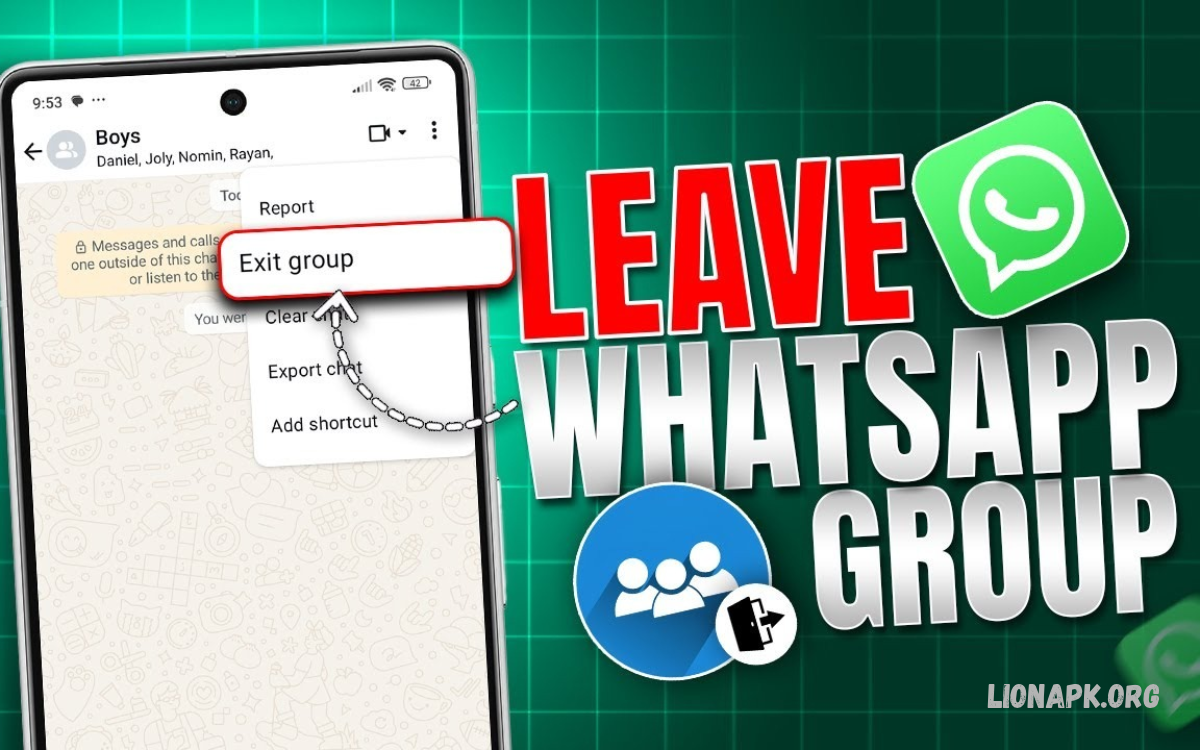
WhatsApp groups help people communicate with friends, family, classmates, and colleagues. However, some groups become distracting because of frequent messages, unnecessary notifications, or conversations that no longer interest you.
Learning how to leave a WhatsApp Group helps you manage your chats and enjoy a more organized messaging experience. WhatsApp offers a simple exit option for Android and iPhone users, letting you leave unwanted groups without deleting your entire account.
Why Leave a WhatsApp Group?
WhatsApp groups can become overwhelming when members send too many messages, share irrelevant content, or discuss topics that do not interest everyone. Leaving an unnecessary group helps reduce distractions and gives you more control over your daily communication.
Some users also leave groups after completing a school project, finishing a work assignment, or attending an event. Whatever your reason, WhatsApp lets you exit a group while keeping your other conversations.
How to Leave a WhatsApp Group on Android
Android users can leave a WhatsApp group directly from the group conversation or through the chat list. The process is straightforward and usually takes only a few moments to complete.
Before leaving, review the group to make sure you no longer need its messages, shared documents, photographs, or other information. If necessary, save important details before confirming your decision to exit.
Leave a Group From the Chat Screen
Open WhatsApp on your Android phone and select the group you want to leave. Tap the group name at the top of the screen to open its information page and view the available management options.
Scroll through the group information until you find the option to leave the group. Tap it and confirm your choice when WhatsApp asks you to proceed. You will exit the conversation and stop receiving new messages as a group member.
Leave a Group From the Chat List
You can also leave a WhatsApp group without opening the conversation. Find the group in your chat list and press and hold its conversation to display the available options.
Depending on your WhatsApp version, you may need to open the additional menu or group information screen to find the exit option. Select the appropriate command and confirm that you want to leave the group.
How to Leave a WhatsApp Group on iPhone
iPhone users can leave unwanted WhatsApp groups through the group information screen. This method works for many types of groups, including family chats, community conversations, and temporary event discussions.
Open WhatsApp, select the group conversation, and tap the group name at the top. Scroll through the information page, choose the option to leave the group, and confirm your decision when prompted.
Leave a Group Without Deleting WhatsApp
Leaving a group does not require you to uninstall WhatsApp or delete your account. Your personal chats, contacts, and other group memberships remain separate from the group you choose to exit.
After leaving, you will no longer participate as a member or receive new messages through that group. Your existing chat history may remain visible on your device until you delete or clear the conversation.
What Happens When You Leave a WhatsApp Group?
When you leave a WhatsApp group, you stop being an active member and cannot send messages as a participant. You also stop receiving new group messages in the normal way, although the previous conversation may remain in your chat history.
WhatsApp generally limits the departure notice to group administrators rather than notifying every member with a standard system announcement. However, members may still notice your absence by checking the participant list or seeing that you are no longer a member.
Can You Leave a WhatsApp Group Silently?
WhatsApp offers a more private exit experience than a public announcement to every group member. In general, only group administrators receive the system notification that you have left, although the participant list can reveal your departure.
If you want to avoid drawing attention, consider leaving at a convenient time rather than explaining your decision in the group chat. Remember that this does not guarantee complete secrecy because administrators and other members may still discover that you are no longer participating.
How to Leave a WhatsApp Group Without Anyone Knowing
Some people prefer to leave unnecessary groups without starting a discussion or creating misunderstandings. WhatsApp’s departure notification settings help limit the immediate announcement, but they cannot prevent other members from checking the group information.
If you do not want to leave immediately, you can mute the group and archive the conversation instead. These options reduce distractions while allowing you to remain a member until you decide whether leaving is the right choice.
How to Mute a WhatsApp Group Instead of Leaving
Muting a group is useful when you want fewer notifications but still need access to its conversations. It lets you stay a member without getting regular sound or banner alerts for every new message, depending on your notification settings.
Open the group, tap its name, and look for the mute notifications option. Choose the available duration that suits your needs. You can return to the group whenever you want and review new messages without leaving the conversation.
Read Also: How to Share Your Location on WhatsApp: A Complete Guide
How to Archive a WhatsApp Group
Archiving a WhatsApp group removes the conversation from your main chat list without removing you from the group. It is a helpful choice when you want to keep your chats organized but do not need to see a particular conversation every day.
On Android or iPhone, locate the group in your chat list and use the archive option available for your device. Depending on your WhatsApp settings, archived conversations may stay archived or return to the main list when new messages arrive.
How to Leave a WhatsApp Group as an Admin
Group administrators can usually leave a WhatsApp group in much the same way as regular members. However, if you are the only administrator, WhatsApp may assign another participant as the new administrator when you leave.
Before exiting, consider whether the group needs continued management. If the group is used for school, work, or community communication, informing another trusted member can help ensure that essential updates and membership requests continue to be handled.
Can You Rejoin a WhatsApp Group After Leaving?
You may be able to rejoin a WhatsApp group after leaving, but returning is not always automatic. Depending on the group’s invitation settings, an administrator may need to add you again or approve your request to join.
If you still have access to an invitation link, check whether it remains valid. If the link has expired or been reset, contact a group administrator and ask for a new invitation or direct addition.
Common Problems When Leaving a WhatsApp Group
Sometimes the option to leave a group may be difficult to locate because of interface differences between WhatsApp versions. Updating the application, opening the group information screen, or checking the additional menu can help you find the correct option.
If WhatsApp is unresponsive, check your internet connection and restart the application. You should also ensure that you are using the official version of WhatsApp. If the problem continues, consult the application’s current help resources for device-specific guidance.
Tips for Managing Unwanted WhatsApp Groups
Managing your group memberships helps keep WhatsApp useful instead of distracting. Review your conversations occasionally and decide which groups still provide relevant information, useful discussions, or important updates.
Mute groups that remain useful but send too many notifications, and archive conversations that you rarely need to open. Leave groups that no longer serve a purpose, and be cautious about joining unfamiliar groups through unknown invitation links.
Frequently Asked Questions
Does WhatsApp notify everyone when I leave a group?
WhatsApp generally sends a departure notice to group administrators rather than announcing your exit to every member. However, participants may still discover your departure by viewing the group information or participant list.
Can I leave a WhatsApp group without deleting messages?
Yes, leaving a group does not automatically delete its entire conversation history from your device. You can leave first, then decide separately whether to clear or delete the remaining chat.
Can I leave a WhatsApp group without opening it?
Yes, depending on your WhatsApp version, you can access group actions from the chat list. You may need to open the group info screen or the additional menu to find the leave option.
Can a group admin stop me from leaving?
No, an administrator generally cannot prevent you from choosing to leave a WhatsApp group. You can exit when you decide, but you may need an invitation or administrator approval to rejoin later.
What is the difference between muting and leaving a group?
Muting reduces notifications while keeping you in the group, whereas leaving removes you as a participant. Choose muting when you still need access to the conversation and leaving when you no longer want to participate.
Conclusion
Learning how to leave a WhatsApp Group gives you greater control over your conversations, notifications, and messaging experience. Android and iPhone users can usually exit a group from the group info screen and confirm the decision without deleting their WhatsApp accounts.
If you are not ready to leave, muting or archiving the conversation offers an alternative way to reduce distractions. Choose the option that suits your needs, protect important information before exiting, and keep your WhatsApp chat list focused on conversations that matter to you.
