

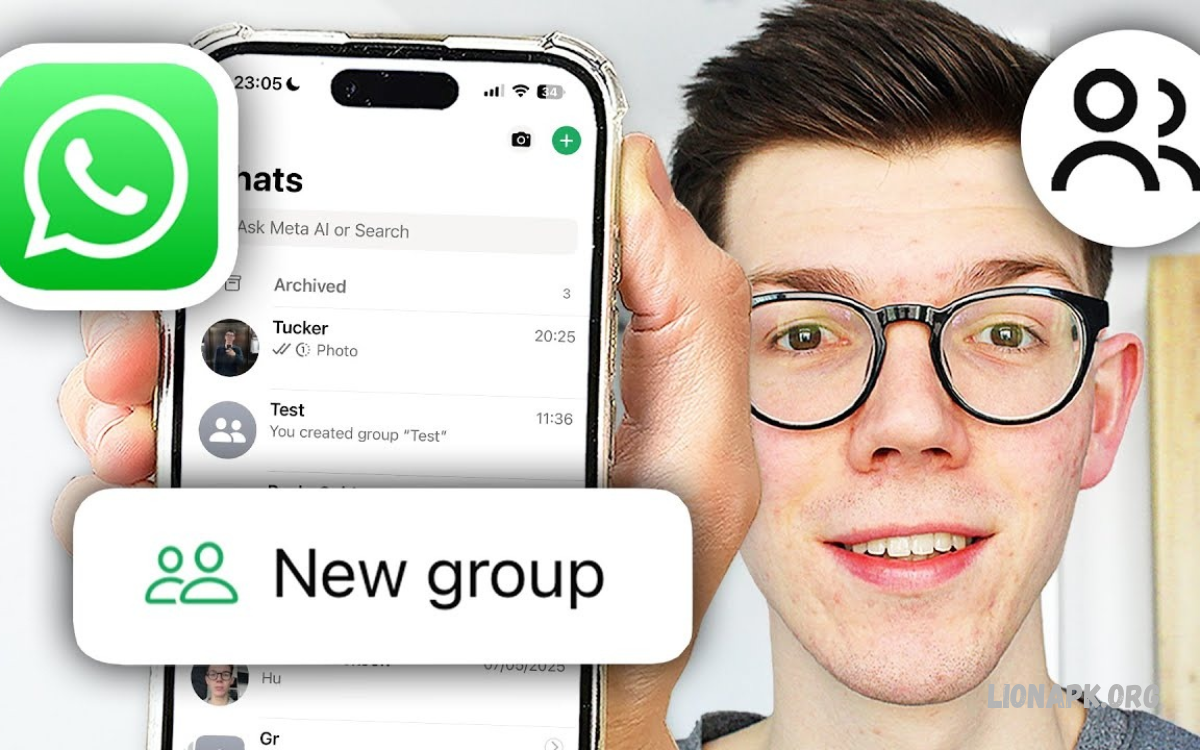
WhatsApp groups make communication easier by allowing multiple people to share messages, photos, videos, documents, and voice notes in one place. Whether you want to connect with family, classmates, friends, or coworkers, creating a group helps everyone stay informed and connected.
Creating a WhatsApp Group is simple on Android and iPhone. WhatsApp offers useful features to manage members, change group information, control permissions, and keep conversations organized.
What Is a WhatsApp Group?
A WhatsApp group is a shared conversation where multiple participants can communicate together. Instead of sending the same message to different contacts individually, you can post one message in the group and allow all members to read and respond.
WhatsApp groups are useful for family updates, school discussions, event planning, community announcements, and teamwork. Depending on the group settings, members can exchange media, share documents, make group calls, and participate in discussions without creating separate conversations.
How to Create a WhatsApp Group on Android
Creating a WhatsApp group on Android takes only a few moments if your contacts are in the app. You can choose participants, select a group name, and customize the group after completing the initial setup.
Open WhatsApp on your Android phone and access the Chats screen. Tap the new chat icon, choose New group, select the contacts you want to include, and continue to the group information screen. Enter a suitable name, optionally add a group photo, and confirm the creation process.
How to Create a WhatsApp Group on iPhone
iPhone users can create WhatsApp groups directly from the Chats section. The process is similar to Android, although some buttons and menus may appear in different locations depending on the application version.
Open WhatsApp on your iPhone and go to Chats. Tap the new chat button and select New Group, choose the contacts you want to add, and continue. Enter a group name, add an optional photo, and tap Create or the relevant confirmation button displayed by your version of WhatsApp.
How to Choose a Good WhatsApp Group Name
A suitable group name helps members understand the group’s purpose immediately. For example, a family group might use a family-related name, while a study group could use the subject or class name to make its purpose clear.
Choose a name that is easy to recognize, appropriate for all participants, and relevant to the conversations. Avoid confusing names or unnecessary personal information, especially when the group includes people outside your close circle. You can usually change the group name later if the purpose changes.
How to Add Members to a WhatsApp Group
Adding members allows more people to participate in group conversations. Group admins can manage membership, and regular members may also be able to add participants depending on the group’s permissions and WhatsApp settings.
Open the group chat, tap the group name at the top, and look for the Add members option. Select the contacts you want to invite and confirm your choice. If you cannot add someone directly, the group may have restrictions, or the person’s privacy settings may limit who can add them to groups.
How to Create a WhatsApp Group Link
A group invitation link makes it easier to invite people without selecting each contact individually. It can be useful for school communities, event planning, clubs, and other groups where participants need a convenient way to join.
Open the group information screen and find Invite via link or a similarly named option. WhatsApp may allow you to copy the link, share it through another application, or display a QR code. Share the invitation only with the intended audience, because anyone who obtains a valid invitation link may be able to request or gain access according to the group’s current settings.
How to Set WhatsApp Group Privacy
Privacy settings help you control how people join your group and who can make changes to its information. WhatsApp also provides individual group privacy controls that can reduce unwanted additions and help protect your communication.
Review the group’s settings and decide whether all members or only admins should be able to change the group information or send messages. You should also check your personal WhatsApp privacy settings for group invitations. Depending on your settings, people who cannot add you directly may need to send a private invitation instead.
How to Make Someone a WhatsApp Group Admin
A group admin helps manage participants, group information, and other settings. Assigning trusted members as admins can make a large or active group easier to maintain, particularly when the original creator cannot always monitor conversations.
Open the group chat, tap the group name, and locate the participant you want to promote. Select the person’s name and choose Make group admin if the option is available. Only promote people you trust, because admins can have additional control over membership and group management.
How to Change a WhatsApp Group Photo
A group photo helps members recognize the conversation quickly in their chat list. You can use a family photograph, a simple logo, an educational image, or another picture that represents the group’s purpose.
Open the group information page and tap the existing group icon. Choose an option to take a new photo, select an image from your gallery, or remove the current photo if you prefer. Depending on the group’s permissions, you may need admin access to make this change.
How to Change WhatsApp Group Settings
WhatsApp lets groups control certain activities through their settings. These controls are especially helpful when a group becomes busy or when members need a more organized space for important updates.
Open the group information screen and select Group permissions or the relevant settings menu. You may be able to restrict who can send messages, edit group information, or approve new participants.
How to Send Messages in a WhatsApp Group
Sending messages in a group works much like sending messages in an individual chat. Open the group, type your message in the text field, and tap the send icon to share information with the participants.
You can also share supported photographs, videos, documents, voice messages, stickers, and links. Keep messages relevant to the group’s purpose, avoid repeated unnecessary posts, and consider members who may receive notifications throughout the day.
Read Also: How to Leave a WhatsApp Group: On Android and iPhone
How to Share Photos and Documents in a WhatsApp Group
WhatsApp groups make it convenient to share information with multiple people at once. Members can send images from their gallery, attach documents, share links, and exchange other supported files directly inside the conversation.
Open the group chat and tap the attachment icon or the relevant sharing control on your device. Choose the content you want to send, review it, and confirm the action. Before sharing personal documents, photographs, or confidential information, make sure the group is appropriate for that content and that its members have permission to receive it.
How to Mute WhatsApp Group Notifications
Active groups can generate frequent notifications, especially when many participants send messages throughout the day. Muting notifications helps you reduce interruptions while keeping the group available whenever you want to read its conversations.
Open the group chat, tap the group name or conversation menu, and select Mute notifications. Choose an available duration if prompted and confirm your preference. Muting a group generally silences its notifications rather than removing you from the group, so you can still open the conversation and read messages whenever convenient.
How to Leave or Delete a WhatsApp Group
You may eventually want to leave a group that is no longer useful or relevant. Leaving stops your participation, while deleting a group from your own chat list removes it from your view after the applicable process is completed.
Open the group information screen and choose Exit group when you want to leave. If you are an admin, other admins or members may remain in the group. After exiting, you may have the option to delete the conversation from your chat list. Deleting a chat does not necessarily delete the group for other participants.
Common WhatsApp Group Problems and Solutions
Sometimes users cannot create a group, add a participant, or change group information. These problems may result from application issues, outdated software, contact permissions, connectivity problems, or group privacy restrictions.
Check that WhatsApp is updated and your internet connection is working properly. Confirm the intended contact is in your address book, and review the group’s permissions if an action is unavailable.
Tips for Managing a WhatsApp Group Professionally
A well-managed group stays focused, respectful, and useful for its members. Clear group information, appropriate permissions, and a few simple communication guidelines can prevent confusion and help participants understand what belongs in the conversation.
Choose a descriptive name, add a relevant group photo, and explain the group’s purpose in its description. Assign trusted admins when needed, avoid sharing invitation links publicly unless necessary, and remove unwanted or misleading content when appropriate.
Frequently Asked Questions
Can I Create a WhatsApp Group Without Adding Members?
WhatsApp generally requires you to select participants when creating a group. If you want a private space for notes or saved information, you can use the built-in message-yourself chat instead of creating an empty group.
Can I Create a WhatsApp Group Without Saving Contacts?
WhatsApp’s standard group creation process usually relies on selecting contacts from the available contact list. Depending on the current features and invitation options, you may be able to invite participants through a group link after creating the group.
Can Anyone Join My WhatsApp Group?
People generally need to be added by someone with the appropriate permissions or use a valid invitation link. Admin approval may be available for link-based invitations, depending on the group’s settings and the features supported by your version of WhatsApp.
Can I Change a WhatsApp Group Name Later?
Yes, someone with permission to edit group information can usually change the group name after creation. Open the group details, select the current name, enter the replacement, and save the change if the option is available.
Can I Remove Someone From a WhatsApp Group?
A group admin can generally remove participants from a group. Open the group information screen, select the participant, and choose the removal option. Use this feature responsibly and consider explaining the decision when appropriate.
Is Creating a WhatsApp Group Free?
Creating a WhatsApp group does not require a separate group creation fee. However, the application uses an internet connection, so mobile data charges may apply if you are not connected to Wi-Fi.
Conclusion
Learning how to create a WhatsApp Group helps you connect people, share updates, and organize conversations in one convenient place. Whether you use Android or iPhone, the process involves selecting participants, choosing a suitable name, and confirming the group settings.
After you create your group, you can add members, share invitation links, customize the photo, assign admins, and adjust privacy controls. Use these features responsibly to keep the environment secure and organized for everyone.
