

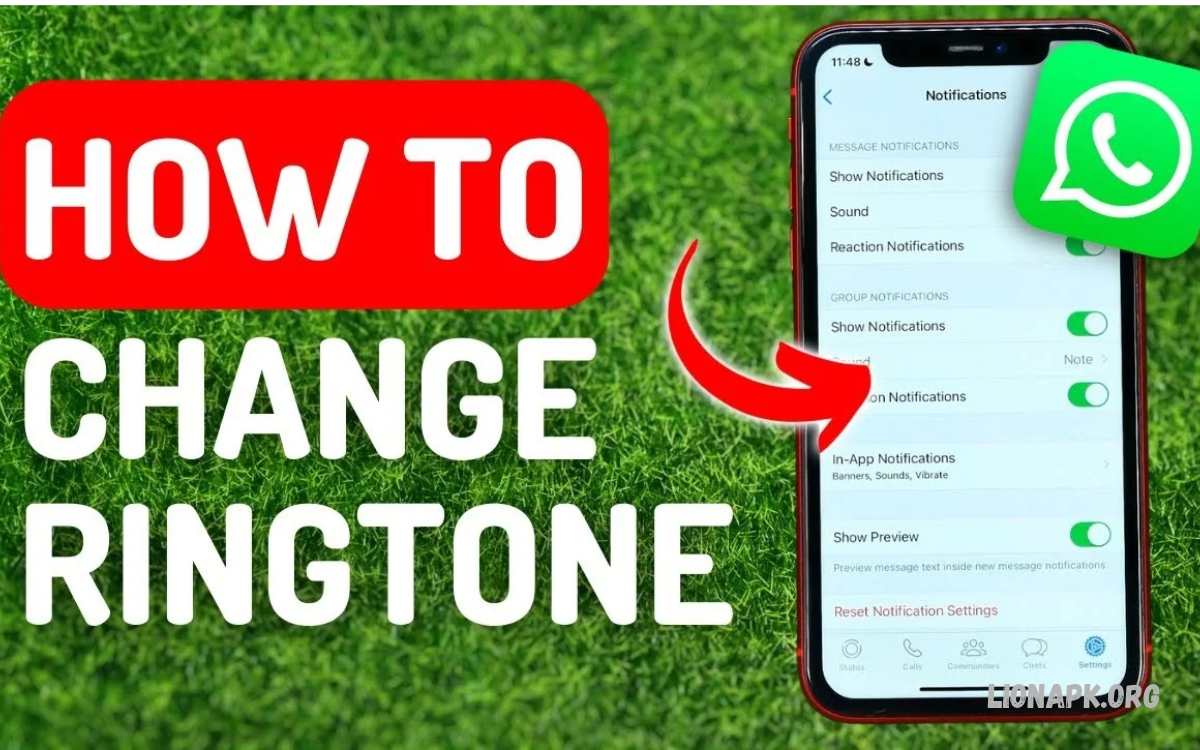
WhatsApp ringtone customization helps users personalize message alerts and incoming calls. Choosing a preferred sound makes notifications easier to recognize, especially when multiple applications send alerts throughout the day.
Learning how to change the WhatsApp Ringtone on Android and iPhone lets users adjust notification sounds to their preferences. Android and iPhone offer different settings, so the process depends on the device, operating system, and WhatsApp version.
Why Do You Change Your WhatsApp Ringtone?
A customized WhatsApp ringtone helps distinguish incoming calls from regular phone calls, text messages, and other application notifications. A familiar sound makes it easier to recognize WhatsApp activity without repeatedly checking your phone screen.
Different notification sounds also help users organize communication. A distinctive ringtone can identify incoming WhatsApp calls, while a softer message tone may suit quiet environments, workplaces, classrooms, or personal settings.
How to Change WhatsApp Ringtone on Android
Android provides flexible notification controls for WhatsApp messages and calls. Depending on the phone manufacturer and software version, users can select built-in tones, adjust notification categories, and customize certain conversation alerts.
Before changing the ringtone, update WhatsApp through the Google Play Store if needed. Open the application and review its notification settings to locate the available sound options for messages, groups, and calls.
Change WhatsApp Message Notification Sound on Android
WhatsApp lets you customize message notification sounds. These settings help users select a preferred alert for incoming individual messages and, where supported, group conversations.
Open WhatsApp, tap the three-dot menu, and select Settings. Choose Notifications, then locate the message notification sound option. Select a tone from the available list and confirm the selection if prompted.
Change WhatsApp Group Notification Sound
Group chats often generate frequent alerts, so a separate notification tone can help distinguish group messages from personal conversations. Available customization options depend on the Android version and WhatsApp release.
Open WhatsApp and navigate to Settings, then Notifications. Find the Groups section and tap Notification tone. Choose a preferred sound from the available options, then save or confirm the change when required.
Change WhatsApp Call Ringtone on Android
WhatsApp call notifications can use a different sound from message alerts. Selecting a recognizable call ringtone helps users identify incoming WhatsApp voice calls without confusing them with ordinary cellular calls.
Open WhatsApp Settings and select Notifications. Scroll to the Calls section, tap Ringtone, and choose a tone from the available list. Confirm the selection if your device displays a confirmation option.
Set a Custom WhatsApp Ringtone on Android
Some Android phones allow users to select custom audio files as notification sounds. This option depends on the device, supported audio formats, and available system settings.
Save a compatible audio file to your phone, then open Android Settings and look for Notifications or App notifications. Select WhatsApp and inspect its notification categories. If a sound selector offers custom files, choose the preferred audio file and apply it to the relevant category.
How to Change WhatsApp Ringtone on iPhone
iPhone ringtone customization works differently from Android because iOS controls many application notification sounds. WhatsApp provides notification preferences, but the available sound options may be more limited than those on Android.
To begin, open WhatsApp and select Settings. Tap Notifications to review message and group notification settings. Depending on the current WhatsApp version, available choices may include notification sounds for supported message categories.
Change WhatsApp Message Sound on iPhone
WhatsApp on iPhone provides notification options for individual chats and group conversations. These settings allow users to choose from the sounds made available within the application.
Open WhatsApp, tap Settings, and select Notifications. Choose the relevant message notification category and review the available sound options. Select a preferred tone if the option appears, then return to the previous screen to retain the selected preference.
Change WhatsApp Group Notification Sound on iPhone
Group notification sounds help distinguish messages from group conversations. This can be useful when participating in family groups, school discussions, community conversations, or work-related chats.
Open WhatsApp Settings and select Notifications. Review the Group Notifications section and tap Sound if available. Choose a supported notification tone and return to the main settings screen after making the change.
Change WhatsApp Call Ringtone on iPhone
WhatsApp calls on iPhone may use sound and alert behavior controlled by WhatsApp and iOS. Unlike Android, iPhone does not provide unrestricted options for assigning any audio file as a WhatsApp call ringtone.
Open WhatsApp Settings and review the Notifications section for available call-related settings. You can also open the iPhone Settings application, select Notifications, and choose WhatsApp to review sound permissions and alert behavior. Available controls depend on the iOS version and application configuration.
Can You Use a Custom WhatsApp Ringtone on iPhone?
iPhone users generally have fewer options for assigning custom sounds directly to WhatsApp notifications. WhatsApp and iOS determine which notification tones can be selected, so adding an audio file to the phone does not automatically make it available inside WhatsApp.
Review the sound options provided within WhatsApp before attempting alternative methods. Avoid applications or websites that request account credentials or promise unrestricted ringtone customization without explaining their limitations.
How to Change WhatsApp Ringtone for a Specific Contact
A separate ringtone for an individual contact can help identify who is calling or messaging. WhatsApp offers chat-specific notification options in supported versions, although the available controls vary between Android and iPhone.
Open the conversation with the selected contact and tap the contact’s name to view chat information. Look for Notifications or Custom Notifications, if available, and review the sound options. Choose a preferred tone when supported by your device and WhatsApp version.
How to Change WhatsApp Ringtone for a Specific Group
Customizing group alerts can help distinguish important conversations from less urgent discussions. A dedicated sound may make family, study, or work group notifications easier to recognize.
Open the relevant WhatsApp group and tap its name to access group information. Look for notification customization settings and select a sound if the feature is available. Some options may depend on your operating system, application version, or device settings.
How to Fix WhatsApp Ringtone Not Working
WhatsApp ringtone problems may occur because notifications are disabled, the device is muted, the wrong notification category is selected, or system settings restrict sounds. Checking these settings can often identify the cause without reinstalling WhatsApp.
Open your phone’s Settings application and review WhatsApp notification permissions. Confirm that sound alerts are enabled where supported, the device volume is appropriate, and Do Not Disturb or Focus mode is not silencing notifications.
Read Also: How to Link WhatsApp Devices: A Complete Step-by-Step Guide
Check WhatsApp Notification Permissions
Notification permissions determine whether WhatsApp can display alerts and play sounds. If these permissions are restricted, incoming messages or calls may arrive without the expected sound.
On Android, open Settings, select Apps, choose WhatsApp, and tap Notifications. Review the available categories and enable the required alerts. On iPhone, open Settings, select Notifications, choose WhatsApp, and review notification permissions and sound options.
Turn Off Silent Mode or Focus Restrictions
Silent mode, Do Not Disturb, and Focus settings can affect notification sounds. These features are useful for reducing interruptions, but they may prevent WhatsApp alerts from playing at the expected volume.
Check your device’s sound controls and active Focus settings. On Android, review Do Not Disturb settings and notification exceptions. On iPhone, inspect the Ring/Silent controls where applicable and review Focus settings to determine whether WhatsApp notifications are being silenced.
Update WhatsApp to the Latest Version
An outdated WhatsApp version may contain bugs or lack settings available in newer releases. Updating the application can help resolve notification issues and improve compatibility with the operating system.
Open Google Play Store on Android or App Store on iPhone. Search for WhatsApp and install an available update. After updating, reopen WhatsApp, review notification settings, and test whether the selected ringtone works correctly.
Best Tips for Choosing a WhatsApp Ringtone
Choosing a suitable ringtone improves notification recognition without creating unnecessary distractions. A clear, recognizable tone is often more useful than a loud or complicated sound, especially when receiving frequent messages.
Consider your environment before selecting a notification sound. A soft tone may suit a quiet workplace, while a distinctive call ringtone may help identify incoming WhatsApp calls in a busy setting. Keep your device volume at a comfortable level.
Frequently Asked Questions
Can I change WhatsApp ringtone on Android?
Yes, Android users can usually change WhatsApp message notification sounds and call ringtones through WhatsApp settings. Some phones also provide additional controls through system notification categories.
Can I change WhatsApp ringtone on iPhone?
iPhone users can adjust supported WhatsApp notification sounds through the application’s notification settings. Available choices may be more limited than Android because iOS controls many notification behaviors.
Can I use my favorite song as a WhatsApp ringtone?
Some Android devices support custom audio files for notification sounds, depending on the system and notification category. iPhone users generally have fewer options for assigning custom audio directly to WhatsApp notifications.
Why does my WhatsApp ringtone keep changing?
A ringtone may change after an application update, device setting change, or notification configuration adjustment. Review WhatsApp notification settings and your phone’s notification categories to confirm the selected sound.
Why does WhatsApp ring without sound?
The device may be muted, notification sounds may be disabled, or Do Not Disturb or Focus mode may be active. Check WhatsApp permissions, system sound settings, and notification restrictions.
Can I set different sounds for WhatsApp messages and calls?
Android generally supports separate message and call sounds through WhatsApp notification settings. iPhone customization depends on WhatsApp’s sound options and available iOS controls.
Does changing WhatsApp ringtone affect other applications?
Changing a sound inside WhatsApp generally affects the selected WhatsApp notification category. Changing a system-wide notification sound may affect other applications, depending on your phone’s settings.
Conclusion
Learning How to Change WhatsApp Ringtone on Android and iPhone helps users personalize message alerts and incoming calls. Android offers flexible ringtone controls, while iPhone provides sound options within WhatsApp and iOS limits.
Review notification settings, choose recognizable sounds, and check system permissions if alerts stop working. With the right configuration, WhatsApp notifications can be easier to recognize while still fitting your daily routine.
