

Android devices store temporary files called cache data to help apps and system features load faster. Over time, cached files can become large and may take up valuable storage space. Learning How to Clear Android Cache can help keep your phone organized and improve everyday performance.
Cache data is usually safe to remove because it typically doesn’t contain important personal files. Android may recreate some temporary files after you clear them, so the process does not permanently remove your photos, contacts, messages, or documents.
What Is Android Cache?
Android cache consists of temporary files created by apps and system services. These files can include images, thumbnails, website elements, login-related temporary data, and other information that helps applications work more efficiently. Keeping some cache can make frequently used apps open faster.
The problem can occur when cached data grows unnecessarily large or becomes outdated. An app may then use more storage than expected, and certain temporary files may contribute to unusual behavior. Clearing the cache gives the app a chance to rebuild fresh temporary files as needed.
Why Clear Android Cache?
One common reason to clear Android cache is to free storage space. Individual apps can accumulate hundreds of megabytes or more of temporary data, especially browsers, social media apps, video platforms, and other applications that display large amounts of media.
Cache clearing can also be useful when an app behaves unexpectedly. If an application repeatedly freezes, displays outdated information, loads content incorrectly, or becomes unusually slow, clearing its cache can sometimes resolve the problem without removing the application’s main data.
How to Clear Android Cache From Settings
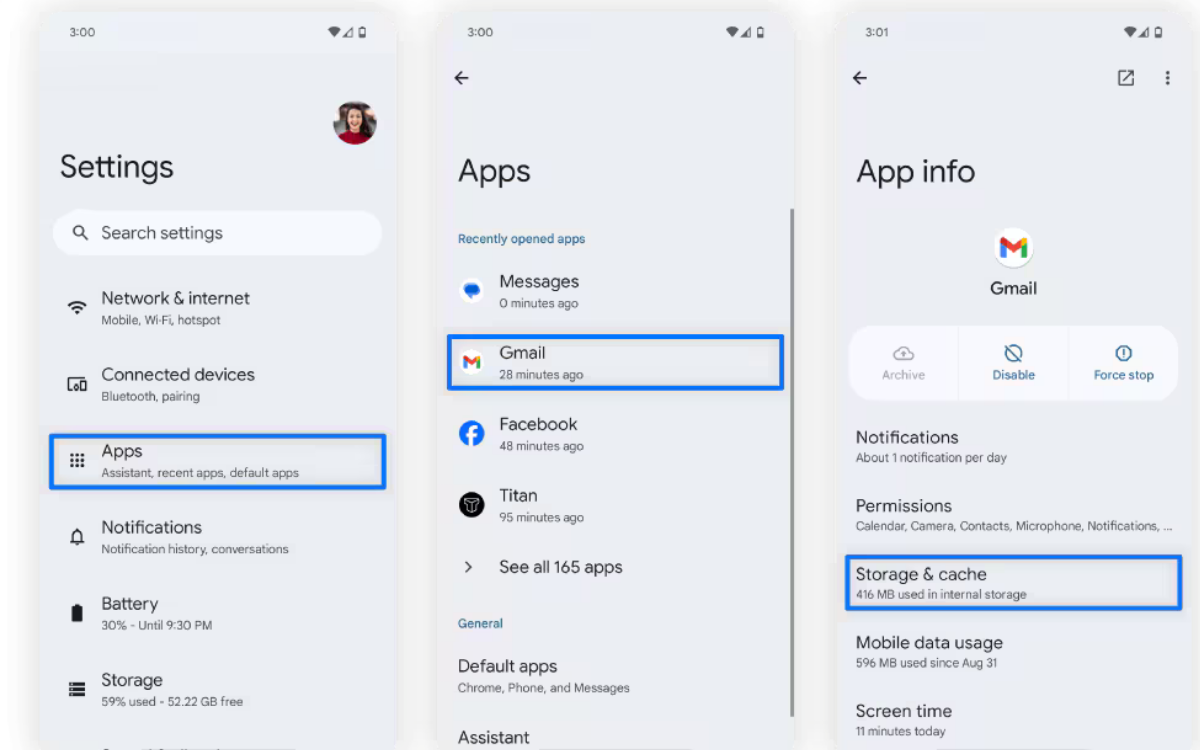
The easiest way to clear an individual app cache is through Android Settings. Open Settings, select Apps or Apps & notifications, and find the application that is using excessive temporary storage. The wording and menu location may vary depending on your Android phone.
Open the selected app’s information page and tap Storage or Storage & cache. Look for Clear cache and select it. Android should remove the temporary cache while keeping your primary app information intact. Repeat the process for other applications when necessary.
How to Clear Cache on Samsung Galaxy Phones
Samsung Galaxy phones provide a straightforward way to manage application storage. Open Settings, select Apps, choose the application you want to manage, and then select Storage. You can review the storage used by the application before making any changes.
Tap Clear cache to remove temporary files associated with that app. Avoid selecting Clear data unless you understand its effect, because clearing application data can reset the app and remove locally stored information. Samsung menu names can change slightly depending on the One UI version.
How to Clear Cache on Google Pixel
Google Pixel devices use a relatively simple application management system. Open Settings, tap Apps, select See all apps, and choose the application you want to troubleshoot. From the app information screen, select Storage & cache.
Tap Clear cache to delete temporary files. The available storage should update after the process finishes. If an app continues experiencing problems, checking for updates, restarting the phone, or reinstalling the application may be more appropriate than repeatedly clearing its cache.
How to Clear Chrome Cache on Android
Chrome stores temporary browsing information to make frequently visited websites load more efficiently. When this information becomes outdated, clearing the browser cache can help resolve certain website loading or display problems.
Open Chrome and tap the three-dot menu. Select Delete browsing data, choose an appropriate time range, and select Cached images and files. Check the selected options carefully before confirming because Chrome provides several types of browsing data that can be removed.
How to Clear Cache in Individual Android Apps
Clearing cache for individual applications is generally better than deleting cache from every app without a reason. Start by identifying applications that consume significant storage or are experiencing problems. Social media, streaming, shopping, browser, and gaming apps can accumulate considerable temporary data.
Go to Settings > Apps, select the application, and open Storage or Storage & cache. Select Clear cache and wait for Android to complete the process. You can then reopen the application and check whether its performance or storage usage has improved.
Clear Cache vs Clear Data on Android
Clear cache removes temporary files while generally preserving the application’s settings, accounts, and personal information. This makes it a relatively low-risk troubleshooting step when an application is slow or behaving unexpectedly.
Clear data, sometimes called Clear storage, has a much larger effect. It can return an app to an initial state and may remove locally stored settings, downloaded information, or account sessions. Always make sure important information is backed up before choosing this option.
Does Clearing Cache Delete Photos?
Clearing an app’s cache normally does not delete photos stored in your phone’s gallery or personal storage. Cache consists of temporary files created by applications, while your personal media is stored separately.
However, you should always read the confirmation screen before selecting a storage-management option. Clear cache and Clear data are different commands, and deleting application data can have consequences depending on how that particular app stores information.
Does Clearing Cache Delete Apps?
No. Clearing cache does not uninstall an application. The app remains installed on your Android phone, and you can open it normally after the cache has been removed.
Android may recreate temporary files as you continue using the application. Therefore, cache clearing should not be viewed as a permanent method of preventing cache from returning. Its purpose is mainly to remove existing temporary files when they become unnecessary or problematic.
When Should You Clear Android Cache?
There is no need to clear Android cache every day. Cache is designed to help applications work efficiently, so automatically deleting it too frequently may provide little benefit. Android and individual applications generally manage temporary files on their own.
Consider clearing cache when an app is behaving unusually, storage usage has increased, or an application appears to be using an excessive amount of temporary data. It can also be useful after an application update if the app begins showing loading, display, or performance issues.
Can Clearing Cache Improve Android Performance?
Clearing cache can sometimes improve the experience of a specific application when outdated or unnecessary temporary files are contributing to a problem. It may also temporarily recover storage space when applications have accumulated substantial cached content.
However, clearing cache is not a universal performance solution. If your entire phone is slow, other factors may be involved, such as limited free storage, background processes, outdated software, battery-related performance settings, or an aging device.
How Often Should You Clear Android Cache?
Most users do not need a fixed cache-clearing schedule. Android applications are designed to create and manage temporary files as part of normal operation. Constantly clearing cache can also cause apps to rebuild files that they need again.
Instead of clearing cache on a daily or weekly schedule, check storage usage when your phone begins running low on space. If one application has unusually high cached storage, clearing that specific cache can be a more practical approach.
How to Clear Android System Cache
Modern Android versions generally do not require users to regularly clear a single universal system-cache partition. Older Android devices sometimes offered recovery-menu options to clear the system cache, but the process and availability have changed considerably across Android versions.
For current devices, focus on the application-level cache options available through Settings. If your phone has a manufacturer-specific maintenance or storage feature, use the device’s options rather than instructions designed for an older Android version.
Read Also: How to Update Android Phone: Complete Guide
How to Free More Storage After Clearing Cache
If clearing cache doesn’t free up enough storage, review your downloaded files, large videos, unused apps, duplicate media, and offline content. Android’s storage management tools can help you identify the categories taking up the most space.
Cloud backups can also help you manage important photos and documents, as long as you confirm your files have been successfully backed up. Removing unnecessary downloads and uninstalling applications you no longer use can often provide more lasting storage improvements than repeatedly clearing cache.
Common Mistakes When Clearing Android Cache
One common mistake is confusing “clear cache” with “clear data. Although the names may appear next to each other, their effects can differ significantly. Always select the cache option when your goal is simply to remove temporary files.
Another mistake is installing unknown cleaner applications and giving them unnecessary permissions. Many devices already include built-in storage and app-management features. Using the phone’s own Settings menu is usually the simplest approach for basic cache management.
Does Android Automatically Clear Cache?
Android and individual apps can manage temporary files automatically, although the exact behavior varies by device and app. Some applications remove older temporary files when storage becomes limited, while others keep accumulating cache until the user or system manages it.
Because of this, consider manually clearing cache a troubleshooting or storage-management option rather than a routine requirement. Checking which apps are consuming storage can help you decide whether clearing cache is actually necessary.
Benefits of Clearing Android Cache
The biggest benefit is freeing up storage used by unnecessary temporary files. If a few apps have accumulated large caches, removing them can free up space without uninstalling the apps.
Cache clearing can also help with certain application problems. An outdated temporary file may interfere with an app’s normal operation, and deleting the cache lets the app generate fresh temporary content. It is a simple troubleshooting step before trying more disruptive solutions.
Limitations of Clearing Android Cache
Clearing cache does not guarantee that an Android phone will become significantly faster. If insufficient storage, outdated software, hardware limitations, or a problematic app is the main cause of poor performance, clearing the cache alone may not solve the issue.
The benefit can also be temporary because apps create new cache files during normal use. This is expected behavior. The goal isn’t to keep your phone completely free of cache, but to remove unnecessary temporary data when it becomes excessive or contributes to a specific problem.
Frequently Asked Questions
Is it safe to clear Android cache?
Yes, clearing an individual app’s cache is generally considered safe. It removes temporary files rather than uninstalling the application. The app may recreate some cached files the next time you use it.
Does clearing cache delete login information?
Clearing cache usually does not remove account information or login credentials stored as application data. However, avoid selecting Clear data or Clear storage unless you specifically intend to reset the application.
How often should I clear Android cache?
There is no universal schedule. Clear the cache when an application uses unusually high temporary storage or starts experiencing performance or loading issues.
Does clearing cache make Android faster?
It can sometimes help a specific application that has accumulated problematic or outdated temporary files. It is not guaranteed to improve overall device performance.
What happens after clearing app cache?
The application remains installed, but its temporary cached files are removed. When you use the app again, Android or the app may create new cache files as needed.
Should I clear cache on every Android app?
No. You usually don’t need to clear the cache for every app. Focus on apps with unusually large cached storage or apps that are experiencing problems.
What is the difference between cache and storage?
Cache contains temporary information that improves app performance, while application storage can contain settings, accounts, downloaded information, and other persistent data. Clearing them has different effects.
Can clearing cache free phone storage?
Yes. If applications have accumulated a large amount of cached data, clearing it can temporarily recover storage space. The amount recovered depends on the applications and how much temporary data they have created.
Can I clear Android cache without deleting apps?
Yes. You can normally clear an individual app’s cache through Settings > Apps > [App] > Storage or Storage & cache > Clear cache without uninstalling the application.
Is a cleaner app necessary for clearing cache?
Usually not. Android provides built-in storage and app-management options on many phones. Using the system Settings menu can help you avoid giving unnecessary permissions to third-party cleaner apps.
Conclusion
Knowing How to Clear Android Cache gives you a simple way to manage temporary application files without removing your installed apps. The process is generally straightforward: open Android Settings, select the relevant application, open its storage information, and choose Clear cache.
Cache shouldn’t be treated as harmful because it helps improve app performance. The best approach is to clear it when storage becomes an issue or when a particular application starts behaving unexpectedly.

1 Comment
Pingback: How to Free Up Phone Storage: Complete Guide - LionAPK