

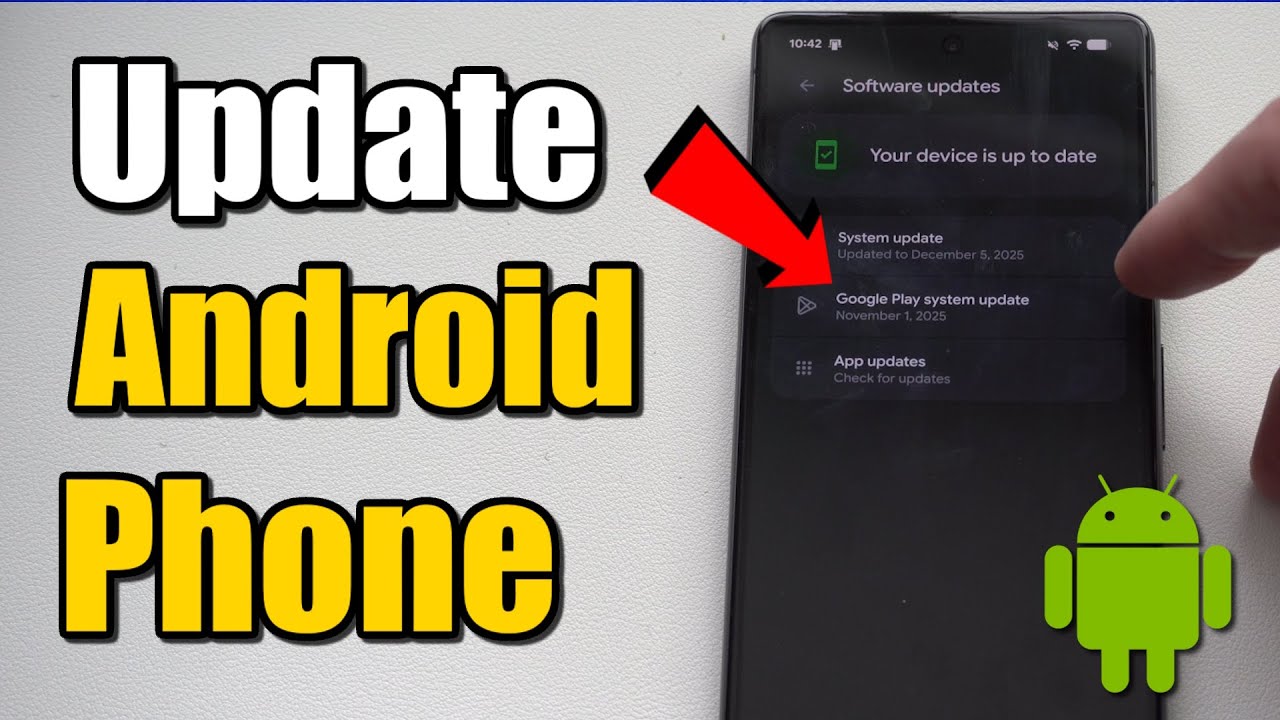
Learning how to update Android phone software helps keep your device secure, stable, and compatible with newer apps. Android updates can introduce new features, improve performance, fix software problems, and strengthen security.
Android updates may arrive automatically or require manual installation through the Settings app. Menu names can differ across Samsung, Google Pixel, Xiaomi, Redmi, OnePlus, Oppo, Vivo, Realme, Motorola, and other brands. This guide explains how to check, download, and install Android updates safely.
What Is an Android Phone Update?
An Android phone update is a software package released by the phone manufacturer or Google to improve the operating system. Updates can include Android version upgrades, security patches, bug fixes, performance improvements, and new system features.
Manufacturers may also release their own interface updates alongside Android improvements. These updates can improve cameras, battery management, privacy controls, notifications, connectivity, and device stability.
Why Should You Update Your Android Phone?
Updating Android can improve security by fixing vulnerabilities discovered in the operating system. Security patches are particularly important because they help protect personal information, accounts, applications, and device functions. An updated phone can also provide better compatibility with newer applications and services.
Software updates may resolve problems such as application crashes, connection issues, unexpected battery behavior, or system errors. New Android versions can also introduce useful features and interface improvements. Although updates cannot guarantee better performance in every situation, keeping supported devices updated is generally recommended.
How to Update Android Phone
To learn how to update Android phone software, first open the Settings application on your device. Look for System, Software Update, System Update, or a similar option, depending on your phone brand. Select the update option and allow the phone to check whether a newer software version is available.
If an update appears, review the available information before starting the installation. Connect your phone to a stable Wi-Fi network and make sure the battery has sufficient charge. Select Download and Install or the equivalent option, then follow the instructions displayed on the screen.
How to Check for Android Updates Manually
You can manually check for updates whenever you want to know whether newer software is available. Open Settings and search for terms such as Software Update or System Update if you cannot immediately find the correct menu. Your phone will communicate with the manufacturer’s update service and check for available software.
If your phone reports that the software is already up to date, there may be no new update available for your device at that moment. Updates are often distributed gradually, so availability can vary by model, region, carrier, and manufacturer. Checking again later may show an update that was not previously available.
How to Update Android Phone on Samsung
Samsung phones commonly provide software updates through the Settings application. Open Settings, select Software update, and choose Download and install to check for available software. If an update is available, follow the displayed instructions to download and install it.
Samsung devices can receive Android version upgrades, security updates, and manufacturer-specific improvements. Before starting a major update, connect the phone to Wi-Fi and ensure adequate battery power. The phone may restart several times during installation, so avoid interrupting the process.
How to Update Android Phone on Google Pixel
Google Pixel devices generally provide a straightforward update process through the Settings application. Open Settings, select System, and choose Software updates to check for newer software. If an update is available, follow the on-screen instructions to download and install it.
Pixel phones can receive Android updates directly from Google, including operating-system improvements and security updates. Update availability can depend on the specific Pixel model and support period. Installing available updates can help keep the device secure and compatible with newer Android features.
How to Update Android Phone on Xiaomi, Redmi, and POCO
Xiaomi, Redmi, and POCO phones provide software update controls through their Settings applications. Depending on the software version, you may find the update option under About phone, System update, or a related section. Open the appropriate menu and check whether a newer version is available.
Before downloading a large update, connect your phone to reliable Wi-Fi and keep sufficient storage available. Xiaomi devices can receive Android updates along with manufacturer interface updates. The exact update schedule varies according to the device model, region, and software support policy.
How to Update Android Phone on OnePlus
OnePlus phones usually provide software updates through the Settings application. Open Settings and locate the Software update section, then allow the phone to search for a newer version. If an update is available, review the information and select the option to download and install it.
OnePlus updates can contain Android upgrades, security improvements, performance changes, and interface enhancements. Keep the phone connected to power when installing a large update. Avoid switching off the device or forcing a restart while the installation process is running.
How to Update Android Phone on Oppo and Realme
Oppo and Realme devices include software update tools within Settings. Open the update section and check for the latest available software version. Depending on the device and software version, the menu may appear under About device, System update, or a similar location.
When an update is available, make sure the device has enough battery power and storage space before beginning installation. A stable Wi-Fi connection can help prevent interruptions during large downloads. After installation, the phone may restart before returning to normal operation.
How to Update Android Phone on Vivo
Vivo phones can usually check for software updates through Settings. Open the relevant system update section and select the option to check for a newer version. If an update is available, review its details and begin the download when the device is ready.
Keep your phone connected to Wi-Fi during the download and avoid interrupting the installation. Vivo update availability can differ depending on the model, region, and software version. Checking periodically can help you discover new updates when they become available for your device.
How to Prepare Your Phone Before an Android Update
Before installing an Android update, back up important photos, videos, contacts, documents, and other valuable information. A software update normally preserves personal data, but having a backup provides additional protection if an unexpected problem occurs. Cloud storage or another trusted backup method can be used.
You should also check available storage space and battery level before starting the update. Large updates may require several gigabytes of temporary or permanent storage. Remove unnecessary files if required, connect to a reliable Wi-Fi network, and avoid beginning a major update when you urgently need the phone.
Check Battery Level Before Updating
Battery power is an important consideration when installing Android software. A major update can take time because the phone must download, verify, install, and optimize multiple system components. If the battery becomes critically low during installation, the process could be interrupted.
For this reason, it is better to charge the phone before starting an update. Keeping the device connected to a charger during installation can provide additional stability. Follow any battery recommendations displayed by the phone before proceeding with a major software upgrade.
Check Storage Space Before an Android Update
Android updates require enough available storage for downloaded packages and installation processes. If your phone has very little free space, the update may fail to download or install correctly. Check the storage section in Settings before beginning a large software update.
You can free storage by removing unnecessary downloads, duplicate files, unused applications, or other items you no longer need. Be careful when deleting personal files and confirm that important data is backed up. After creating enough free space, return to the software update screen and check again.
Use Wi-Fi for Android Updates
Using a stable Wi-Fi connection is often preferable when downloading Android updates because system packages can be relatively large. Wi-Fi can reduce mobile data usage and provide a more consistent connection during the download process. Avoid unreliable public networks when installing important system software.
If your phone provides an option to download updates automatically over Wi-Fi, you can enable it according to your preferences. Some devices also allow updates to download in the background. Review your phone’s update settings so you understand when downloads and installations may occur.
How Long Does an Android Update Take?
The time required for an Android update depends on the update size, phone model, storage performance, internet speed, and system version. A small security patch may finish relatively quickly, while a major Android upgrade can take considerably longer. The device may restart during the process.
During installation, the phone may display progress information or temporarily show a system update screen. Avoid repeatedly pressing buttons or forcing the phone to restart. If the update appears to be taking longer than expected, allow the device additional time to complete its normal installation process.
What Happens After Updating Android?
After an Android update finishes, the phone may restart and optimize applications or system components. Some settings, menus, icons, or system features may look different after a major upgrade. You may also notice improved security controls, new features, or changes to system applications.
It is useful to check important functions after an update, including Wi-Fi, Bluetooth, mobile data, camera, notifications, and frequently used applications. If an application behaves differently, check whether an app update is available through the Google Play Store. Most phones return to normal operation after system optimization finishes.
Android Update Not Showing: What to Do
If no update appears, your phone may already have the newest software available for that model and region. Updates can also roll out in stages, meaning some devices receive software before others. Check the current software version in Settings and compare it with the manufacturer’s official information.
Restarting the phone and checking for updates again can sometimes help refresh system information. Make sure the device has a stable internet connection and sufficient storage. If the manufacturer has ended software support for your model, it may no longer offer a newer Android version.
Read Also: How to Update Android Apps: Easy Methods and Tips
Android Update Failed: What to Do
An Android update can fail because of insufficient storage, unstable internet, low battery, temporary system problems, or an incompatible software package. First, restart the phone and check the available storage and battery level. Then connect to a reliable Wi-Fi network and try checking for the update again.
If the update repeatedly fails, avoid repeatedly attempting installation without identifying the problem. Check the manufacturer’s support information for your specific model. If necessary, contact the manufacturer’s official support service for guidance rather than downloading system files from unknown websites.
Can You Update an Old Android Phone?
Whether an old Android phone can receive a newer Android version depends on its manufacturer, model, hardware, and software support period. Manufacturers provide updates only for devices that remain within their supported software lifecycle. An older phone may continue receiving security updates even when major Android upgrades have ended.
Check the exact model number and current software version in Settings before deciding whether an upgrade is available. If official updates are no longer provided, avoid installing unofficial system software unless you fully understand the risks. Unsupported software can cause compatibility, security, or stability problems.
Automatic Android Updates
Many Android phones provide automatic update options that can download or install software when certain conditions are met. Automatic updates can make it easier to keep the device secure without manually checking every time. The available controls depend on the phone manufacturer and Android version.
Review the software update settings to understand how automatic updates work on your device. Some phones allow updates to install automatically overnight or when connected to power. If you prefer manual control, you may be able to adjust the relevant update settings.
Android Security Updates
Security updates are an important part of maintaining an Android phone. They can address security vulnerabilities and improve protection against known threats. Unlike major Android version upgrades, security patches are often smaller and may be released more frequently.
Check your phone’s security patch level through the Android settings menu to understand when the device last received a security update. Keeping security software current is especially important when using banking, shopping, communication, and other applications containing sensitive information.
Android System Updates vs App Updates
An Android system update changes the operating system or manufacturer software, while an app update changes an individual application. System updates are generally managed through the phone’s software update settings. App updates are usually handled through the Google Play Store or another supported app marketplace.
Both types of updates are useful for maintaining a reliable device. System updates can improve security and core functionality, while application updates can fix bugs, improve compatibility, and introduce new features. Keeping both current provides a more complete software maintenance routine.
Common Mistakes to Avoid During Android Updates
One common mistake is starting a major update when the phone has very little battery power or storage. Another is downloading system software through unknown websites instead of using the phone’s built-in update mechanism. These practices can increase the possibility of installation problems or security concerns.
Do not force the phone to shut down while an update is actively installing unless the manufacturer’s instructions specifically tell you to do so. Avoid unstable internet connections during large downloads. Preparing the device beforehand can make the update process smoother and reduce unnecessary problems.
Frequently Asked Questions
How do I update my Android phone?
Open Settings and find Software Update, System Update, or a similar option. Select the update option, check for available software, and follow the instructions to download and install it. Menu names vary by manufacturer and Android version.
Why is my Android phone not updating?
Your phone may already have the latest available software, or an update may not yet be available for your model or region. Insufficient storage, low battery, or connectivity problems can also interfere with updates. Check the manufacturer’s support information for your exact model.
Is it safe to update an Android phone?
Yes, official Android updates are designed to improve the software and address security or performance issues. Use the built-in update system whenever possible. Backing up important data before a major upgrade provides additional protection.
Should I update Android using mobile data?
Wi-Fi is generally preferable for large Android updates because software packages can consume significant mobile data. If you have a suitable mobile data plan and your phone permits updates over cellular networks, you can use that option when necessary.
How often should I check for Android updates?
You can check periodically through your phone’s Software Update settings. Many devices automatically check for available software, but manual checks can help you discover updates when they become available. Security updates may arrive more frequently than major Android upgrades.
Can an Android update delete my files?
Official system updates are normally designed to preserve your personal data, but unexpected problems can occur. Back up important photos, videos, documents, contacts, and other files before installing a major update to reduce the risk of data loss.
What should I do if an Android update gets stuck?
Give the phone sufficient time because major updates can take longer than expected. If the device remains stuck for an unusually long period, consult the manufacturer’s official support instructions. Avoid repeatedly forcing restarts during an active installation.
Does updating Android improve battery life?
An update can improve battery management or fix software problems that affect power consumption, but results vary by device and software version. Battery behavior may also temporarily change after an update while Android optimizes applications and system components.
Can I update Android without Wi-Fi?
Some Android phones allow software updates through mobile data, while others may restrict large downloads to Wi-Fi. The available options depend on the manufacturer and device settings. Wi-Fi is generally recommended for downloading large system packages.
Concusion
If you want to update your Android phone safely, start by checking the built-in Software Update section in Settings. Back up important information, charge the phone, connect to reliable Wi-Fi, and confirm you have enough storage before installing a major update.
Keep checking for official updates throughout your phone’s supported lifecycle. Android updates can improve security, fix bugs, enhance compatibility, and add useful features. Using the official update process is generally the simplest and safest way to maintain an Android phone.
