

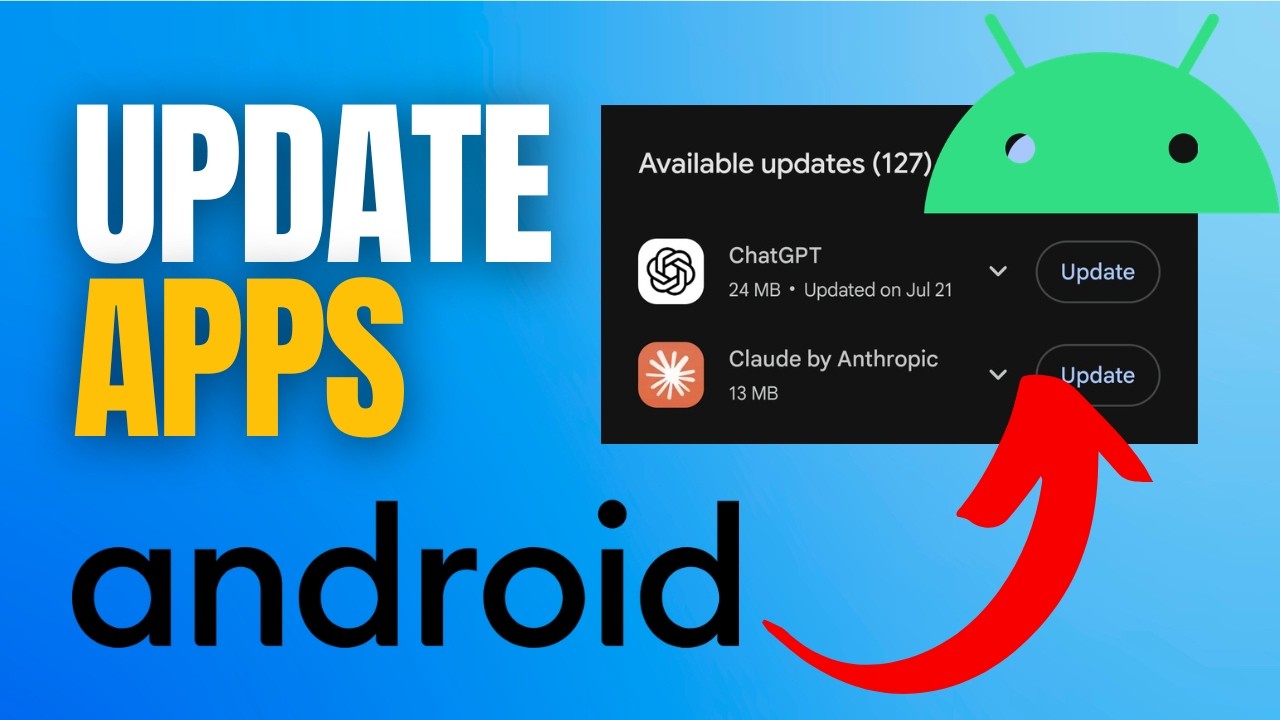
Knowing How to Update Android Apps helps users keep applications secure, stable, and compatible with the latest Android features. App developers regularly release updates that improve performance, fix bugs, add features, and resolve security problems.
Android users can update applications manually or enable automatic updates through the Google Play Store. The process is simple, but understanding update settings, mobile data options, storage requirements, and troubleshooting can make it easier.
Why Update Android Apps
Updating Android apps provides access to new features, performance improvements, bug fixes, and compatibility changes. Developers continuously improve applications based on user feedback and technical requirements. An outdated app may eventually stop working correctly after Android system updates.
App updates can also improve security by addressing known software vulnerabilities. Although an update does not guarantee complete protection, installing releases from trusted sources helps maintain a safer application environment.
How to Update Android Apps Manually
The easiest method for How to Update Android Apps is using the Google Play Store. Open the Play Store, tap your profile picture, select the option for managing apps and the device, then review available updates. Select individual apps or choose the option to update all eligible applications.
Manual updates provide greater control over which applications receive new versions. This approach can be useful when storage space or mobile data is limited. Users can prioritize important apps first and postpone updates for applications they rarely use.
How to Update Android Apps Automatically
Automatic updates can save time by allowing compatible applications to install newer versions without requiring manual action. Open Google Play Store settings, find network preferences, and select the preferred automatic-update option. Depending on the device and settings, updates may occur over Wi-Fi or another permitted connection.
Automatic updates are convenient for users who want applications to remain current. However, users with limited data plans may prefer Wi-Fi-only updates. Reviewing Play Store settings occasionally helps ensure automatic updates match personal connectivity and storage preferences.
How to Update Apps Using Wi-Fi
Wi-Fi is generally a convenient option for downloading application updates, especially when updates are large. Connect the Android device to a trusted Wi-Fi network before opening the Google Play Store. Check available updates and begin installing the applications that need newer versions.
Using Wi-Fi can reduce mobile data usage and make larger downloads easier. A stable connection also reduces the chance of an update being interrupted. Users should keep the device connected until important application updates finish installing successfully.
How to Update Android Apps Without Wi-Fi
Android users can sometimes update applications using mobile data if their Play Store settings permit it. Open the Google Play Store and check network preferences to confirm whether mobile-data updates are allowed. Available settings can vary depending on Android version, device manufacturer, and regional configuration.
Mobile-data updates can be useful when Wi-Fi is unavailable, but they may consume a significant amount of data. Users with limited plans should review the update size before downloading. Waiting for a trusted Wi-Fi connection can be a better option for large application updates.
How to Check Available App Updates
Checking available updates is simple through the Google Play Store. Open the store, tap the account icon, and access the section for managing apps and the device. The available-updates area shows applications that have newer versions ready for installation.
Regularly checking this section helps users identify outdated applications. Some apps may update automatically, while others may remain pending because of network conditions, storage limitations, or account settings. Reviewing the list can help keep important applications current.
How to Update One Android App
Users do not always need to update every application at once. To update a single app, open its Play Store page and select the update option when a newer version is available. The application will download and install the latest compatible release.
Updating one app can be helpful when troubleshooting a specific problem. For example, if an application has frequent crashes or compatibility issues, checking for its latest release may resolve the problem. This method also provides better control over data and storage usage.
How to Update All Android Apps
Updating all available applications can save time when several apps have pending releases. Open the Google Play Store, access the application-management section, and select the available option to update all. The Play Store will process eligible updates based on device and network conditions.
Large update batches may require additional storage and internet bandwidth. Users should make sure the device has sufficient free space and a reliable connection. Keeping the phone connected to power can also be useful when many applications need updating.
How to Update Android Apps on Samsung Phones
Samsung phones generally provide access to Android application updates through the Google Play Store. Some Samsung applications can also receive updates through the Galaxy Store. Users should check both stores when looking for updates to applications installed through Samsung’s ecosystem.
The update process remains straightforward on most recent Samsung devices. Open the appropriate store, locate available updates, and install the latest compatible versions. Keeping both stores updated can help maintain compatibility with Samsung-specific applications and services.
How to Update Android Apps on Xiaomi Phones
Xiaomi phones commonly use the Google Play Store for many Android application updates. Users can open the Play Store, access application management, and review available updates. Applications obtained through other official Xiaomi services may have separate update mechanisms.
Users should avoid downloading random application packages from unknown websites simply because an update is unavailable through the normal store. Official update channels are generally easier to verify and reduce the risk of installing modified or unsafe software.
How to Update Android Apps on Other Devices
The basic process for How to Update Android Apps is similar across many Android smartphones. Differences may appear in menu names, manufacturer stores, Android versions, and system interfaces. Google Play Store remains the primary update source for many applications.
If an app was installed through a manufacturer’s official store, that store may be responsible for future updates. Users should identify the original installation source before troubleshooting an update problem. This can prevent confusion between different app stores.
How to Update Android Apps When Updates Are Not Showing
Sometimes an application may not display an update even when a newer version exists. Developers can release updates gradually, meaning the latest version may not immediately reach every device or account. Compatibility requirements can also prevent certain phones from receiving specific releases.
Restarting the Play Store or checking the application page directly can sometimes help. Users can also verify their internet connection, available storage, Android version, and Google account settings. If an update remains unavailable, waiting for official availability may be necessary.
How to Fix Android App Updates Stuck
An application update can occasionally remain pending or appear stuck. First, check the internet connection and available storage, then restart the device if necessary. Closing and reopening the Play Store may also refresh the update process.
If several applications are waiting simultaneously, one large download may delay others. Removing unnecessary downloads or freeing storage can improve the situation. Users should avoid repeatedly installing applications from unknown sources just to bypass a temporary update problem.
How to Fix Android App Updates Not Downloading
When an app update will not download, check whether the device has enough free storage. A weak internet connection, restricted background data, account issue, or Play Store problem can also affect downloads. Switching to a stable Wi-Fi connection may resolve temporary network problems.
Users should also check whether the Android device has pending system updates. Application compatibility can depend on the operating system version. If basic troubleshooting does not work, checking official support information for the device or application can provide additional guidance.
How Much Storage Do Android App Updates Need
App updates require available storage because the device may need space to download and install the newer version. The amount varies considerably between applications and update releases. Some updates are small, while major versions can require substantially more temporary storage.
Keeping reasonable free space can help applications update successfully. Users can remove unused downloads, duplicate media, or applications they no longer need. Important personal files should be backed up before deleting anything to create additional storage.
Do Android Apps Update Automatically
Yes, Android applications can update automatically when automatic-update settings are enabled and other requirements are satisfied. The exact behavior can depend on Play Store settings, network conditions, device configuration, and application availability.
Automatic updates are useful for users who prefer minimal maintenance. However, manual updates offer greater control over timing, data usage, and individual applications. Users can choose the method that best matches their device usage and internet plan.
Are Android App Updates Safe
Updates downloaded through trusted official app stores are generally the preferred way to keep Android applications current. Developers use updates to introduce improvements, fix problems, and address security issues. Users should verify that applications come from legitimate developers.
Downloading update files from unknown websites can introduce unnecessary security risks. Modified application packages may contain unwanted software or altered functionality. For most users, official stores offer a simpler, safer way to maintain apps.
Read Also: Online Typing Jobs: Complete Guide to Earning Money Through Typing
Should You Update Android Apps Immediately
Installing important application updates promptly can provide access to fixes and improvements. Security-related releases may matter most because they can address known vulnerabilities. However, users may occasionally wait briefly if an update is known to have compatibility problems.
For essential apps, staying current is generally beneficial. Users can also check release information when available to understand what has changed. This approach balances the benefits of new versions with the need for a stable experience.
Benefits of Keeping Android Apps Updated
Updated applications can provide improved performance, new functions, better compatibility, and bug fixes. Developers may also optimize applications for newer Android versions and modern device hardware. Regular updates can therefore improve the overall experience.
Another benefit is maintaining compatibility with online services. Applications often depend on changing servers, APIs, operating-system features, and security standards. An outdated version may eventually experience errors when those surrounding systems change.
Common Mistakes When Updating Android Apps
One common mistake is ignoring available updates for long periods. Another is downloading application updates from unreliable websites because an official store update is temporarily unavailable. Users should prioritize trusted sources and maintain enough storage for normal update operations.
Updating every application over mobile data can also cause unexpected data usage. Users should review Play Store network settings and choose an appropriate connection method. Maintaining a sensible update routine can prevent many common problems.
How Often Should Android Apps Be Updated
There is no single schedule that applies to every application. Developers release updates at different intervals depending on development cycles, security requirements, bug fixes, and feature releases. Users should generally install important updates when they become available through trusted channels.
Checking the Play Store regularly or enabling automatic updates can reduce the chance of missing releases. Important applications should receive particular attention because outdated versions may eventually become incompatible with newer services or Android versions.
How to Keep Android Apps Updated Automatically
Users who want minimal maintenance can enable automatic updates through Google Play Store settings. The available choices may include updating over any available network or limiting updates to Wi-Fi. Selecting the appropriate option helps balance convenience and data consumption.
After enabling automatic updates, users should occasionally review the settings. Automatic behavior can change because of device configuration, account settings, battery restrictions, or connectivity. A quick review helps confirm that applications are being maintained as expected.
Frequently Asked Questions
What Is the Easiest Way to Update Android Apps?
The easiest method for How to Update Android Apps is opening the Google Play Store and checking the available application updates section. Users can select individual apps or update multiple eligible apps from the same place.
How Do I Update Android Apps Manually?
Open the Google Play Store and go to the section for managing apps and the device. Review applications with available updates, then select the Update option next to the app you want to update.
How Do I Update Android Apps Automatically?
Open Google Play Store settings and locate the automatic-update preferences. Select the network option that best fits your data plan and connectivity needs.
Why Are My Android Apps Not Updating?
Android applications may fail to update because of insufficient storage, poor internet connectivity, Play Store problems, account issues, or compatibility requirements. Checking these areas can identify the cause.
Can I Update Android Apps Without Wi-Fi?
Yes, Android applications can sometimes be updated using mobile data when Play Store settings allow it. The exact options depend on device and Play Store configuration.
Are Automatic Android App Updates Better?
Automatic updates are convenient because they reduce the need for manual maintenance. They can help applications receive important fixes and improvements without requiring frequent user action.
Should I Update Every Android App?
Updating applications regularly is generally useful because newer versions may contain fixes, improvements, security changes, and compatibility updates. However, you don’t need to install every update immediately if there is a good reason to wait.
What Happens If I Do Not Update Android Apps?
Outdated applications may keep working for a while, but they can eventually develop compatibility problems. Some older versions may also miss performance improvements, bug fixes, or security-related changes.
Conclusion
Learning How to Update Android Apps is an important part of maintaining an Android smartphone. The Google Play Store makes manual and automatic updates straightforward, while Wi-Fi settings can help users control data consumption and update timing.
Regular application maintenance can improve compatibility, performance, reliability, and access to newer features. By using official update sources, maintaining enough storage, and checking update settings, Android users can keep their applications ready for everyday use.

1 Comment
Pingback: How to Update Android Phone: Complete Guide - LionAPK