

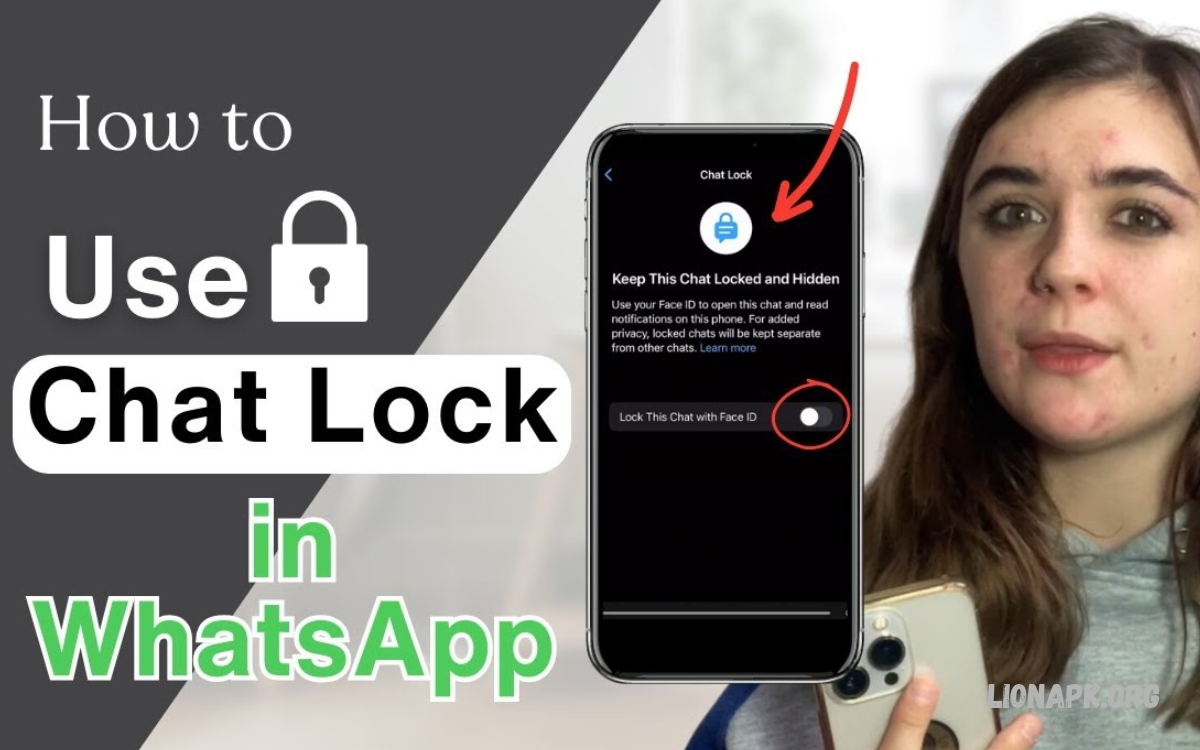
WhatsApp Chat Lock helps protect private conversations from unwanted access. This feature moves selected chats into a separate locked folder, adding an extra layer of privacy when someone opens WhatsApp on your phone.
Learning how to Use WhatsApp Chat Lock lets you keep personal conversations more secure without deleting messages or creating another account. You can lock individual chats, use supported device authentication, and manage private conversations directly within WhatsApp.
What Is WhatsApp Chat Lock?
WhatsApp Chat Lock is a privacy feature that protects selected conversations. When you lock a chat, WhatsApp moves it into a dedicated Locked Chats folder, which requires authentication to open.
This feature can help protect personal messages, family conversations, work discussions, and other sensitive chats. It doesn’t remove the conversation or block incoming messages; it just adds a layer of protection against someone casually browsing your WhatsApp inbox.
Why Use WhatsApp Chat Lock?
Privacy matters when you share your phone with family members, lend it to someone, or use it in public places. Chat Lock helps reduce the chance of another person opening a selected conversation while browsing your regular chat list.
The feature is also useful for keeping personal conversations separate from everyday messages. By combining Chat Lock with your phone’s screen lock and good account security, you can improve privacy without changing how you normally use WhatsApp.
How to Use WhatsApp Chat Lock on Android
Android users can lock supported WhatsApp conversations using the app’s built-in privacy settings. Depending on the phone and WhatsApp version, authentication may use a fingerprint, device passcode, or another supported screen-lock method.
Before starting, update WhatsApp through the Google Play Store and make sure your Android phone has a secure screen lock configured. This preparation helps WhatsApp use the authentication method supported by your device.
Lock a WhatsApp Chat on Android
Open WhatsApp on your Android phone and find the conversation you want to protect. Open the chat, tap the contact’s or group’s name to access its information screen, and look for the Chat Lock option.
Turn on Chat Lock and follow the instructions to confirm your identity. After authentication, WhatsApp moves the selected conversation into the Locked Chats folder, where it remains separate from your regular chat list.
Find Locked Chats on Android
After locking a conversation, return to the main WhatsApp chat screen. Depending on your version and settings, you can find the Locked Chats folder by scrolling through the chat list and opening it with your device authentication.
Authenticate when prompted to view the protected conversations. If the folder is not immediately visible, check whether you enabled a secret code to hide it or review WhatsApp’s current privacy settings.
How to Use WhatsApp Chat Lock on iPhone
iPhone users can also protect selected WhatsApp conversations through Chat Lock. Depending on the device and application version, authentication may use Face ID, Touch ID, or the supported device passcode.
Make sure WhatsApp is updated through the App Store and that your iPhone has an appropriate security method configured. Using a strong device passcode alongside biometric authentication provides additional protection for your personal information.
Lock a WhatsApp Chat on iPhone
Open WhatsApp on your iPhone and select the conversation you want to lock. Tap the contact’s or group’s name at the top of the conversation to open its information page.
Find the Chat Lock option, turn it on, and follow the authentication instructions displayed on the screen. Once the process is complete, the conversation moves into the Locked Chats folder and requires authentication for access.
Open Locked Chats on iPhone
Return to the main WhatsApp conversation list after locking a chat. Locate the Locked Chats folder and open it using the authentication method requested by your iPhone.
If the folder is hidden through a secret code, you may need to enter that code into WhatsApp’s search field to reveal it. The exact interface can vary with WhatsApp updates, so check the latest in-app instructions if the folder appears differently.
How to Set Up a Secret Code for WhatsApp Chat Lock
WhatsApp offers a secret-code option that can help users add another layer of privacy to locked conversations. When supported and enabled, the code can hide the Locked Chats folder from the regular conversation list.
Open the Locked Chats folder, enter its settings, and look for the secret-code feature. Follow the on-screen instructions to create a code that is different from easily guessed information, such as your birthday or a simple number pattern.
Hide the Locked Chats Folder
A secret code can help prevent the Locked Chats folder from appearing in the usual WhatsApp conversation list. This may be useful when you want to keep the existence of certain locked conversations less obvious to someone casually viewing your phone.
After setting up the code, follow WhatsApp’s instructions to hide the folder. To access hidden locked chats later, enter your secret code into the WhatsApp search field as directed by the application.
Choose a Strong Secret Code
Select a code that is difficult for other people to guess. Avoid using information that friends or family members could easily know, and do not reuse a code that protects another important account.
Keep your code somewhere secure if you are concerned about forgetting it. Before hiding the folder, make sure you understand WhatsApp’s recovery options and follow the instructions provided in the app.
How to Unlock a WhatsApp Chat
Unlocking a conversation restores it to the regular WhatsApp chat list. This can be useful when a conversation no longer needs additional privacy or when you want easier access to it.
Open the Locked Chats folder and authenticate to view the protected conversation. Select the relevant chat, open its contact or group information, and turn off Chat Lock by following the instructions shown by WhatsApp.
How to Change WhatsApp Chat Lock Settings
WhatsApp lets users manage locked conversations based on their privacy needs. Available options may include managing the secret code, hiding the Locked Chats folder, or adjusting related privacy settings.
Open WhatsApp and access the Locked Chats folder or the relevant privacy menu. Review the options on your device, then change only the settings you understand so you don’t accidentally make private conversations easier to access.
Does WhatsApp Chat Lock Hide Message Notifications?
Chat Lock is designed to protect the contents of selected conversations. Notifications for locked chats are handled differently from ordinary chats, and WhatsApp generally avoids showing message details in those notifications.
However, notification behavior can depend on your device, operating system, and current application version. Review your WhatsApp and phone notification settings if you want additional privacy on the lock screen or when alerts appear.
Read Also: How to Change WhatsApp Chat Wallpaper: On Android and iPhone
Can You Lock WhatsApp Group Chats?
WhatsApp Chat Lock can support individual and group conversations, allowing users to protect selected discussions. This is helpful when a group contains personal information, private family conversations, or work-related messages that should not be visible in the regular chat list.
Open the group conversation, tap the group name to view its information, and check for the Chat Lock option. If the option is available, enable it and complete the required authentication steps to move the group into the Locked Chats folder.
WhatsApp Chat Lock vs WhatsApp App Lock
WhatsApp Chat Lock and an app lock serve different purposes. Chat Lock protects selected conversations, while an app lock protects access to WhatsApp as a whole through supported authentication methods.
Using both features can provide an additional layer of privacy. Someone may be unable to open WhatsApp without authentication, while Chat Lock adds protection to particular conversations after the app has been opened.
Common WhatsApp Chat Lock Problems and Solutions
Sometimes the Chat Lock option may not appear or a user may have trouble accessing the Locked Chats folder. These issues can occur because of an outdated application, different interface settings, device compatibility, or a hidden folder.
Update WhatsApp, review the conversation information screen, and check the app’s privacy settings. If the problem continues, consult WhatsApp’s official Help Center for instructions that match your device and application version.
Chat Lock Option Not Showing
If you cannot find Chat Lock, update WhatsApp through the official app store. Then open the contact or group information screen and check whether the feature is available for that conversation.
The interface may differ between devices and application versions. If the option remains unavailable, check WhatsApp’s official documentation rather than installing unofficial applications that claim to add missing privacy features.
Unable to Open Locked Chats
If WhatsApp does not open the Locked Chats folder, verify that your device authentication is working correctly. Check Face ID, Touch ID, fingerprint authentication, or your screen-lock settings, depending on the method your phone supports.
If you use a secret code to hide the folder, enter it according to WhatsApp’s instructions. Avoid clearing application data or reinstalling WhatsApp without understanding the possible impact on your conversations and backups.
Forgot the WhatsApp Secret Code
Forgetting a secret code can make hidden locked chats difficult to access. Check the current WhatsApp settings and official help instructions for available recovery options before taking action.
Do not assume that deleting WhatsApp or clearing its data will safely recover access. Such actions can affect local information, so confirm that your chats are backed up and understand the consequences before making changes.
Tips for Keeping WhatsApp Chats Private
Chat Lock works best when combined with sensible privacy practices. Use a secure screen lock, keep WhatsApp updated, and avoid sharing authentication details or secret codes with other people.
Review notification previews and account privacy settings to decide what information appears on your screen. Also maintain appropriate backups and protect access to the Google or Apple account associated with your device.
Frequently Asked Questions
Is WhatsApp Chat Lock free?
Yes, WhatsApp Chat Lock is a built-in privacy feature available at no extra cost. Availability and specific options may depend on your WhatsApp version and device.
Can I lock WhatsApp chats without fingerprint authentication?
Supported authentication methods vary by device. Depending on your phone and WhatsApp version, you may be able to use Face ID, Touch ID, a fingerprint, or a supported device passcode.
Does Chat Lock delete messages?
No, Chat Lock does not normally delete the conversation. It moves the selected chat into a protected folder while allowing messages to continue arriving.
Can someone read my locked WhatsApp chats?
A person who cannot pass the required authentication should not be able to open the locked conversation through the normal interface. However, Chat Lock does not replace device security, so protect your phone and authentication details.
Can I lock chats on WhatsApp Web?
Chat Lock availability and behavior can vary across linked devices and WhatsApp versions. Check the current WhatsApp interface and official guidance to understand how locked conversations are handled on your specific device.
Will I receive messages from locked chats?
Yes, messages can continue arriving in locked conversations. Chat Lock protects access to the conversation, not sending messages.
Conclusion
Learning How to Use WhatsApp Chat Lock helps you protect selected conversations without deleting messages or changing your WhatsApp account. The feature is available on supported Android and iPhone devices and can use the authentication options provided by your phone.
For stronger privacy, combine Chat Lock with a secure screen lock, a carefully chosen secret code, and sensible notification settings. Keep WhatsApp updated and follow the official instructions for your device to manage locked conversations safely.
