

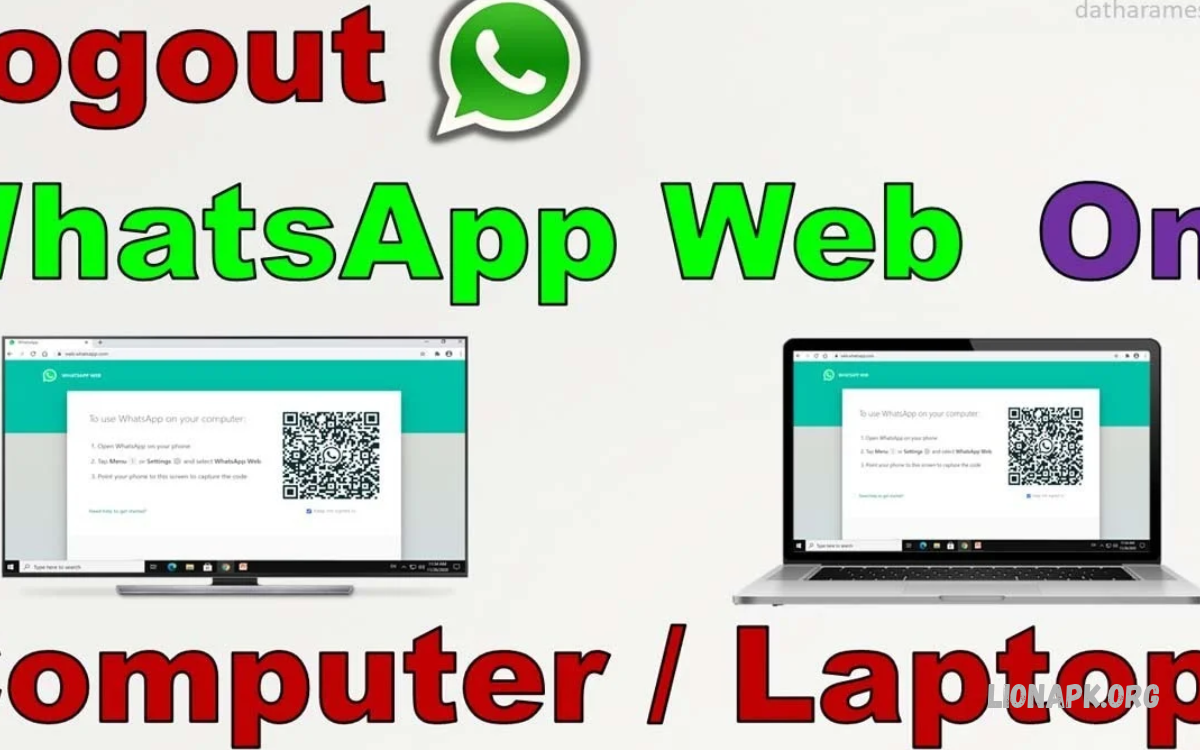
WhatsApp Web lets users access conversations, send messages, share files, and manage chats through a computer browser. However, leaving an account signed in on a shared or public computer can expose private messages to other people.
Learning How to Log Out of WhatsApp Web helps protect personal conversations and prevent unauthorized access. Whether you use a laptop, desktop, office computer, or mobile browser, logging out takes only a few simple steps.
What Is WhatsApp Web?
WhatsApp Web is a browser-based version of WhatsApp that connects your account to a computer. After linking a device, you can read messages, send replies, share documents, and communicate without constantly using your phone.
The feature is useful for work, study, and everyday communication. However, signing out after using a shared computer is important because an active session may allow other people to access your conversations.
Why Logging Out of WhatsApp Web Is Important
Logging out keeps private messages, contact details, shared photos, and documents away from unauthorized users. This is especially important when accessing WhatsApp through an office computer, school computer, library system, or another person’s laptop.
An active session can remain connected after you close a browser, depending on the device and session settings. Signing out manually provides a more reliable way to end access when you finish using WhatsApp Web.
How to Log Out of WhatsApp Web on a Computer
Logging out of WhatsApp Web is straightforward and doesn’t require uninstalling WhatsApp from your phone. You can end the current session directly from the browser interface.
Open WhatsApp Web in your browser and locate the menu or settings area. Select the logout option and confirm your choice if prompted; WhatsApp Web will then return to its linking or login screen.
How to Log Out of WhatsApp Web Using Your Phone
You can disconnect a computer from WhatsApp on your phone, even if you are no longer near it. This method is helpful if you used a shared device and forgot to log out before leaving.
Open WhatsApp on your phone and go to Linked Devices in Settings or the menu. Select the computer or browser session you want to disconnect, then tap Log Out to end its access to your account.
How to Log Out of WhatsApp Web on Android
Android users can manage connected computers directly from the WhatsApp application. This provides a convenient way to review linked sessions and remove devices that are no longer needed.
Open WhatsApp, tap the menu icon, and choose Linked Devices. Select the relevant browser or computer, tap Log Out, and confirm if requested to disconnect the session.
How to Log Out of WhatsApp Web on iPhone
iPhone users can also sign out of WhatsApp Web remotely through the official WhatsApp application. This is particularly useful when using a computer away from home or when another person may have access to the browser.
Open WhatsApp on your iPhone and tap Settings, then choose Linked Devices. Select the session you want to remove and tap Log Out to disconnect that computer from your account.
How to Log Out of WhatsApp Web From a Shared Computer
Shared computers require extra care because other people may use the same browser after you leave. Logging out helps prevent the next user from opening your active WhatsApp session and viewing private conversations.
Open WhatsApp Web and use its logout option before leaving the computer. If you have already left, use Linked Devices on your phone to disconnect the shared computer without returning to the location.
How to Log Out of WhatsApp Web Remotely
Remote logout allows you to end a WhatsApp Web session without physical access to the connected computer. It is useful when you forget to sign out at work, school, a friend’s house, or a public computer facility.
Open WhatsApp on your primary phone and review the devices listed under Linked Devices. Choose the session you do not recognize or no longer use, then select Log Out to remove its access.
How to Check Active WhatsApp Web Sessions
Reviewing linked devices helps you understand where your WhatsApp account is currently connected. The device list may show the browser or device type and other available session information.
Open Linked Devices in WhatsApp and examine the listed sessions carefully. If you notice an unfamiliar computer, an unexpected browser, or a session you no longer need, log it out and review your account security.
What Happens After Logging Out of WhatsApp Web?
After you log out, the disconnected browser can no longer use that linked WhatsApp session. Anyone attempting to access WhatsApp Web from that browser will generally need to link the account again.
Logging out does not delete your WhatsApp account or erase conversations stored on your phone. It simply ends access through the selected linked device, allowing you to continue using WhatsApp normally on your primary device.
Read Also: How to Change WhatsApp Ringtone on Android and iPhone
How to Fix WhatsApp Web Logout Problems
Sometimes the logout option may not appear immediately because of browser issues, an outdated page, or a temporary connection problem. Refreshing the page or reopening WhatsApp Web may help restore the available controls.
If you cannot access the computer, use the Linked Devices feature on your phone instead. Check your internet connection and update WhatsApp if necessary; if the problem continues, consult the official WhatsApp Help Center for current troubleshooting guidance.
How to Protect Your WhatsApp Account After Logging Out
Logging out is an important security step, but additional precautions can help protect your conversations. Keep your phone locked, avoid sharing verification codes, and use only trusted computers when accessing WhatsApp Web.
Enable available account security features, including two-step verification, and regularly review linked devices. If you suspect someone has accessed your account without permission, remove unfamiliar sessions and follow WhatsApp’s official account-security guidance.
Common Mistakes to Avoid When Logging Out
Closing a browser tab is not always the same as signing out of WhatsApp Web. Depending on the browser and session settings, your account may remain linked even after the page is closed.
Another common mistake is forgetting to check linked devices after using a shared computer. Make it a habit to log out directly and review your active sessions whenever you use WhatsApp on an unfamiliar device.
Frequently Asked Questions
Can I Log Out of WhatsApp Web Without My Computer?
Yes, you can disconnect a linked computer through WhatsApp on your phone. Open Linked Devices, select the relevant session, and tap Log Out to end access remotely.
Does Logging Out of WhatsApp Web Delete My Messages?
No, logging out does not delete conversations from your WhatsApp account. Your messages remain available on your phone, subject to your normal chat history and backup settings.
Will WhatsApp Web Log Out Automatically?
WhatsApp may log out a linked device after certain periods of inactivity or under specific session conditions. However, you should manually log out whenever you finish using a shared or public computer.
Can I Log Out of One Device Without Logging Out of Others?
Yes, you can select an individual linked device and log out of that session. Other linked devices generally remain connected unless you disconnect them separately or a security event affects the account.
How Can I tell if someone is using my WhatsApp Web?
Open Linked Devices and review the connected sessions. If a device or browser looks unfamiliar, log it out immediately and review your account security settings.
Is WhatsApp Web Safe to Use on Public Computers?
WhatsApp Web can be convenient, but public computers carry additional privacy risks. Avoid saving login details, log out before leaving, and use your phone to disconnect the session if you forget.
Conclusion
Learning how to Log Out of WhatsApp Web helps protect private conversations and keep your account secure. You can sign out directly in a browser or remotely disconnect an active session using the Linked Devices feature on Android or iPhone.
Make logging out part of your routine whenever you use a shared or unfamiliar computer. Regularly review linked devices, protect verification codes, and enable account security features to help keep your WhatsApp conversations private.
