

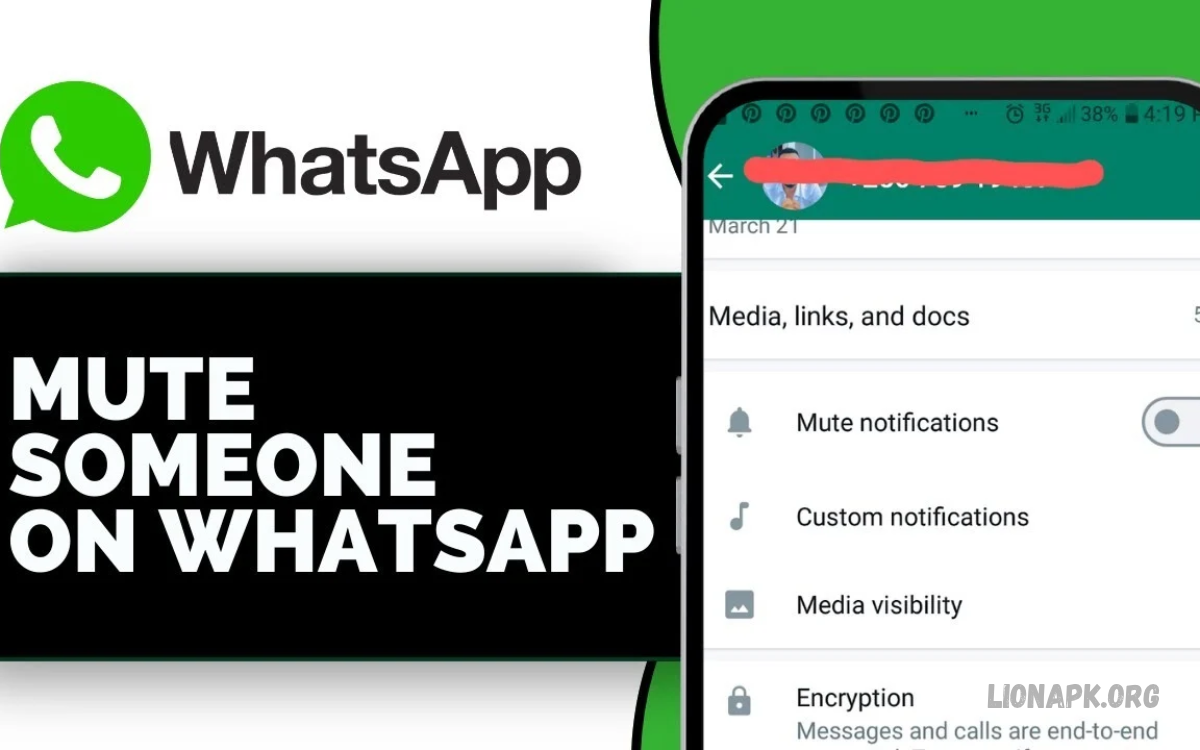
WhatsApp helps people stay connected through messages, voice calls, video calls, and group conversations. However, constant notifications can interrupt work, study, sleep, or personal time. Muting a conversation offers a simple way to reduce distractions without blocking contacts or leaving groups.
Learning how to Mute Someone on WhatsApp helps you manage notifications while keeping conversations available whenever you need them. You can mute individual contacts, group chats, and unwanted message alerts through WhatsApp settings on Android and iPhone.
What Does Muting Someone on WhatsApp Mean?
Muting someone on WhatsApp stops notifications from a selected conversation for a chosen period. Messages can still arrive in your inbox, and you can open the conversation whenever you want. The other person can continue sending messages without receiving a notification that you muted them.
This feature helps you maintain privacy and manage your attention without ending a conversation. Unlike blocking, muting does not prevent messages from arriving. It simply reduces notification interruptions, making WhatsApp easier to manage throughout the day.
How to Mute Someone on WhatsApp on Android
Android users can mute individual conversations directly from the WhatsApp chat list. This method is useful when a contact sends frequent messages and you prefer fewer notifications without deleting the conversation or changing other account settings.
Open WhatsApp on your Android phone and locate the contact you want to mute. Press and hold the conversation, tap the mute icon, and select your preferred duration from the available options. Confirm your selection to silence notifications from that chat.
How to Mute Someone on WhatsApp on iPhone
iPhone users can mute conversations through the WhatsApp chat list or individual chat settings. The process takes only a few moments and allows you to silence notifications while keeping the contact available for future messages.
Open WhatsApp and find the conversation you want to mute. Swipe left on the chat, tap More if displayed, and select Mute. Choose the available duration and confirm your selection. You can still open the conversation and read messages whenever convenient.
How to Mute Someone on WhatsApp Without Blocking Them
Muting provides a practical alternative to blocking when you want fewer interruptions but still need to communicate with someone. It keeps the conversation active and allows messages to arrive without producing the usual chat notifications.
Open the person’s conversation, tap their name or chat information, and locate the notification or mute option. Select the available mute duration and confirm the change. The contact can continue messaging you, and you can reply whenever you choose.
How to Mute WhatsApp Group Chats
Group chats can generate frequent notifications when many members share messages, photographs, videos, and voice notes. Muting a group helps reduce interruptions while allowing you to remain a member and check important updates when you have time.
Open WhatsApp and locate the group conversation you want to silence. On Android, press and hold the group chat and select the mute icon. On iPhone, swipe left or open the group information to find the mute option. Choose the duration offered by your version of WhatsApp.
How to Mute WhatsApp Notifications for a Specific Duration
WhatsApp offers mute-duration options that allow you to control how long notifications remain silent. Depending on your application version, you may see options such as a short period, one week, or an extended period such as always.
Open the conversation, select the mute option, and review the available durations. Choose the period that matches your needs and confirm the setting. If your version displays different options, follow the choices shown on your screen.
How to Mute Someone on WhatsApp From Chat Information
The chat information screen provides another way to manage notifications for an individual contact. This option is helpful when you already have the conversation open and want to adjust its settings without returning to the main chat list.
Open the contact’s conversation and tap their name at the top of the screen. Look for the mute notifications option, select your preferred duration, and confirm the change. You can revisit the same screen later to review available notification settings.
How to Mute WhatsApp Calls From Someone
Muting a chat does not necessarily silence every WhatsApp call from that person. Chat-message notifications and incoming-call alerts can use different settings, so you may need to adjust your phone or WhatsApp call preferences separately.
Review WhatsApp’s privacy and notification settings to see which call controls are available on your device. You can also use your phone’s notification controls where supported. Remember that muting a conversation alone should not be treated as a guarantee that all calls will remain silent.
How to Mute WhatsApp Status Updates
WhatsApp Status lets contacts share photos, videos, and text updates that disappear after a limited period. If a particular person’s updates appear frequently, muting their Status can make the Updates section easier to manage without blocking the contact.
Open WhatsApp and visit the Updates tab. Find the person’s Status update, open its menu, and select the mute option if available. Confirm your choice. Muted Status updates are moved to a separate muted section, although the exact layout may vary by application version.
How to Unmute Someone on WhatsApp
You can reverse a mute setting whenever you want to receive notifications from a conversation again. Unmuting does not delete messages or restore notifications for messages that arrived while the conversation was muted.
Find the muted conversation in your WhatsApp chat list and open its menu or information screen. Select the unmute option if displayed. After unmuting, new message notifications should follow your normal settings, provided your phone and WhatsApp notification permissions are enabled.
Read Also: How to Make a WhatsApp Video Call: A Complete Step-by-Step Guide
How to Know If Someone Has Muted You on WhatsApp
WhatsApp typically doesn’t notify users when someone mutes their conversation. This privacy feature means you generally cannot determine whether someone has muted you by looking at their profile or chat information.
Changes in reply speed, online activity, or message-reading habits do not reliably prove that a person has muted you. They may be busy, have notifications disabled, or simply choose to respond later. Respecting other people’s notification preferences helps maintain healthy communication.
Difference Between Muting and Blocking on WhatsApp
Muting and blocking serve different purposes. Muting silences notifications from a selected conversation while allowing messages to arrive. Blocking restricts direct communication from the blocked contact through WhatsApp, subject to the application’s behavior and available features.
Choose muting when you want fewer interruptions but still want access to the conversation. Blocking may be more suitable when you do not want a particular contact to reach you through WhatsApp. Review your privacy settings before deciding which option best matches your situation.
Benefits of Muting Someone on WhatsApp
Muting conversations can help you concentrate on important tasks without repeatedly checking every incoming message. It is especially useful for busy group chats, promotional conversations, and contacts who send frequent updates throughout the day.
Another benefit is flexibility. You can silence notifications temporarily, keep the conversation available, and unmute it whenever your needs change. This gives you greater control over your attention without requiring you to delete messages or leave a group.
Common Problems When Muting Someone on WhatsApp
Sometimes notifications continue even after a conversation has been muted. This may happen because the wrong chat was selected, the mute setting was not confirmed, or another notification type remains enabled. Application updates can also change the location or appearance of settings.
Open the conversation again and verify its mute status. If alerts continue, check your phone’s notification settings, WhatsApp permissions, and any separate call or group notification options. Updating WhatsApp may also help resolve unexpected behavior.
Tips for Managing WhatsApp Notifications
Managing notifications effectively can make WhatsApp less distracting without causing you to miss important conversations. Review your chats regularly and decide which contacts or groups need immediate alerts and which ones can remain silent.
Use mute settings for busy groups, check important messages at convenient times, and keep essential contacts easy to find. You can also adjust phone-level notification settings, notification previews, and Do Not Disturb features to create a notification setup that suits your daily routine.
Frequently Asked Questions
Can someone know if I mute them on WhatsApp?
No direct notification is sent when you mute someone. The contact can still message you, and WhatsApp doesn’t normally show a status telling them their conversation has been muted.
Can I mute someone on WhatsApp permanently?
You can choose the longest or ongoing mute duration offered by your version of WhatsApp. The exact wording and available options may differ between Android, iPhone, and application versions.
Will I still receive messages from a muted contact?
Yes. Muting affects notifications rather than message delivery. Messages still arrive in the conversation, and you can open the chat to read and reply whenever you want.
Does muting someone hide their WhatsApp messages?
No. Muting does not automatically hide, archive, or delete a conversation. If you want to keep the chat separate, you can use WhatsApp’s archive feature where available.
Can I mute WhatsApp group notifications without leaving the group?
Yes. You can mute a group and remain a member. Messages still arrive, but notifications are silenced based on your mute setting and any other notification controls you have enabled.
Does muting someone also mute their WhatsApp calls?
Not necessarily. Muting a chat primarily controls message notifications. Incoming calls may use separate notification settings, so check your device and WhatsApp controls if you want to manage call alerts.
Can I unmute someone at any time?
Yes. Open the muted conversation and select the unmute option if available. You can change this setting whenever you want, without deleting the chat or notifying the other person.
Conclusion
Learning how to Mute Someone on WhatsApp helps you control notifications and reduce unnecessary interruptions on Android and iPhone. You can mute individual contacts, group conversations, and Status updates while keeping access to messages and important information.
The process is simple, flexible, and reversible. Choose a mute duration, check your notification settings as needed, and unmute conversations whenever you want normal alerts again.
